
| TL;DR To block personal accounts in Copilot, configure Microsoft Entra tenant restrictions and enforce them on the relevant network or device path. Intune can deliver the Windows policy, but deployment success alone does not prove coverage across every browser and app. Keep access to approved work accounts available and test personal accounts, external tenants and alternative connection paths. Record the supported scope, exceptions and ongoing owner so the control remains effective after deployment. |
Understand the Copilot account experience
Microsoft’s current Copilot app overview describes one client for personal and work or school experiences across web, desktop and mobile. A Work label and the account switcher help identify the active account. Microsoft states that data entered in one account experience does not flow into the other.
That separation does not answer your organisation’s policy question: should an employee be able to choose a personal account on a managed device at all? Start with that decision. A familiar app icon is a poor acceptance criterion when the account behind it can change.
Inventory the installed app name, package, version and sign in experience. Microsoft documentation still contains older descriptions of separate consumer and business clients during the naming transition. Record what is actually deployed before applying instructions written for an earlier app. The current overview explicitly identifies Tenant Restrictions as the control for limiting personal Microsoft account access.
Choose the enforcement design
Treat this as a small access architecture project. The identity team defines acceptable accounts, the endpoint team delivers device settings, and the network team confirms which routes carry the policy. One owner should collect the results and decide whether the pilot can expand.
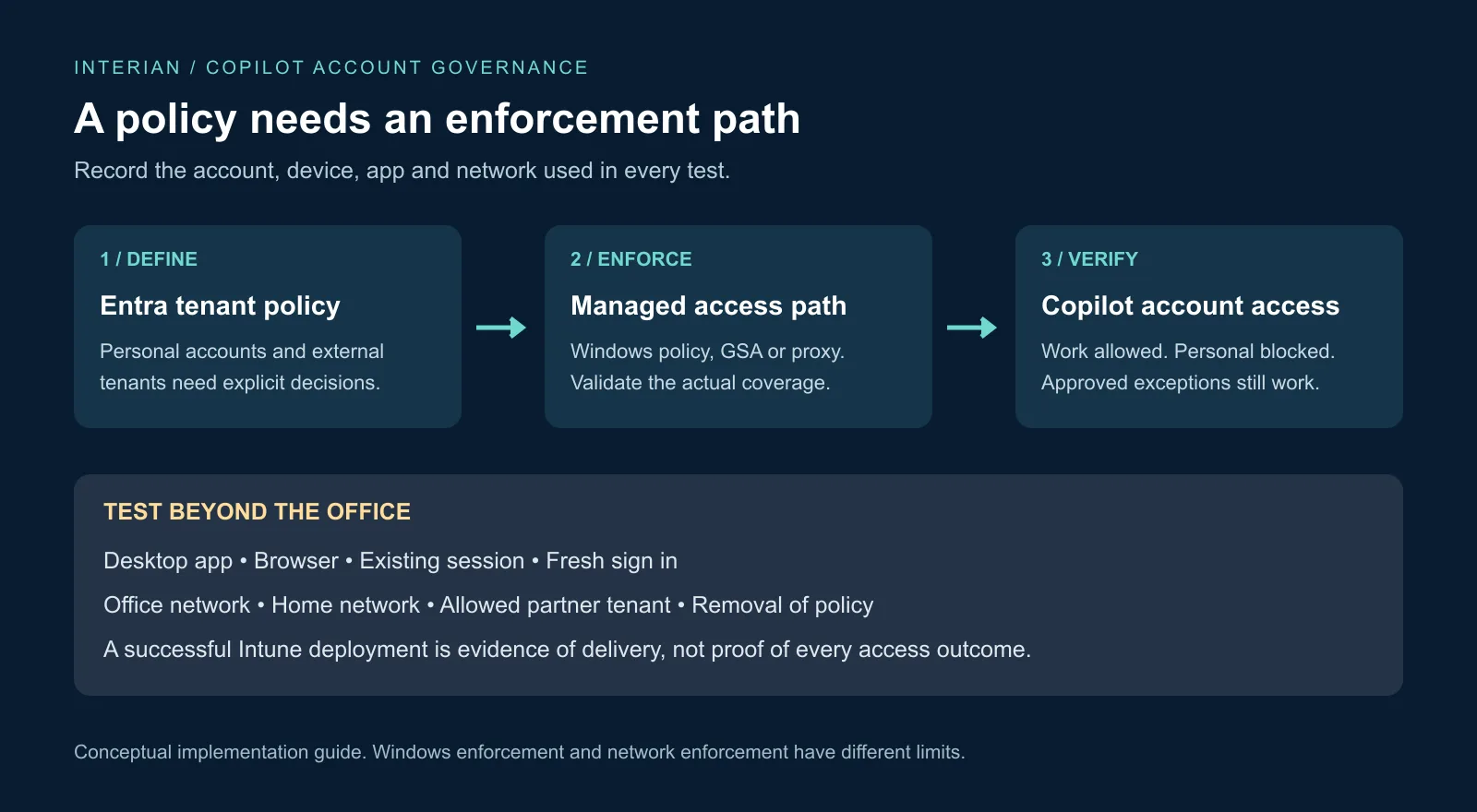
Write a short decision record before implementation. It should name the managed devices, permitted Copilot experience, approved partner accounts, test networks, responsible teams and recovery owner. This avoids a common operational problem: a policy works in the office, but nobody has checked the same laptop away from the corporate network.
Configure the Entra policy
The Tenant Restrictions v2 guide requires Entra ID P1 or P2 and the appropriate administrator role. In Entra ID > External Identities > Cross-tenant access settings, open Tenant restrictions under Default settings. Create the policy if needed and record its Tenant ID and Policy ID.
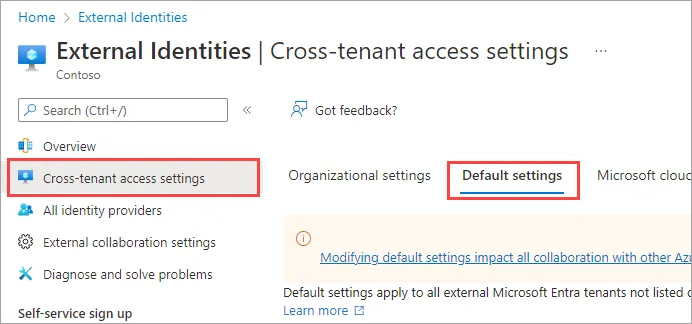
Configure external users and applications consistently. For personal Microsoft accounts, the documented tenant ID is 9188040d-6c67-4c5b-b112-36a304b66dad. Review its organisation entry and any inherited or customised exceptions. Microsoft accounts support application granularity, but not individual user scoping. Approved external tenants require deliberate exceptions.
Tenant restrictions govern external identities using external services. B2B inbound and outbound settings are separate. The cloud policy also needs enforcement signalling. Windows enforcement remains a partial preview solution and does not cover Chrome, Firefox or the .NET stack. Follow Microsoft’s current guide when selecting the enforcement route.
Deliver Windows settings with Intune
For a settings catalogue deployment, start in Devices > Manage devices > Configuration > Create > New policy. Select Windows 10 and later and Settings catalog. Use a descriptive name such as Windows tenant restrictions pilot. Microsoft’s settings catalogue walkthrough explains the profile and assignment workflow.
Search the catalogue for Tenant Restrictions and Cloud Policy Details. Confirm the available setting against the current Windows reference before configuring it. Use your organisation’s recorded directory and policy identifiers, not the sample values shown in documentation. Assign the profile to a small device group and inspect the deployment results before expanding it.
The TenantRestrictions CSP documents ./Device/Vendor/MSFT/Policy/Config/TenantRestrictions/ConfigureTenantRestrictions. It is a device setting available on supported Windows editions, including Pro, Enterprise and Education. It uses an ADMX backed string payload. A custom MDM profile therefore needs the documented SyncML structure; a bare tenant GUID is not a complete payload. If the catalogue does not expose the required fields, validate the supported custom configuration in a lab before deploying it.
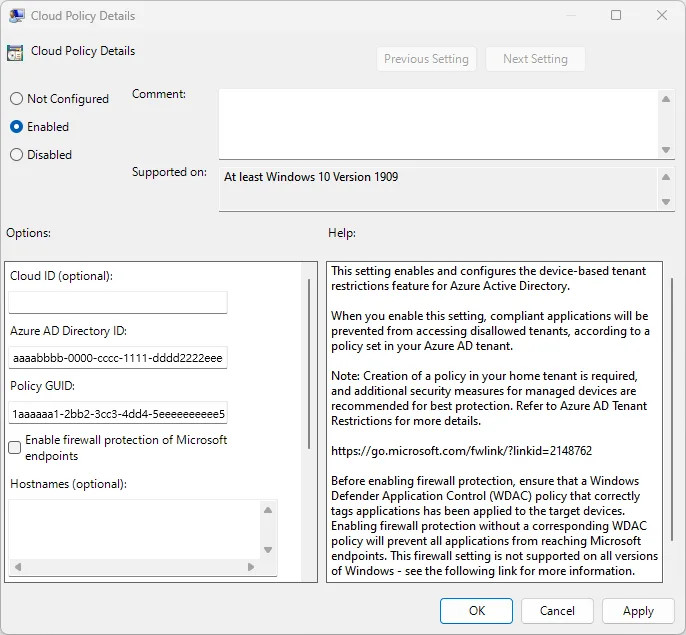
Keep the firewall protection option out of the initial profile unless the corresponding App Control design has been prepared and tested. Microsoft’s CSP warning is specific: enabling that option without the required App Control policy can stop all applications reaching Microsoft endpoints. Treat that extension as a separate implementation with its own recovery test.
Cover network and browser routes
Universal Tenant Restrictions uses Global Secure Access clients or remote networks to apply the policy. Microsoft requires the relevant licence, administrator roles and Microsoft traffic profile, with Entra service traffic configured to Tunnel. After preparing the tenant policy and connectivity, the documented control is under Global Secure Access > Settings > Session Management.
This is an alternative enforcement architecture, not an Intune checkbox that automatically protects every connection. Confirm that the relevant authentication traffic follows the expected route. For a laptop pilot, include a home network test with the actual client configuration. If the organisation already uses a corporate proxy, involve its owner in the equivalent signalling design before adding another traffic path.
Use an explicit coverage table in the change record. For each device and browser combination, record the enforcement component, its configuration owner and the observed result. Mark anything untested as untested. Avoid turning an assumption about traffic routing into a statement that personal access has been blocked everywhere.
Test personal and foreign accounts
Use dedicated test identities and harmless content. The purpose is to establish account behaviour, so there is no need to paste customer information into a personal AI session. Record the account type, app version, device, network, time and visible result for each case.
- Company account: open the approved Copilot experience and complete an ordinary work prompt. Confirm the expected organisational identity is active.
- Personal account: attempt a fresh sign in and use the account switcher from an existing session. Record whether access is blocked and the message shown.
- Unapproved external tenant: test the external identity independently from the personal account. Do not assume the two cases are identical.
- Approved partner: confirm the exception permits the intended app without opening unrelated access.
- Alternative route: repeat through the desktop app and each browser in scope, at the office and on a home network.
- Recovery: remove the pilot assignment or reverse the approved change, then verify that the device returns to the expected state.
If the result differs from the design, inspect policy delivery and traffic coverage before broadening the scope. Check that the identifiers belong to the intended policy and that an existing exception is not responsible for the result. Keep screenshots of the relevant settings and user outcome together with the test record.
Keep other Copilot controls separate
Microsoft’s multiple account access policy addresses another scenario: using Copilot entitlement from an outside account on work documents in supported Microsoft 365 apps. The Cloud Policy setting controls that entitlement behaviour. It is not a general account switcher block for the Copilot client. Microsoft also states that file data protection follows the identity used to access the file.
Keep the business requirement precise when deciding which control to use. Preventing personal sign in, restricting an outside subscription and protecting work content are related decisions, but each needs its own acceptance test. A green result for one does not automatically establish the others.
For the broader operating model, see AI Governance in Microsoft 365: A Practical Operating Model. This article focuses on account access and the evidence needed to validate it.
Roll out with a recovery plan
Interian’s recommended starting point is a small group that represents normal working patterns: an office user, a remote user and someone who needs an approved partner account. Ask the service desk to review the block message and the employee guidance before the change reaches a wider population.
Package the finished pilot as a reviewable record: policy settings, assignment scope, exception list, screenshots, test results and the named person who can reverse the change. Agree what happens when a partner exception expires and who reviews it. Keep the approved route easy to find so users understand how to continue their work.
For organisations planning a Copilot rollout, this account access check is a useful first workshop with identity, endpoint and network owners. It produces a concrete set of changes and exposes gaps that a generic “Copilot enabled” status cannot show.
Frequently asked questions
Does a successful Intune profile prove that personal Copilot access is blocked?
No. Confirm the result in the actual app and access routes included in your deployment.
Should we change production settings before testing?
Use a controlled pilot and representative accounts first. Keep the change narrow enough that its effect and recovery can be demonstrated.
Can we use this as the whole AI governance programme?
Account access is one control. Ownership, permitted use, content protection, exceptions and review still need an operating process.
Further Reading
- AI Governance in Microsoft 365: A Practical Operating Model
- Comprehensive Guide to Setting Up Microsoft Entra Global Secure Access (GSA) with Internet Access, Licensing, and Key Differences with SSE
- Designing an Enterprise AI Data Protection Architecture for Microsoft 365
- Microsoft Learn: Microsoft Copilot app
- Microsoft Learn: Set up tenant restrictions v2