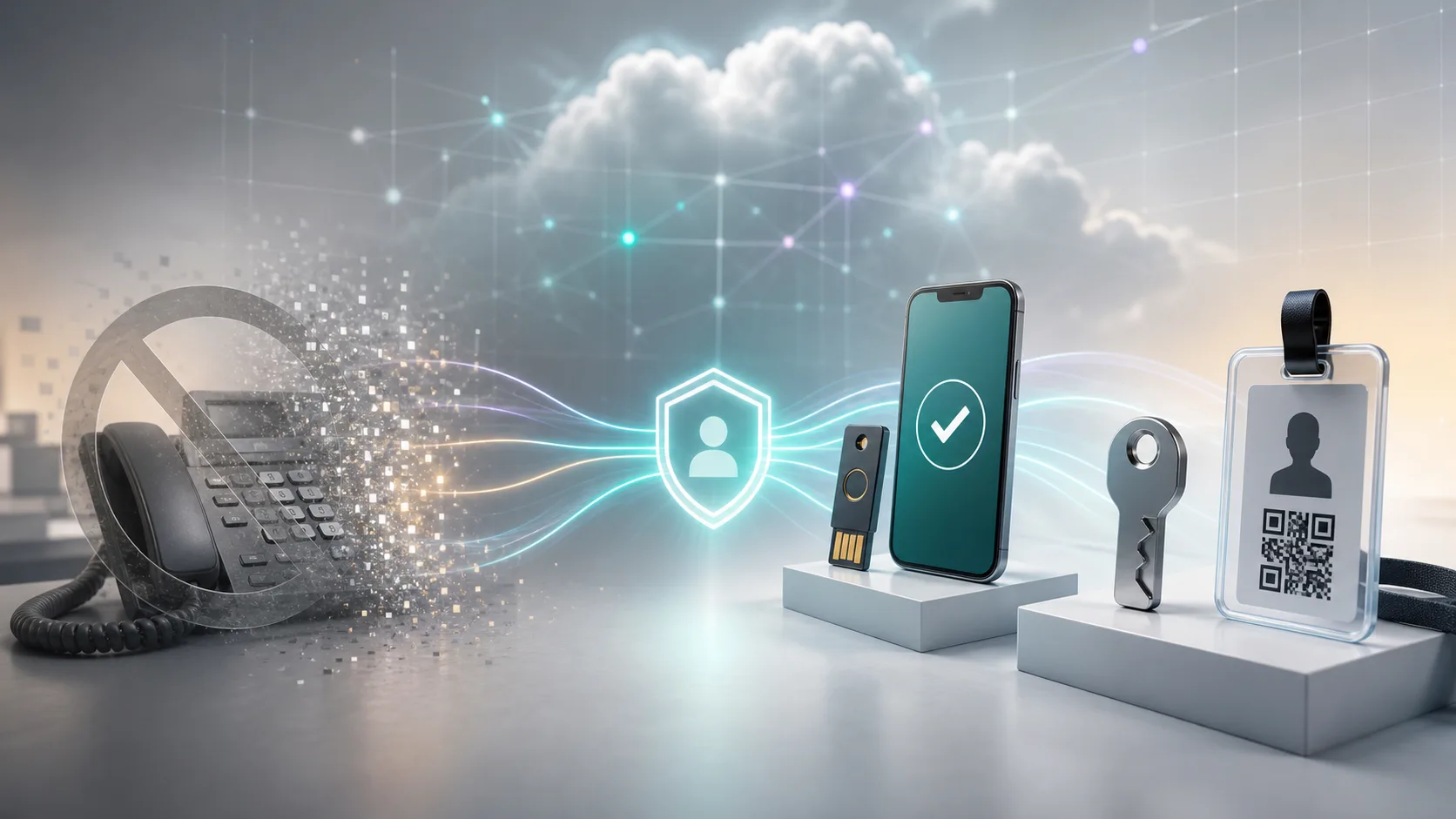
SMS and voice calls have been useful MFA methods for years. They are familiar, simple and easy to explain to users. They are also among the weakest ways to prove identity.
| TL;DR Microsoft Entra SMS and voice MFA retirement should not be treated as a simple one for one replacement. Move most users to passkeys or Windows Hello for Business, protect administrators with phishing resistant methods, use QR code authentication only for well scoped frontline shared mobile device scenarios, and use Temporary Access Pass for onboarding and recovery. |
What Is Changing?
That is why Microsoft is changing direction in Microsoft Entra ID.
Microsoft is retiring Microsoft provided telecom delivery for SMS and voice authentication in Microsoft Entra ID.
There are several key dates to plan around.
| Date | Change | What it means |
|---|---|---|
| 1 September 2026 | Passkeys become the default authentication experience for users enabled for SMS or voice | Users can be prompted to register a passkey during MFA sign in, and the registration campaign can be set to Microsoft Managed |
| 18 September 2026 | Microsoft shares more information about supported telecom providers | Organisations that still need SMS or voice can start reviewing provider options, pricing and terms |
| 30 October 2026 | Admins can select and configure a supported telecom provider through the Microsoft Security Store | This is the transition path for justified SMS or voice exceptions |
| 1 February 2027 | Microsoft provided SMS and voice delivery is retired in Microsoft Entra ID | Users who only have SMS or voice may be blocked until they register a passkey, unless a customer managed telecom provider is configured |
The September prompt is not the same as the February enforcement. Users can be nudged to register passkeys before the final retirement date. After retirement, users who still rely on Microsoft provided SMS or voice need either a supported telecom provider path or a stronger registered method.
This does not mean every user should move to the same method. For most office users, the answer is passkeys, Windows Hello for Business or another strong passwordless method. For administrators, the answer should be phishing resistant authentication. For frontline workers on shared mobile devices, QR code authentication can be a practical option. For onboarding and recovery, Temporary Access Pass is often the missing piece.
The real work is not replacing one button with another. It is matching the right authentication method to the right scenario.
Why SMS and Voice Are No Longer Good Enough
SMS and voice MFA are better than passwords alone, but they are still phishable.
Attackers can trick a user into reading out a code. They can proxy a sign in session and capture the MFA response. They can exploit weak mobile account controls. They can also pressure users through repeated calls or convincing helpdesk stories.
Modern identity security needs stronger proof. A good replacement should reduce phishing risk, work on the devices users actually have, and be manageable by IT without creating a new support burden.
The Best Replacement Depends on the User
There is no single replacement for SMS and voice MFA. Use scenarios first. Then choose the method.
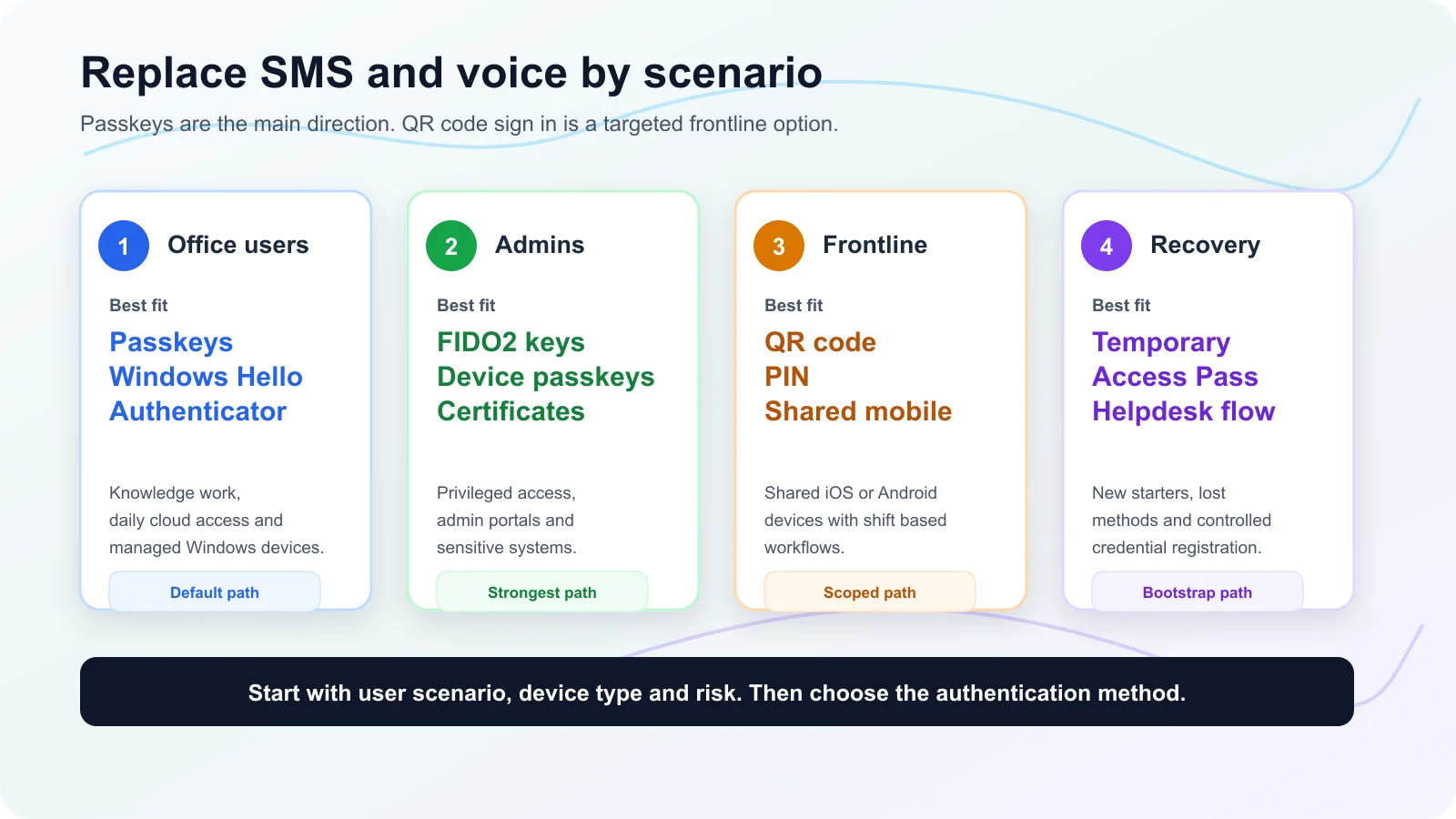
| Scenario | Recommended direction | Why it fits |
|---|---|---|
| Office workers | Passkeys, Windows Hello for Business, Microsoft Authenticator passwordless | Stronger sign in with less typing and fewer prompts |
| Administrators and privileged users | FIDO2 security keys, passkeys with strict policy, certificate based authentication where needed | Strong protection for high risk accounts |
| Frontline workers on shared mobile devices | QR code authentication with PIN, scoped Conditional Access and shared device mode | Fast sign in without long usernames and passwords |
| New starters and recovery | Temporary Access Pass | Time limited bootstrap method for registering stronger credentials |
| Exceptional SMS or voice needs | Customer managed telecom provider, only where justified | A transition route, not the preferred end state |
Passkeys are the main direction, but QR code sign in has a specific and useful place.
Passwordless Versus QR Code Login
The wording can be confusing. QR code login feels passwordless because the user does not type a password. Microsoft Authenticator can also use QR codes during setup. These are not the same thing.
Passwordless authentication means the password is no longer used for sign in. In Microsoft Entra, strong passwordless options include passkeys, FIDO2 security keys, Windows Hello for Business and Microsoft Authenticator passwordless sign in. Passkeys use public key cryptography and are designed to resist phishing.
QR code authentication in Microsoft Entra is different. The user scans a unique QR code and enters a numeric PIN. Microsoft describes QR code authentication as a single factor method. The QR code identifies the user. The PIN is the credential.
A QR code used to register Microsoft Authenticator or a passkey is usually an onboarding step. It is not the same as daily QR code sign in with a badge and PIN.
| Question | Answer |
|---|---|
| Is a passkey passwordless? | Yes |
| Is Microsoft Authenticator passwordless phone sign in passwordless? | Yes |
| Is scanning a QR code during Authenticator setup the same as QR code authentication? | No |
| Is Entra QR code authentication phishing resistant MFA? | No |
| Is Entra QR code authentication useful for frontline shared mobile devices? | Yes, when tightly scoped |
Where QR Code Authentication Fits
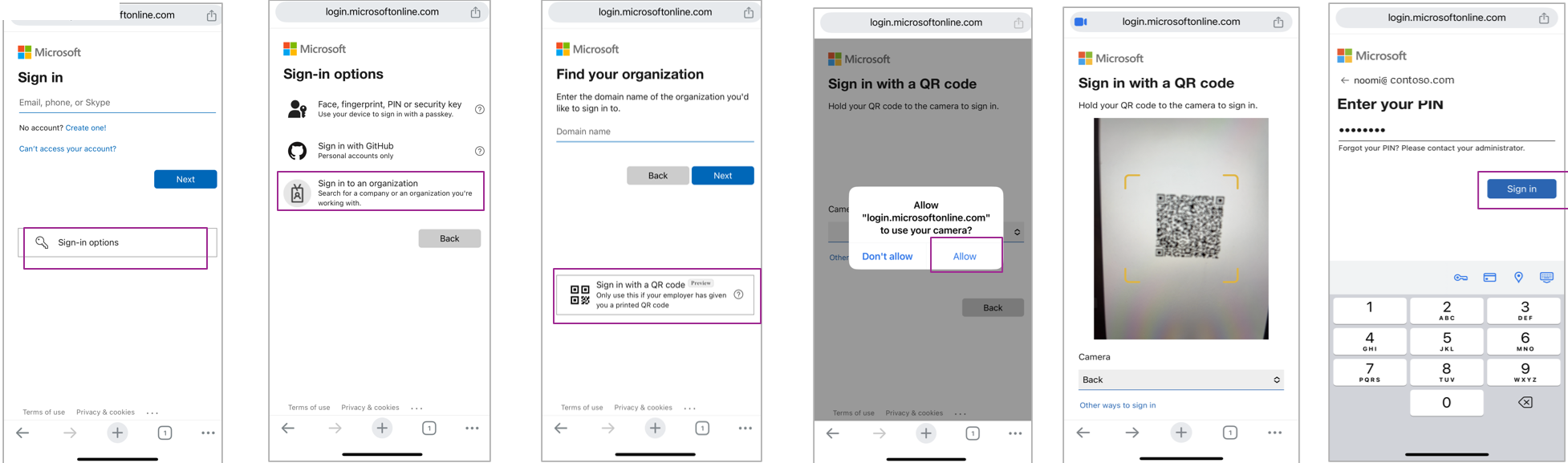
QR code authentication is primarily designed for frontline workers who use shared mobile devices.
Think of a retail employee, warehouse worker, nurse, production operator or temporary worker who signs in to Teams, Managed Home Screen or a mobile app during a shift. Typing a long username and password on a shared device is slow. It is also error prone.
With QR code authentication, the user scans a printed QR code, often on a badge, and enters a PIN. The sign in flow is faster and easier.
That convenience comes with trade offs. Microsoft positions QR code authentication as a single factor method. It is supported only on mobile devices running iOS, iPadOS or Android. It does not work with desktop apps or desktop browsers. It should not be designed as a Windows sign in method, nor as the main answer for Azure Virtual Desktop or Windows 365.
For Windows, AVD and Windows 365 scenarios, evaluate passkeys, FIDO2, Windows Hello for Business or certificate based authentication against the client, target platform and remote desktop client. Microsoft has separate guidance for remote desktop passwordless scenarios, and the support matrix matters.
The Hidden Operational Trap
QR code authentication sounds simple. In practice, the risk is often the lifecycle.
The end user does not normally create their own QR code. An administrator, or a delegated frontline manager through My Staff, creates the QR code and PIN for the user. The QR code has an activation date and an expiry date.
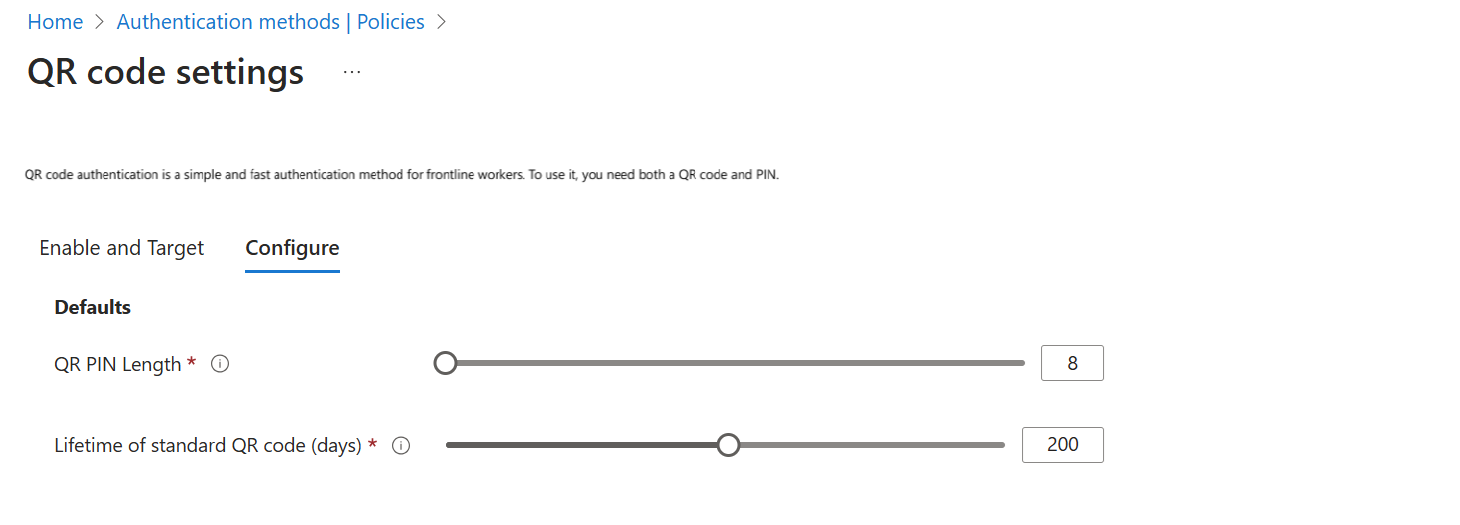
A standard QR code has a configurable lifetime from 1 to 395 days. The default is 365 days. A temporary QR code can be used when someone forgets their badge, with a lifetime of 1 to 12 hours.
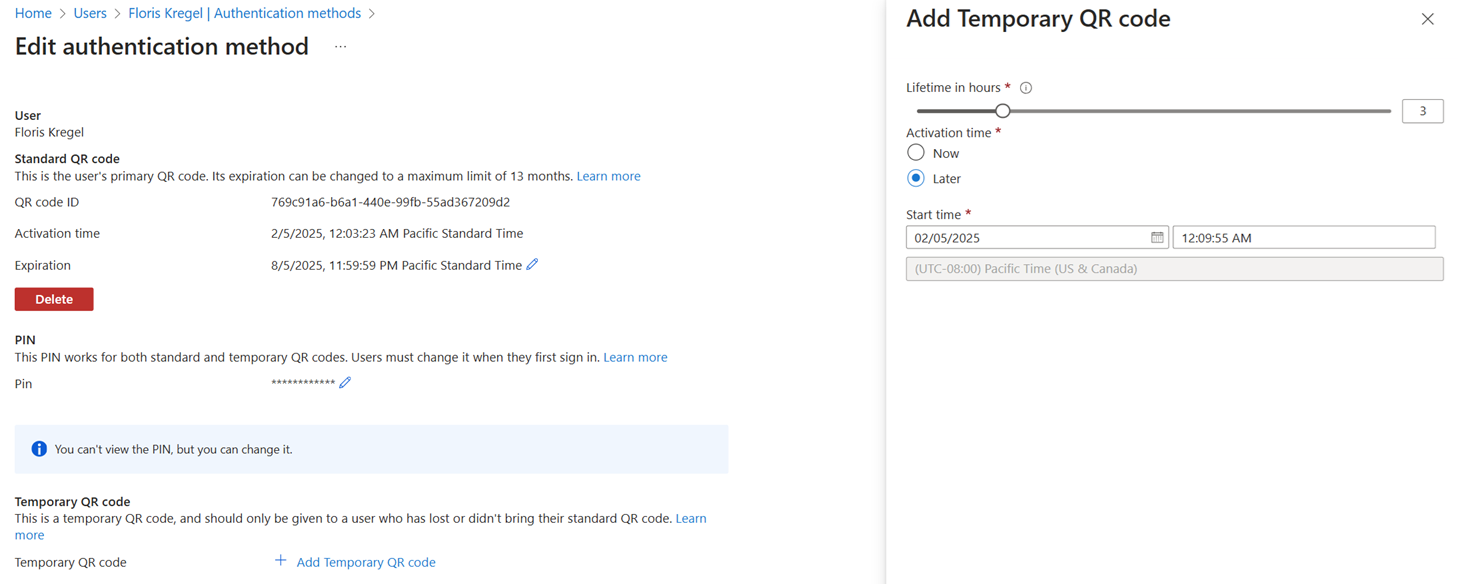
That means every QR badge has to be managed. You need a process for printing, secure PIN handover, expiry monitoring, lost badges, leavers, temporary workers and emergency replacement. Without that process, the friction does not disappear. It moves from the user to IT, the helpdesk and frontline managers.
Licensing and Prerequisites for QR Code Authentication
Each user enabled in the QR code authentication method policy must be licensed, even if they do not use the method.
| Eligible licence family | Examples |
|---|---|
| Frontline Microsoft 365 | Microsoft 365 F1 or F3 |
| Frontline Office 365 | Office 365 F3 |
| Microsoft Entra ID | Microsoft Entra ID P1 or P2 |
| EMS and enterprise Microsoft 365 | EMS E3 or E5, Microsoft 365 E3 or E5 |
You also need Android, iOS or iPadOS shared devices. Shared device mode is optional, but Microsoft strongly recommends it. Teams and Managed Home Screen have an optimised QR code experience when configured through Intune or another mobile device management solution.
Do not enable QR code authentication for everyone in the tenant. Target a group that really needs it, such as frontline workers using shared mobile devices.
How to Automate QR Code Authentication
QR code authentication can be automated with Microsoft Graph.
At policy level, administrators can enable QR code authentication for a target group and configure settings such as PIN length and standard QR code lifetime.
At user level, Microsoft Graph can create the QR code PIN authentication method for a user. The request includes the standard QR code start time, expiry time and initial PIN. The response can include the QR code image details.
That makes automation possible, but the process still needs careful design.
- Use a frontline worker group as the source of truth.
- Enable QR code authentication only for that group.
- Create QR code methods for new eligible users.
- Store generated output only in a secure, short lived process.
- Send the QR image to a badge printing workflow.
- Deliver the temporary PIN through an approved manager process.
- Monitor QR codes that expire within 30 days.
- Create replacement tasks before users lose access.
- Delete QR code methods when users leave the organisation.
- Create temporary QR codes for forgotten badges, with a strict short lifetime.
Avoid storing QR images and temporary PINs in ordinary tickets, mailboxes or shared folders. Treat them as credentials.
Also note the current limitations. Microsoft states that self service PIN reset is not supported. Bulk provisioning of QR code and PIN is also not supported in the current release. Graph helps, but it does not remove the need for a secure operational process.
A Practical Migration Plan
Start with discovery. Find users who still rely on SMS or voice. Split them by persona, device type and risk. Do not make the authentication method decision from a spreadsheet alone. Validate how users actually sign in during the day.
Microsoft has also published an Entra SMS and Voice Policy Scanner on GitHub. It can help report SMS and voice policy state, policy scope and registration campaign state. Treat the official Microsoft Learn and Microsoft Security Blog pages as the source of truth for retirement dates, and validate tooling output before using it in customer communication.
| Phase | Action | Outcome |
|---|---|---|
| 1 | Identify SMS and voice users | Clear migration population |
| 2 | Segment users by scenario | Right method for each group |
| 3 | Enable passkeys for office users | Stronger default for most users |
| 4 | Pilot QR code sign in for frontline mobile users | Validate shift based sign in and support process |
| 5 | Use Temporary Access Pass for onboarding and recovery | Safer bootstrap process |
| 6 | Monitor registration and sign in reports | No surprises before retirement |
| 7 | Remove SMS and voice dependencies | Cleaner authentication posture |
The migration should be visible to users. Explain what is changing, why SMS and voice are going away, and which method each user group will move to. Short user communication will prevent many support tickets.
Recommended Target State
| User group | Preferred method | Supporting controls |
|---|---|---|
| Office users | Passkeys or Windows Hello for Business | Registration campaign, Conditional Access, device compliance |
| Mobile first users | Passkeys in Microsoft Authenticator where suitable | Intune, app protection, device compliance |
| Administrators | FIDO2 security keys, device bound passkeys or certificates | Privileged Identity Management, strong Conditional Access, break glass accounts |
| Frontline shared device users | QR code authentication with PIN | Scoped group, shared device mode, network or location controls, app targeting |
| New starters and recovery | Temporary Access Pass | Short lifetime, approval workflow, audit trail |
This avoids the common mistake of replacing SMS with the first method that seems easy. Easy is not enough. The method must match the risk and the device.
Key Takeaways
- SMS and voice MFA are being phased out of Microsoft provided delivery in Entra ID.
- Passkeys are the strategic direction for most users.
- QR code authentication is not a general replacement for SMS MFA. It is a targeted option for frontline workers on shared mobile devices.
- QR code authentication needs lifecycle management. Standard QR codes can live up to 395 days, temporary QR codes up to 12 hours, and both need a secure process.
- Temporary Access Pass is the right tool for onboarding and recovery. It should help users register stronger methods, not become a permanent habit.
- The best migration is scenario based. Office users, administrators, frontline workers and recovery cases each need a different path.
Further Reading
- Microsoft is auto enabling passkeys in Entra: configuration sync and deployment best practices
- Microsoft Entra ID Account Recovery: the missing link in passwordless identity
- Introducing Microsoft Entra’s Request on Behalf: a better way to manage Temporary Access Passes
- Office 365 for IT Pros: Microsoft to stop providing telephony based authentication methods for MFA
- Jan Bakker: Passkeys by default and retirement of Microsoft provided SMS and voice authentication