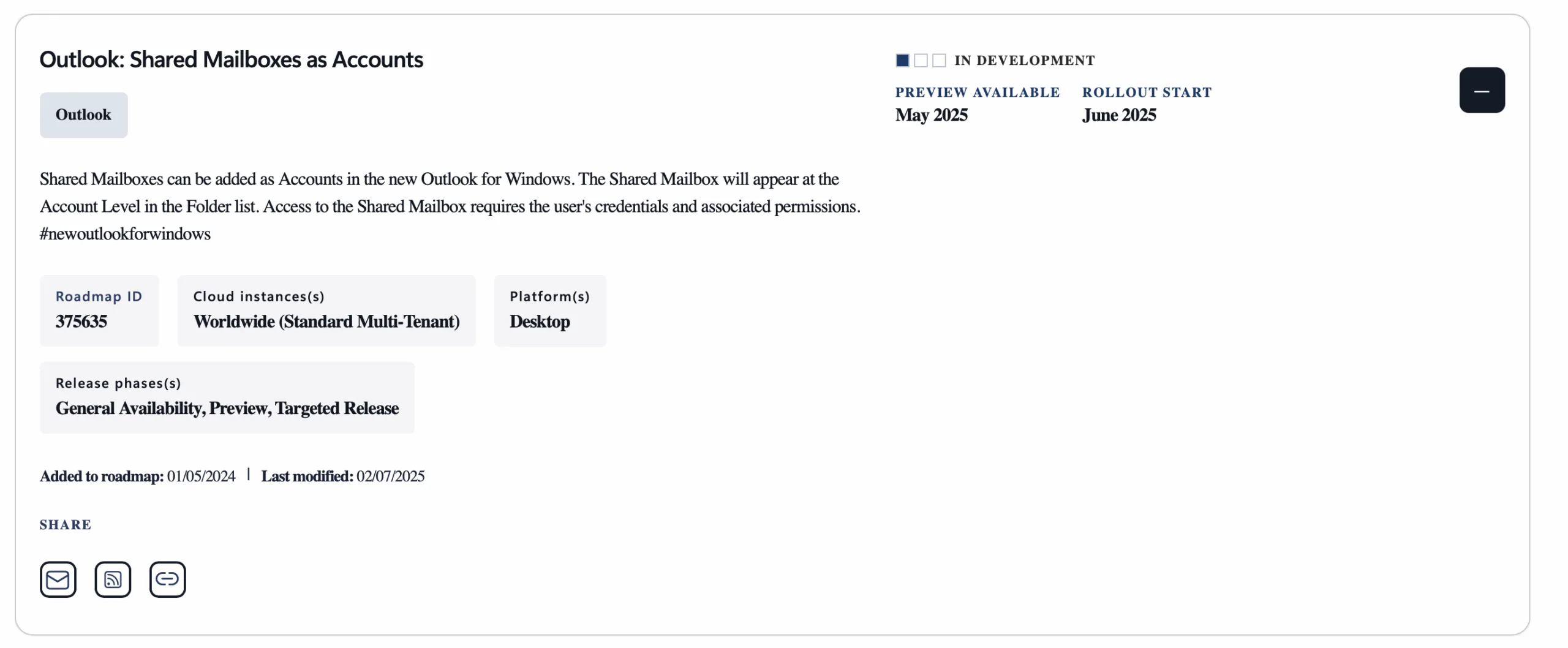
Microsoft is introducing a significant update for shared mailbox management in the new Outlook for Windows. Starting in May 2025, users with Full Access permissions and delegates will be able to add shared mailboxes as accounts, enabling them to manage settings like Categories, Notifications, Rules, and Signatures directly. This feature, associated with Microsoft 365 Roadmap ID 375635, will roll out in stages through August 2025. Here’s what you need to know.
What’s Changing?
Currently, managing settings for shared mailboxes in Outlook requires workarounds or the use of the classic Outlook for Windows or Outlook Web App (OWA) via the “Open another mailbox” option. The new feature simplifies this process by allowing users to add shared mailboxes as accounts in the new Outlook for Windows. Once added, users can configure all mailbox settings seamlessly, mirroring the functionality of classic Outlook and OWA.
Key highlights:
- Full Access Users: Users with Full Access permissions to a shared mailbox (or another user’s mailbox) will see a Promote button on the Shared with Me settings page if automapping is enabled. Clicking this button adds the mailbox as an account.
- Non-Automapped Mailboxes: For organizations without automapping, shared mailboxes will automatically be added as accounts when users with appropriate permissions attempt to add them.
- Settings Management: Once added as an account, users can manage all mailbox settings, including Categories, Notifications, Rules, and Signatures.
For detailed instructions, refer to Microsoft’s official guide: Manage shared mailbox settings in new Outlook.

Rollout Timeline
The feature will roll out in three phases:
- Public Preview: Early May 2025 to mid-May 2025.
- Targeted Release: Late May 2025 to late June 2025.
- General Availability (Worldwide): Late July 2025 to late August 2025.
This staged approach ensures stability and allows organizations to test the feature before widespread adoption.
How Will This Impact Your Organization?
This update enhances user productivity by simplifying shared mailbox management, particularly for teams relying on shared mailboxes for collaboration. The impact depends on your organization’s configuration:
- Automapped Mailboxes: Users will see the Promote button and can manually add the mailbox as an account.
- Non-Automapped Mailboxes: Shared mailboxes will be added automatically as accounts for users with the correct permissions.
- User Experience: The ability to manage settings directly in the new Outlook for Windows reduces reliance on OWA or classic Outlook, streamlining workflows.
No administrative action is required to enable this feature, as it will roll out automatically. However, organizations should assess their current shared mailbox configurations to understand the impact.
Preparing for the Change
While no admin intervention is needed, consider the following steps to ensure a smooth transition:
- Review Permissions: Verify which users have Full Access to shared mailboxes to anticipate who will gain access to the new feature.
- Notify Users: Inform your team about the upcoming change, especially those who manage shared mailboxes. Highlight the Promote button and the ability to configure settings.
- Update Documentation: Revise internal guides or training materials to reflect the new process for managing shared mailboxes in Outlook.
- Test in Preview: If your organization participates in Public Preview or Targeted Release, test the feature early to identify any integration issues with your workflows.
Why This Matters
This update is a step toward modernizing Outlook’s shared mailbox functionality, aligning the new Outlook for Windows with the capabilities of its predecessors. By empowering users to manage settings directly, Microsoft reduces friction for teams that rely on shared mailboxes for customer service, project coordination, or departmental communication.
Stay tuned for more updates on Microsoft 365 features and how they can enhance your organization’s productivity. For questions or to share your experience with this feature, feel free to leave a comment below or contact us at Interian.