Auditing in Microsoft 365 is critical for tracking user actions, meeting compliance requirements, and spotting security risks. The Unified Audit Log (UAL) is your starting point, but is it enough? Many only notice auditing gaps after an incident. This guide walks you through the UAL’s strengths and weaknesses, then offers practical steps to build a stronger auditing setup. Let’s get started.
Understanding the Unified Audit Log
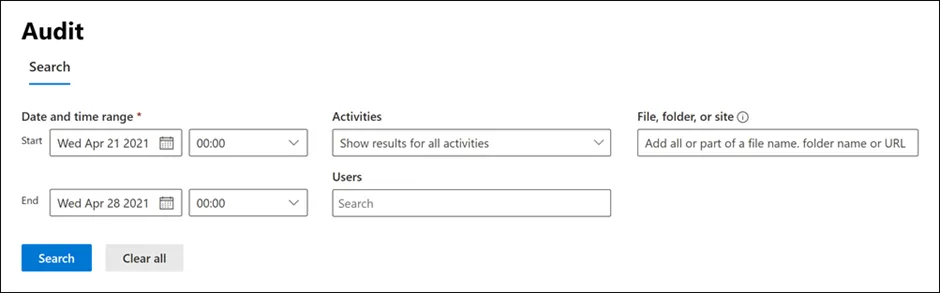
The Unified Audit Log (UAL) records user and admin activities across Microsoft 365 services—think Exchange Online, SharePoint, OneDrive, Azure AD, and Teams. It’s enabled by default for Microsoft 365 organizations. However, when setting up a new Microsoft 365 organization, you should verify the auditing status for your organization. For instructions, see the Verify the auditing status for your organization article on microsoft learn. This makes it a handy tool for security and compliance. For instance, one team I supported used it to detect unauthorised mailbox access, stopping a data leak in its tracks.
Strengths of the UAL
- Always On: Logging begins automatically for most Microsoft 365 setups (see section above).
- Wide Scope: It tracks thousands of events, from logins to file edits.
- Search Options: Query logs via the Microsoft Purview portal, PowerShell, or Microsoft Graph API.
- Longer Retention: With Audit (Premium), logs stick around for up to 10 years—perfect for regulated sectors like finance.
Limitations of the UAL
- Licensing Catch: Advanced events like MailItemsAccessed need Microsoft 365 E5 or an E5 Compliance add-on.
- Short Retention: Standard logs last 180 days (up from 90 days since October 2023), which might not cut it for compliance.
- Data Lag: Logs can take 60–90 minutes to show up, hindering real-time tracking.
- Search Quirks: Results can differ between Purview, PowerShell, and Graph API due to occasional glitches.
- Analysis Hurdles: Without skilled analysts, spotting odd patterns in raw data is tricky.
The UAL handles basic auditing well, but for real-time alerts or longer retention, you’ll need more. Let’s explore how to level up.
Advanced Auditing Options Beyond the UAL
The UAL is a solid base, but some setups demand more. Here are nine practical ways to boost your Microsoft 365 auditing, with hands-on steps where possible and high-level pointers for bigger solutions like SIEM integration.
1. Upgrade to Audit (Premium)
Audit (Premium) provides access to an additional 30 standard and 19 premium audit events (such as MailItemsAccessed), extends audit log retention to up to 10 years, and delivers faster search capabilities. It’s particularly valuable for compliance-driven sectors. In essence, it offers all the features of basic auditing, but with extended retention and broader event coverage.
Audit log retention policies. You can create custom audit log retention policies to retain records for up to one year—or up to 10 years if the appropriate add-on licences are in place. Policies can be tailored based on the service being audited, specific activities, or the users performing the actions.
Longer retention of audit records. By default, audit records for Exchange, SharePoint, and Azure Active Directory are retained for one year. Records for other services are kept for 90 days, unless extended via custom retention policies.
High-value, crucial Audit (Premium) events. Premium audit events are vital for organisations conducting forensic or compliance investigations. They provide detailed visibility into activities such as when mail items were accessed, replied to, or forwarded, as well as user search actions in Exchange Online and SharePoint Online. This level of detail can be critical when investigating potential breaches or determining the extent of a compromise.
Higher bandwidth to the Office 365 Management Activity API. Audit (Premium) offers increased API bandwidth for retrieving audit logs through the Office 365 Management Activity API. While all organisations with either Audit (Standard) or Audit (Premium) start with a base limit of 2,000 requests per minute, this limit scales based on seat count and licensing. Organisations with Audit (Premium) typically receive about double the bandwidth compared to those with only Audit (Standard).
For more info: See Microsoft’s Related website : https://learn.microsoft.com/en-us/purview/audit-solutions-overview
2. Integrate with a SIEM (system)
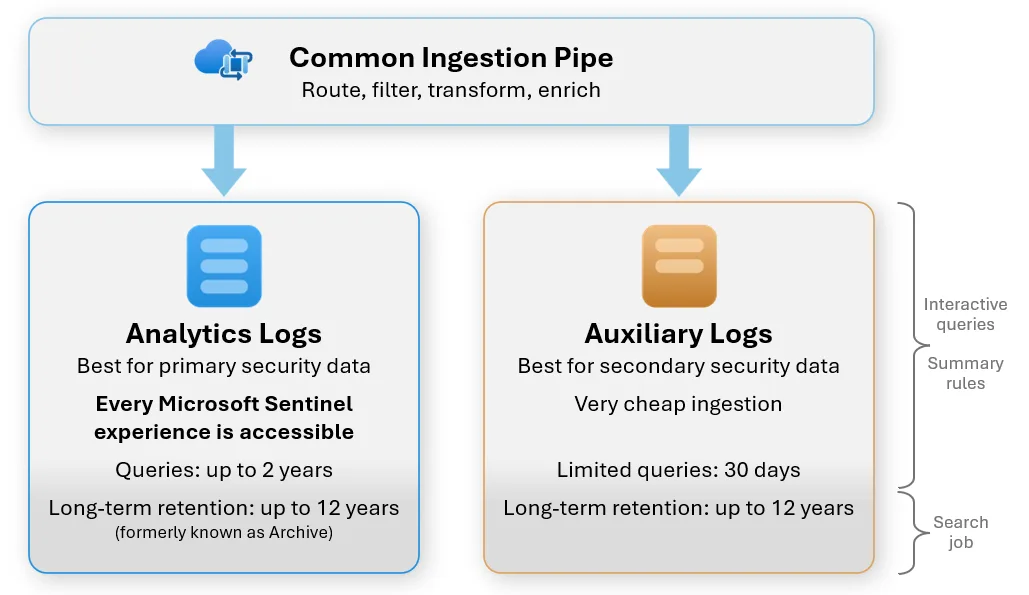
SIEM (Security Information and Event Management) tools—such as Splunk, Microsoft Sentinel, or IBM QRadar—play a critical role in modern cybersecurity operations. They collect, aggregate, and analyse data from across your IT environment, including servers, applications, endpoints, network devices, and cloud services.
Integrating User Activity Logging (UAL) data into a SIEM allows security teams to gain a more complete view of what is happening within their systems. UAL data, when combined with other security event sources, enables more accurate threat detection, faster incident response, and the ability to identify patterns of suspicious behaviour that might otherwise go unnoticed.
The purpose of a SIEM is not just to act as a passive log collector but to serve as an active security intelligence platform. It acts as a central point where all relevant data comes together. From this central location, analysts can monitor activity, investigate anomalies, correlate events across systems, and automate actions in response to specific triggers.
For instance, if an unusual login is detected at an odd hour, the SIEM can correlate that with UAL data showing file access attempts, flag it as a potential breach, and initiate automated steps like alerting a security team or temporarily restricting access.
Microsoft Sentinel, in particular, offers flexible options for data ingestion and retention. You can define custom policies that determine how long data is stored, ensuring compliance with organisational and regulatory requirements. Sentinel also allows you to run powerful queries over the collected logs, making it easy to investigate incidents and conduct comprehensive audits when needed.
Integrating with a SIEM not only improves your visibility across the environment but also enhances your ability to respond to threats quickly and effectively. It’s a key component in any mature security strategy.
3. Automate with PowerShell
What it does:
PowerShell scripts, such as Search-UnifiedAuditLog, streamline the collection and reporting of audit logs—ideal for engineers who need consistent, automated monitoring across Microsoft 365 services.
How to implement:
The Search-UnifiedAuditLog cmdlet lets you query the unified audit log, which includes events from Exchange Online, SharePoint Online, OneDrive for Business, Microsoft Entra ID, Microsoft Teams, Power BI, and more. You can search by date range or apply filters based on user, action, or target object.
Important note on paging:
This cmdlet retrieves results in pages using repeated iterations. To collect all records, use the SessionId and SessionCommand parameters in a loop. Continue running the cmdlet until it returns no further results or hits the session’s result limit. Use the ResultIndex and ResultCount properties to monitor progress—ResultIndex shows how many results were returned in the current call, while ResultCount shows the cumulative total.
Example – Export yesterday’s logs:
Connect-ExchangeOnline
$startDate = (Get-Date).AddDays(-1)
$endDate = Get-Date
Search-UnifiedAuditLog -StartDate $startDate -EndDate $endDate -ResultSize 5000 | Export-Csv -Path "DailyAuditLogs.csv"
Automate it:
Set up the script as a scheduled task using Windows Task Scheduler or run it as part of an Azure Automation runbook. This enables hands-off, daily log retrieval.
Additional options and recommendations:
- The
Search-UnifiedAuditLogcmdlet is part of Exchange Online PowerShell, but audit events can also be viewed in the Microsoft Purview compliance portal. - For large-scale or programmatic data retrieval, consider using the Microsoft 365 Management Activity API instead of PowerShell. It provides a REST-based interface and is better suited for building security, compliance, and monitoring solutions.
4. Use Third-Party Tools
What it does:
Third-party tools such as SolarWinds Log Analyzer, Elastic Stack (ELK), and Datadog enhance audit log analysis by offering visual dashboards, real-time alerts, and anomaly detection. These tools help security teams detect threats, monitor key activities, and streamline investigations more effectively than relying on raw logs alone.
How to implement:
Start by selecting a tool based on your organisation’s needs:
- SolarWinds Log Analyzer – Ideal for teams looking for a user-friendly, commercial solution with strong support and ready-made dashboards.
- Elastic Stack (ELK) – A powerful open-source option offering full control and customisation for organisations with in-house expertise.
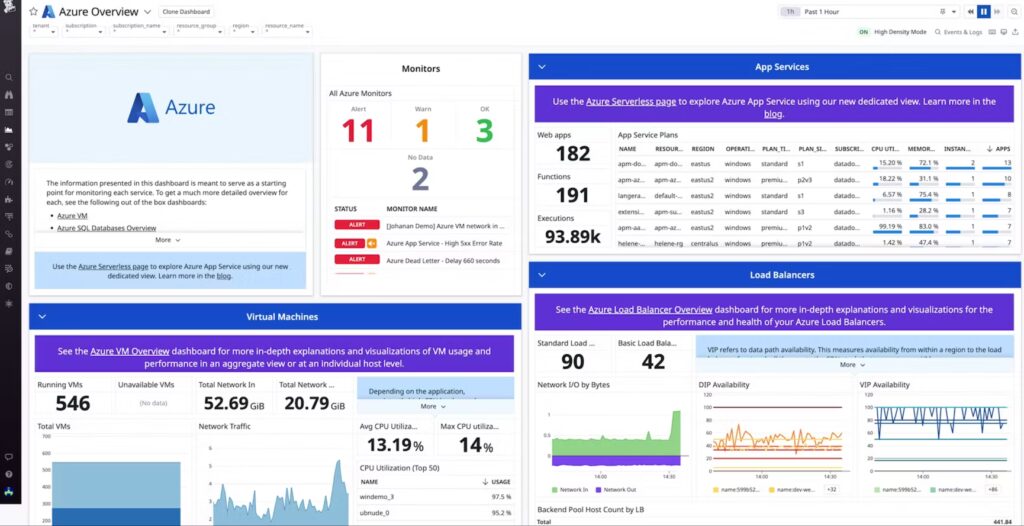
- Datadog – A cloud-native observability platform that can ingest Microsoft 365 logs and correlate them with other systems. While it doesn’t offer a native Microsoft 365 integration, you can bring in audit logs using the Microsoft 365 Management Activity API and custom pipelines (e.g., via Logstash, Azure Functions, or scripts).
Integration:
Connect the chosen tool to Microsoft 365 using the Microsoft 365 Management Activity API, which streams audit logs in near real time. This allows third-party platforms to ingest and index log data alongside logs from other systems.
Use cases:
- Build visual dashboards to monitor administrative activity, user logins, and permission changes.
- Set up alerts for suspicious patterns, such as repeated failed login attempts or unusual access times.
- Correlate Microsoft 365 audit data with other infrastructure logs for deeper investigation and threat hunting.
Tip:
- For Elastic, use Logstash to ingest and parse logs, and Kibana to build visualisations and alerts.
- For Datadog, set up log ingestion via the API, apply parsing rules, and create monitors using built-in machine learning features.
5. Set Up Azure Automation
What it does:
Azure Automation provides a scalable, hands-off way to ensure that audit logging is consistently enabled across your Microsoft 365 environment. It can be used to run scripts on a schedule, monitor configuration drift, and enforce security baselines. Best of all, it includes 500 free minutes per month, making it a cost-effective solution for ongoing log management.
How to implement:
1. Create an Automation Account
- In the Azure portal, navigate to Automation Accounts > Create.
- Enable System Assigned Managed Identity to allow secure authentication without storing credentials.
2. Import Required Modules
- Under the Modules section, import the following:
ExchangeOnlineManagementMicrosoft.Graph(for broader Graph API permissions)
3. Upload Your Script
- Add your script (e.g.
Enable-AdvancedAuditing.ps1) under Runbooks. - This script should include logic to enable advanced auditing across all relevant services.
4. Set Permissions
To allow your automation runbook to manage Exchange and Graph resources, assign the necessary roles:
Install required modules:
Install-Module Microsoft.Graph -Scope AllUsers
Install-Module ExchangeOnlineManagement -Scope AllUsers
Connect to services:
Connect-MgGraph -Scopes AppRoleAssignment.ReadWrite.All, Application.Read.All
Connect-ExchangeOnline
Assign the Exchange.ManageAsApp role to your managed identity so it can perform Exchange Online actions without user context.
5. Test and Schedule
- Run the script manually first to validate permissions and output.
- Once tested, create a recurring schedule (e.g. daily or weekly) using the Schedules tab in your Automation Account.
- Monitor job status and output logs under the Jobs section to ensure reliable execution.
Use cases:
Automatically enforce auditing policies across new or existing mailboxes.
- Detect and fix when audit logging is accidentally or intentionally disabled.
- Schedule other compliance-related scripts (e.g. exporting logs, checking retention policies).
6. Create a Dynamic Security Group
What it does:
Dynamic security groups in Azure Active Directory allow you to automatically group users based on attributes—such as assigned licences. This is especially useful for applying audit settings only to users with specific plans, like Microsoft 365 E5, which includes advanced auditing features.
How to implement:
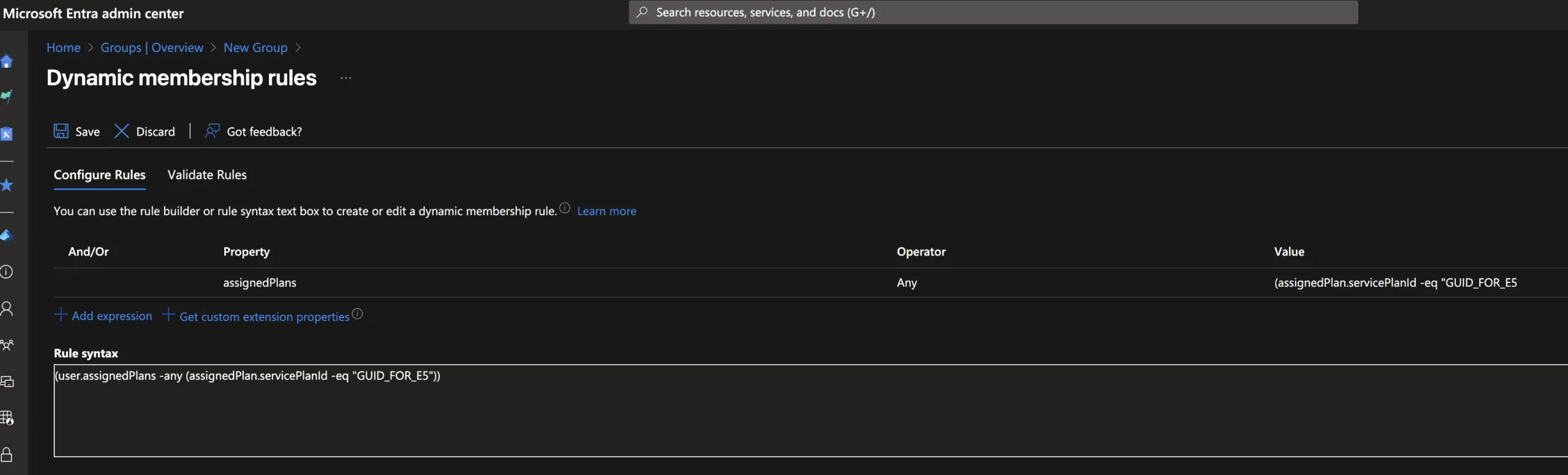
- In the Entra ID portal, go to Groups > New Group.
- Choose Security as the group type and select Membership type: Dynamic User.
- Define a rule using the licence’s service plan ID. For example:
(user.assignedPlans -any (assignedPlan.servicePlanId -eq "GUID_FOR_E5"))Replace"GUID_FOR_E5"with the actual service plan ID for Microsoft 365 E5.
Use case:
Integrate this group into PowerShell scripts or compliance policies to ensure auditing is only applied where the right licence exists—avoiding unnecessary errors or licence violations.
7. Enable All Auditable Events
What it does:
To ensure complete audit coverage, it’s essential to activate all auditable events—including advanced ones like SearchQueryInitiated, which are not always enabled by default.
How to implement:
- Manual method:
Go to the Microsoft Purview compliance portal > Audit > Settings.
Review and enable any audit event types that are currently disabled. - Automated method:
Use the Azure Automation script mentioned in Step 5 (e.g.Enable-AdvancedAuditing.ps1) to enforce consistent configuration across all users and services.
Why it matters:
Missing events can create blind spots during investigations or compliance audits. Enabling all available events ensures full visibility.
8. Check for Mailbox Auditing Bypasses
What it does:
Some accounts—especially service or system accounts—may be excluded from mailbox auditing using bypass rules. This creates gaps in visibility that could be exploited or simply go unnoticed.
How to implement:
- List accounts with auditing bypass enabled:
Connect-ExchangeOnline Get-MailboxAuditBypassAssociation -ResultSize Unlimited | Where-Object { $_.AuditBypassEnabled -eq $true } - Monitor changes to bypass settings:
Search-UnifiedAuditLog -Operations Set-MailboxAuditBypassAssociation
Best practice:
Regularly review this list and investigate any changes to ensure that only authorised exceptions are in place.
9. Test and Schedule Automation
What it does:
Automation is only useful if it’s running reliably. Regular testing and scheduled execution are key to ensuring scripts continue working as intended and don’t silently fail.
How to implement:
- Test your Runbook:
In Azure Automation, open your runbook and use the Test Pane with test parameters or dummy data to validate expected behaviour. - Set up a schedule:
Under the Schedules tab, configure the runbook to execute automatically—for example, daily at 2:00 AM, when system usage is low. - Monitor job results:
Go to the Jobs section in Azure Automation to view run history, check for errors, and confirm successful completion.
Pro tip:
Set up alerts or use Azure Monitor to notify you of failed jobs so you can respond quickly if something breaks.
Best Practices for Robust Auditing
- Verify Licenses: Assign E5 or Compliance add-ons to relevant users.
- Set Retention Policies: Align with compliance requirements.
- Cross-Check Results: Validate data across Purview, PowerShell, and Graph API.
- Add Real-Time Monitoring: Use SIEM for time-sensitive alerts.
Conclusion
Auditing gaps often go unnoticed until a security incident forces a closer look, leaving organizations vulnerable. The Unified Audit Log is a great starting point, but enhancing it with Audit (Premium), SIEM integration, PowerShell automation, and third-party tools ensures a more robust setup. Begin by reviewing your current retention settings in the Purview portal and tailoring a strategy to keep your organization secure and compliant.