| TL;DR Windows 11 Point in Time Restore rolls a PC back to a recent local snapshot. Intune can deliver the configuration; the documented restore runs locally in Windows Recovery Environment. Check supported builds, available restore points and BitLocker recovery key access before an incident. Test the impact on local files, business applications and security controls. Changes after the chosen snapshot may be lost. Keep an independent backup and rebuild route for failures that local snapshots cannot resolve. |
What Point in Time Restore changes
Microsoft’s Windows recovery guide explains that this feature rolls back the system drive, including apps, settings and local files. Changes after the chosen point are lost. Data held in cloud services such as OneDrive is not rolled back by the operation.
That makes the recovery decision a business decision as well as a technical one. Before restoring a finance laptop, establish whether the user has unsynchronised spreadsheets, local exports or recently installed software. The question is not simply whether Windows will start again. It is which state the employee will return to and what work must be recovered afterwards.
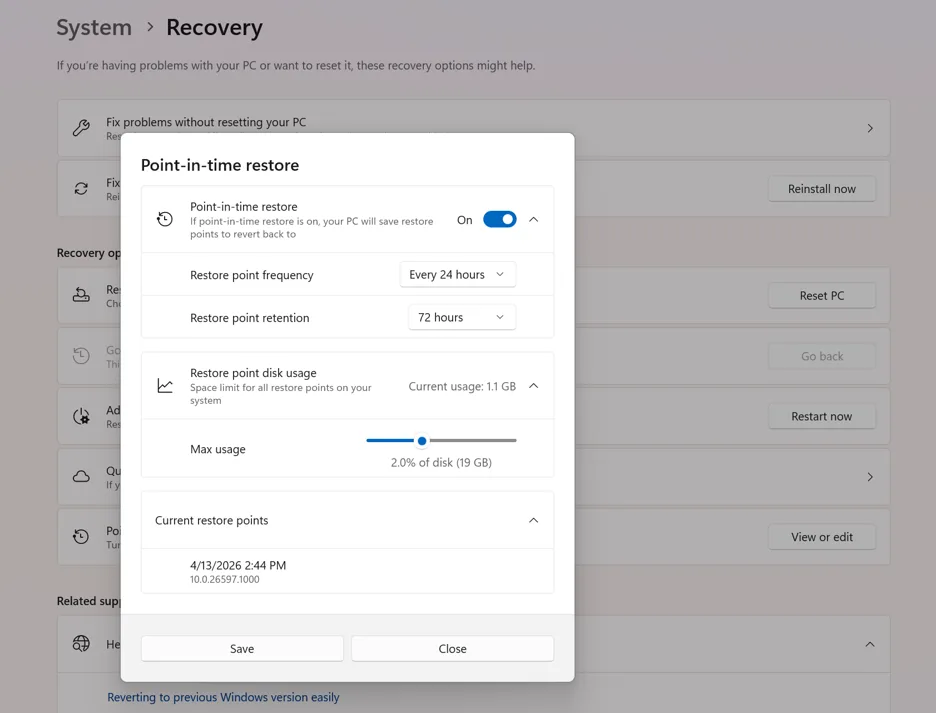
A useful service desk record connects the first observed failure with the selected restore point. Record the time of the last successful business task, the time the problem appeared and any changes in between. This gives the recovery operator a defensible reason for choosing one snapshot instead of simply selecting the newest entry.
Check the device requirements
The current Recovery CSP reference lists the PointInTimeRestore settings for Windows 11 version 24H2 build 26100.8737 and version 25H2 build 26200.8737 or later. Check the individual setting’s applicability against the actual fleet rather than relying on the label Windows 11.
Microsoft’s feature configuration guide documents automatic capture around every 24 hours and retention up to 72 hours. Frequency and retention adjustments in that guide are limited to Enterprise. It also documents that managed devices are off by default until version 26H2. The 200 GB OS volume threshold concerns automatic enablement; smaller volumes can be enabled explicitly.
Storage pressure can remove snapshots early. VSS storage is shared with other tools, the configured maximum is not preallocated, and sufficient free space is needed for restoration. EFS encrypted files are a documented limitation. Check these conditions during the pilot instead of treating a retention setting as a guarantee that a particular point will exist.
Our suggested pilot inventory has six columns: device model, Windows edition and build, OS volume capacity, available free space, competing backup software and recovery key access. Include at least one typical laptop with a realistic workload. An empty test machine is unlikely to reveal the storage pattern of an employee who regularly creates large local files.
Configure Windows 11 Point in Time Restore with Intune
Use a dedicated device configuration profile and assign it to a small pilot group. If the required settings are exposed in your current settings catalogue, use that supported interface. Otherwise, Microsoft documents an Intune custom profile using OMA URI settings, with a case sensitive URI, data type and value for each entry.
Follow Microsoft’s custom profile workflow: create a Windows 10 and later configuration policy using the Custom template. Give it a recognisable name, such as Windows PITR Enterprise pilot. Add the settings below, review the assignments and create the profile. Inspect the device configuration results after synchronisation. For custom settings, a mismatch between the configured value and the value returned by the device can produce an error.
All four settings use this prefix:
./Device/Vendor/MSFT/Recovery/PointInTimeRestore/
| Append to the prefix | Data type | Example value | Meaning |
|---|---|---|---|
EnablePointInTimeRestore | Boolean | True | Enable snapshot capture |
SetMaxDiskUsage | Integer | 20480 | Maximum VSS usage of 20 GB |
SetRestorePointFrequency | Integer | 360 | Approximately every 6 hours |
SetRestorePointRetention | Integer | 4320 | Retain for up to 72 hours |
The CSP reference specifies megabytes for disk usage and minutes for frequency and retention. Its disk range is 2048 to 51200 MB. The feature must be enabled for dependent settings to take effect. This example intentionally targets Enterprise devices and uses documented frequency and retention choices.
These are pilot choices, not universal sizing recommendations. A 20 GB upper limit may be excessive for one device and insufficient for another workload. Measure the available history on representative machines, including after application installations and large file changes. Adjust the profile only after that evidence shows what the storage budget achieves.
Validate the pilot before an incident
A successful Intune assignment is only the first piece of evidence. Open the Windows recovery settings on a pilot device and confirm that the expected configuration and usable restore points are visible. Keep the timestamps with the deployment record.
Use a disposable test device or a machine whose data has been protected independently. Create a harmless local test file, record an application version and make a reversible settings change after a known restore point. Then run an approved recovery exercise and compare the result with the baseline. Do not manufacture a production outage to demonstrate the feature.
Record four separate timings: when the incident is reported, when a suitable point is identified, when Windows starts again and when the employee can complete a representative business task. The last time is the useful recovery result. A fast reboot followed by an hour of application repair still means an hour of interrupted work.
The acceptance record should answer these questions:
- Was the chosen restore point available when needed?
- Could the operator retrieve the correct BitLocker recovery key through the approved process?
- Did the expected local changes roll back?
- Did important applications, network access and user sign in work afterwards?
- Were management and security controls healthy before the device returned to use?
- Could the support team explain which recent work needed recovery?
Restore a device through Windows RE
Microsoft’s restore instructions use Windows Recovery Environment. Enter WinRE, select Troubleshoot and then Point in time restore. Provide the BitLocker recovery key when required, choose the appropriate restore point, review the data loss warning and confirm the operation. Keep the device connected to power and allow the process to finish.
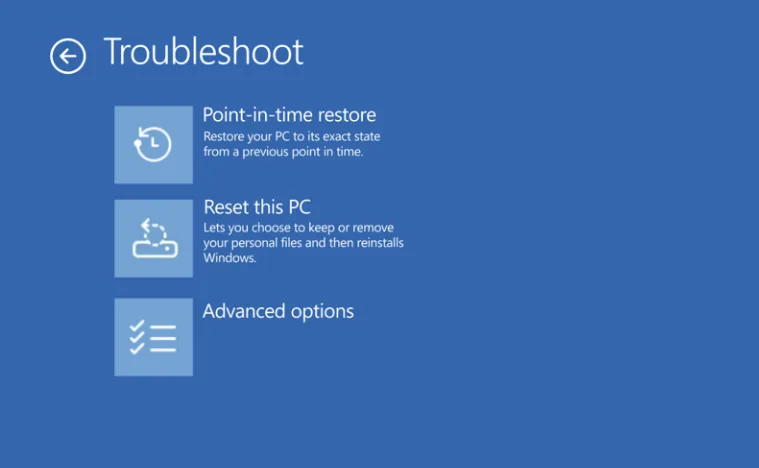
For a remote employee, prepare the support conversation before an incident: which screen they should expect, how identity will be verified for recovery assistance and how the operator will record the selected timestamp. Keep recovery keys out of general chat channels and screenshots. Use the organisation’s existing approved key retrieval process.
The documented workflow is local. Do not promise a remote restore button for physical Windows devices merely because Intune manages the configuration or because Cloud PCs offer a similarly named feature. Validate any new recovery orchestration capability separately when it becomes available in your environment.
Choose the right recovery route
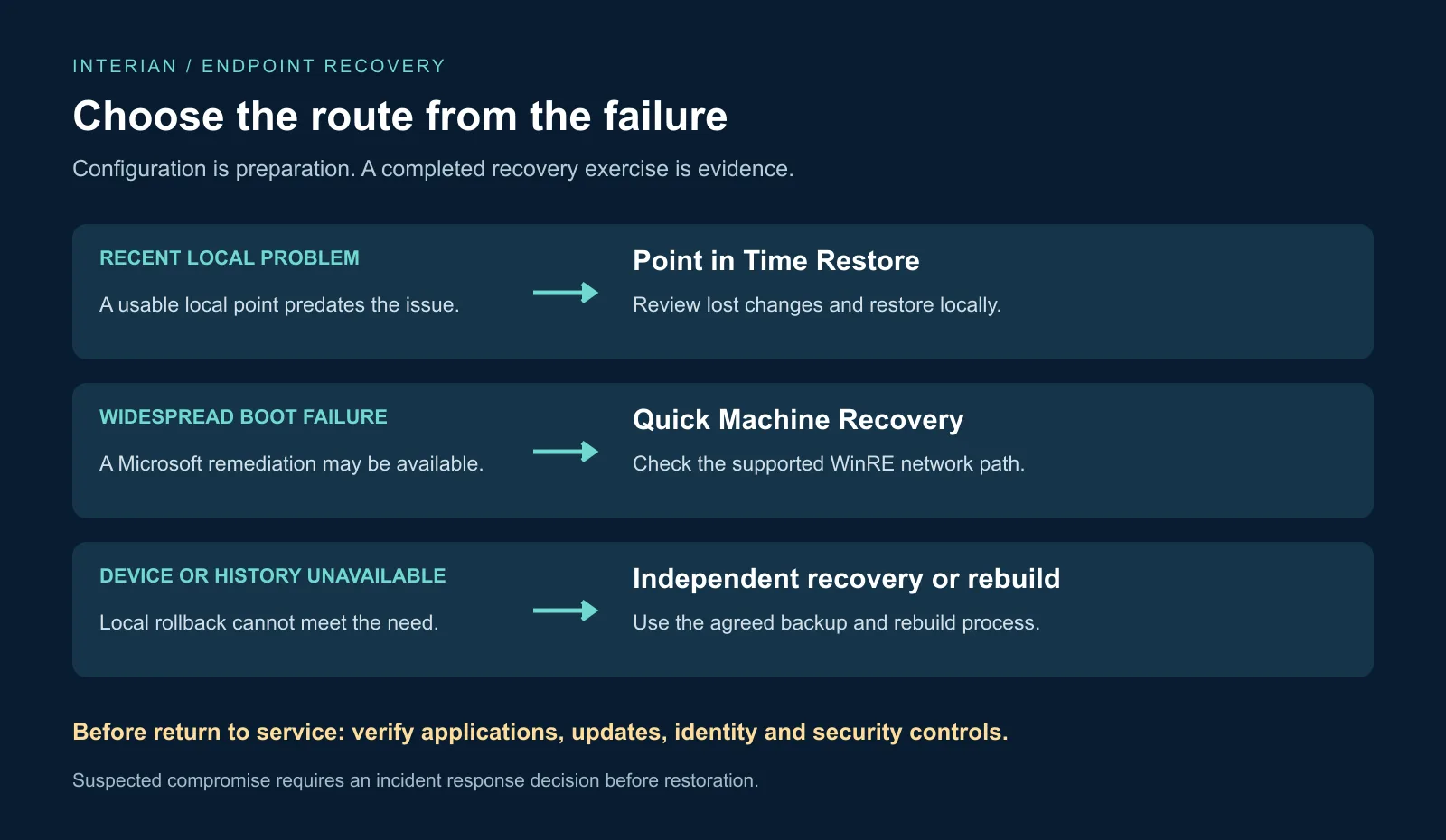
Quick Machine Recovery addresses repeated startup failures by looking for Microsoft remediation through Windows Update from WinRE. Microsoft describes it as a best effort mechanism, so an applicable fix is not guaranteed. Its network requirements and configuration need their own validation. It is different from selecting one of the PC’s local snapshots.
Windows Backup for Organizations restores supported user settings during enrolment. It helps rebuild a familiar user experience after a reset or device change. It is not an interchangeable name for a full local system rollback.
Windows 365 restore is a Cloud PC capability with its own recovery points and management workflow. Use its documentation for Cloud PCs and the Windows client documentation for physical endpoints.
For a recent local configuration problem, assess whether a usable snapshot predates the issue. For a widespread startup incident, check whether a relevant Microsoft remediation exists. For a failed disk, missing history or an untrusted device state, use the organisation’s independent recovery or rebuild procedure. In a suspected compromise, let the incident response owner decide when restoration is appropriate and what evidence must be preserved first.
Return the device to a trusted state
Treat a restored machine as an endpoint that needs acceptance, not an automatically completed ticket. Ask the endpoint owner to verify the current update level, management connection, security agent health and relevant policies. Ask the application owner or user to complete a short business test. Record the results together.
If a restored local file and its cloud version differ, avoid hurriedly replacing either copy. Identify the authoritative version and preserve any useful changes before resolving the conflict. Apply the same deliberate approach to cached application data and credentials that no longer match the expected state.
Interian’s recommended deliverable is a short recovery runbook backed by one completed exercise per representative device class. Include the configuration, evidence of available points, data loss decision, key retrieval route, operator steps, application checks and fallback owner. That is a practical foundation for an endpoint resilience discussion with IT operations and the business.
For the wider identity recovery dependency, see Microsoft Entra ID Account Recovery: The Missing Link in Passwordless Identity. A working device is only useful when the employee can also regain appropriate access.
Frequently asked questions
Is this a replacement for an independent backup?
No. The snapshots are held on the same device. A recovery strategy also needs a route for failures in which that device or its local history is unavailable.
Does the example guarantee a snapshot every six hours?
No. Treat the configured cadence as a target and inspect actual restore point availability on working devices.
Can we call the deployment complete after Intune reports success?
Complete a recovery exercise and the application and security checks first. The business outcome is a usable and appropriately managed device.
Further Reading
- Replacing MDT with Autopilot Device Preparation: A Step-by-Step Guide
- Understanding the Differences Between Intune Update Rings and Windows Autopatch
- Simplify Device Compliance with Config Refresh: Essential for Endpoint Management
- Microsoft Learn: Point in Time Restore configuration
- Microsoft Learn: Recovery CSP reference