As businesses modernise their IT operations, finding efficient ways to deploy and manage Windows devices is a top priority. For years, Microsoft Deployment Toolkit (MDT) has been a trusted tool for IT professionals to image and configure devices. However, with Microsoft’s cloud-first approach gaining traction and recent developments indicating the end of support for MDT, Windows Autopilot, particularly Autopilot Device Preparation, is emerging as a modern alternative.

However, many IT professionals and MSPs have yet to fully embrace this new approach. Organisations often require a clean reimaging solution for every new device, unless they source clean OS installations directly from OEMs. Without these essential features, Autopilot may not fully address scenarios such as break/fix repairs, custom configurations, or recovery after cyberattacks and system compromises. For teams requiring extensive customisation and imaging capabilities, the PowerShell Deployment Solution (PSD), maintained by the Friends of MDT community, provides a viable alternative.
A notable alternative is DeployR from 2Pint.
Nevertheless, in this blog post, we explore how Autopilot Device Preparation can help organisations transition from MDT, providing detailed insights and practical advice for IT teams looking to streamline their device deployment strategy.
What is Autopilot Device Preparation?
Windows Autopilot is a collection of technologies designed to simplify the initial setup and configuration of new and reset Windows devices. Autopilot Device Preparation plays a critical role in this process by:
- Resetting the device to a clean state.
- Installing necessary updates.
- Pre-installing apps and drivers. Delivery Optimisation can assist in distributing these applications and drivers more efficiently across large-scale deployments by sharing downloaded content between devices on the same network.
- Configuring system settings based on company policies.
This approach allows IT administrators to prepare devices with minimal hands-on involvement.
Why Consider Replacing MDT with Autopilot Device Preparation?
- Modern Provisioning vs. Traditional Imaging
MDT is based on creating and deploying custom Windows images. While effective, this method is time-consuming and requires ongoing maintenance.
Autopilot Device Preparation takes a modern approach by using the OEM-provided Windows image and layering configurations, policies, and applications on top via cloud services like Microsoft Intune. This removes the need for complex image creation and maintenance. - Cloud-Driven Management
MDT relies heavily on on-premises infrastructure. Autopilot Device Preparation leverages the cloud, making it ideal for hybrid and remote work environments.
- Zero-Touch Deployment
With Autopilot, devices can be shipped directly to end-users, pre-configured and ready to use. This significantly reduces the IT workload compared to MDT’s hands-on deployment process.
Step-by-Step Guide to Setting Up Autopilot Device Preparation
Below is a detailed guide to help you set up Autopilot Device Preparation with ease:
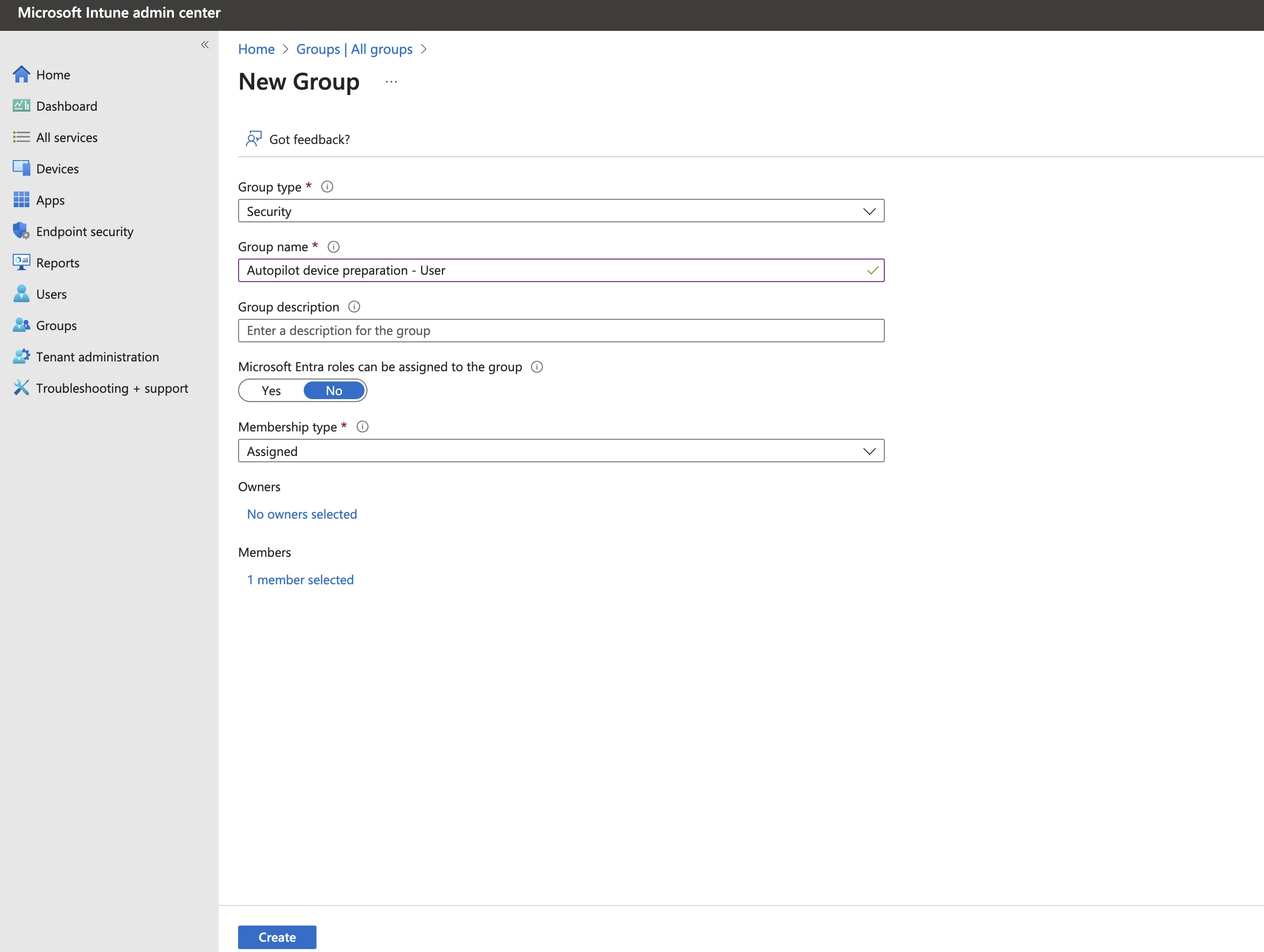
Step 1: Create Security Groups in Entra
- Start by creating two dedicated groups in Entra to organise your devices and users:
- Autopilot Device Preparation – User Group
- Membership: Assigned
- Purpose: Contains all users who will perform the Autopilot setup.
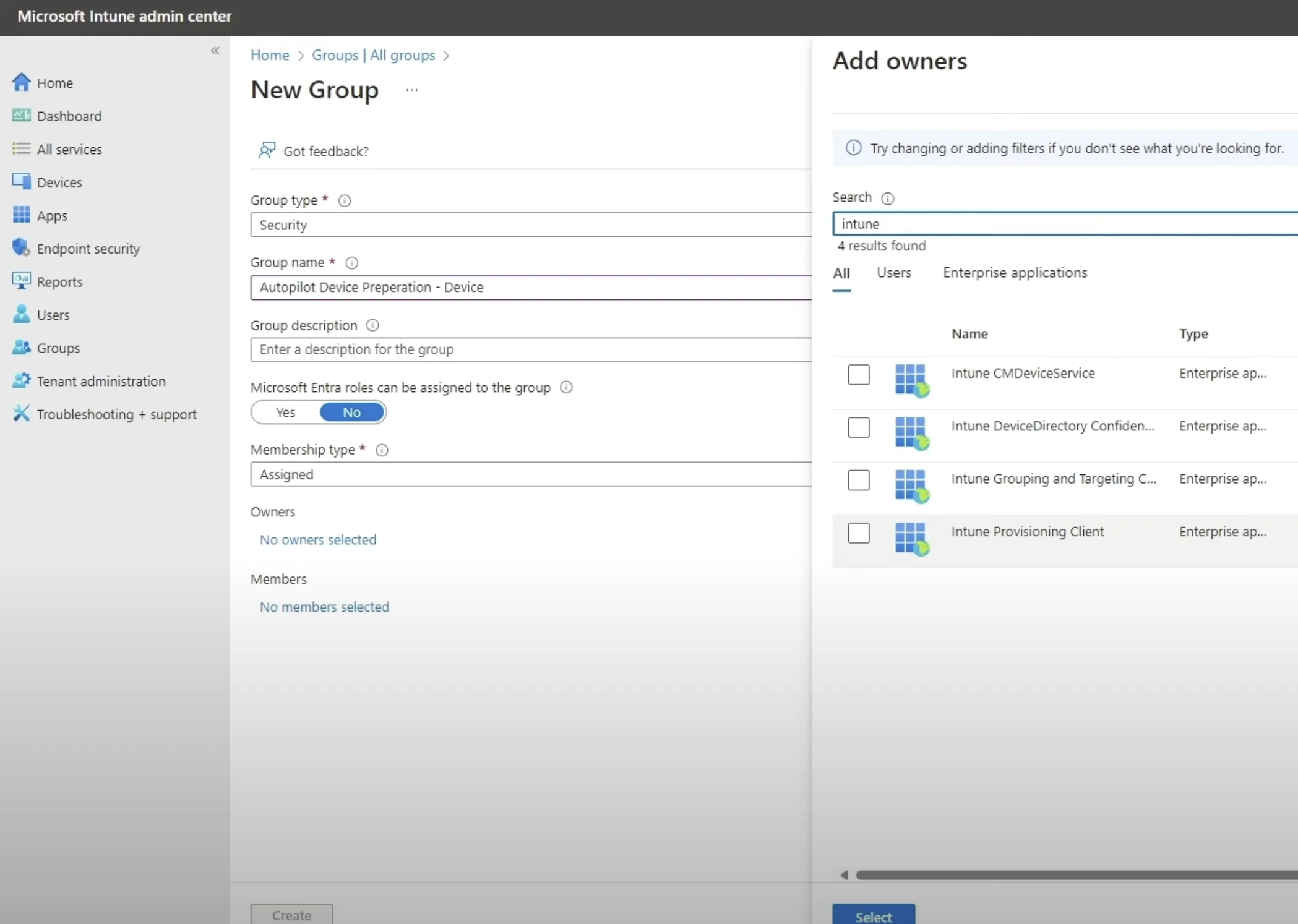
- Autopilot Device Preparation – Device Group
- Owner: Set to the Intune provisioning enterprise app (ID: f1346770-5b25-470b-88bd-d5744ab7952c)
- Purpose: Houses the devices that will undergo pre-provisioning.
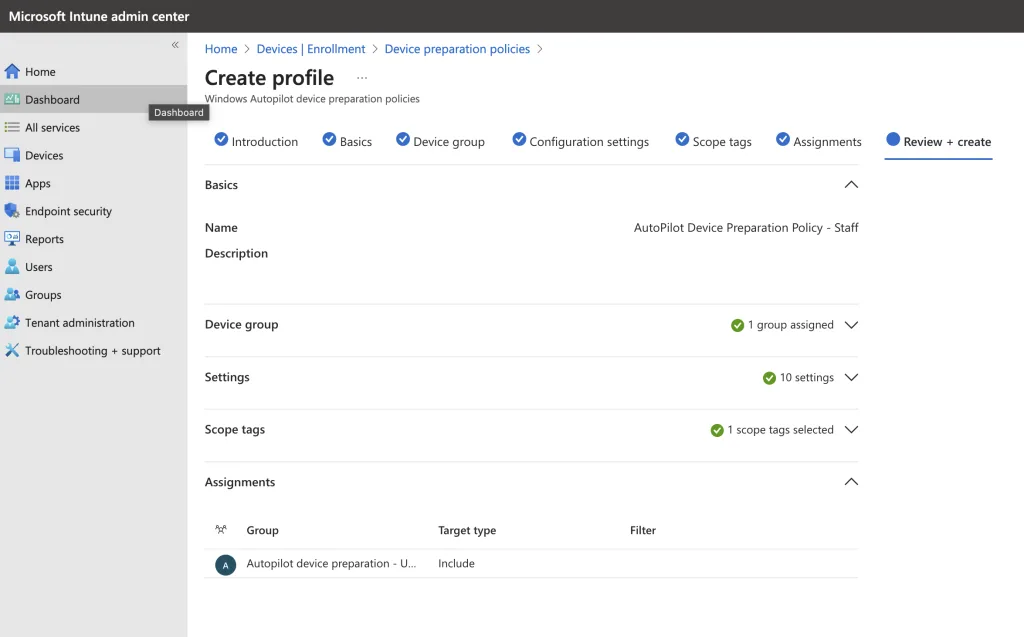
Step 2: Configure the Device Preparation Policy
Next, set up a Device Preparation Policy in Microsoft Intune to control how devices are pre-configured:
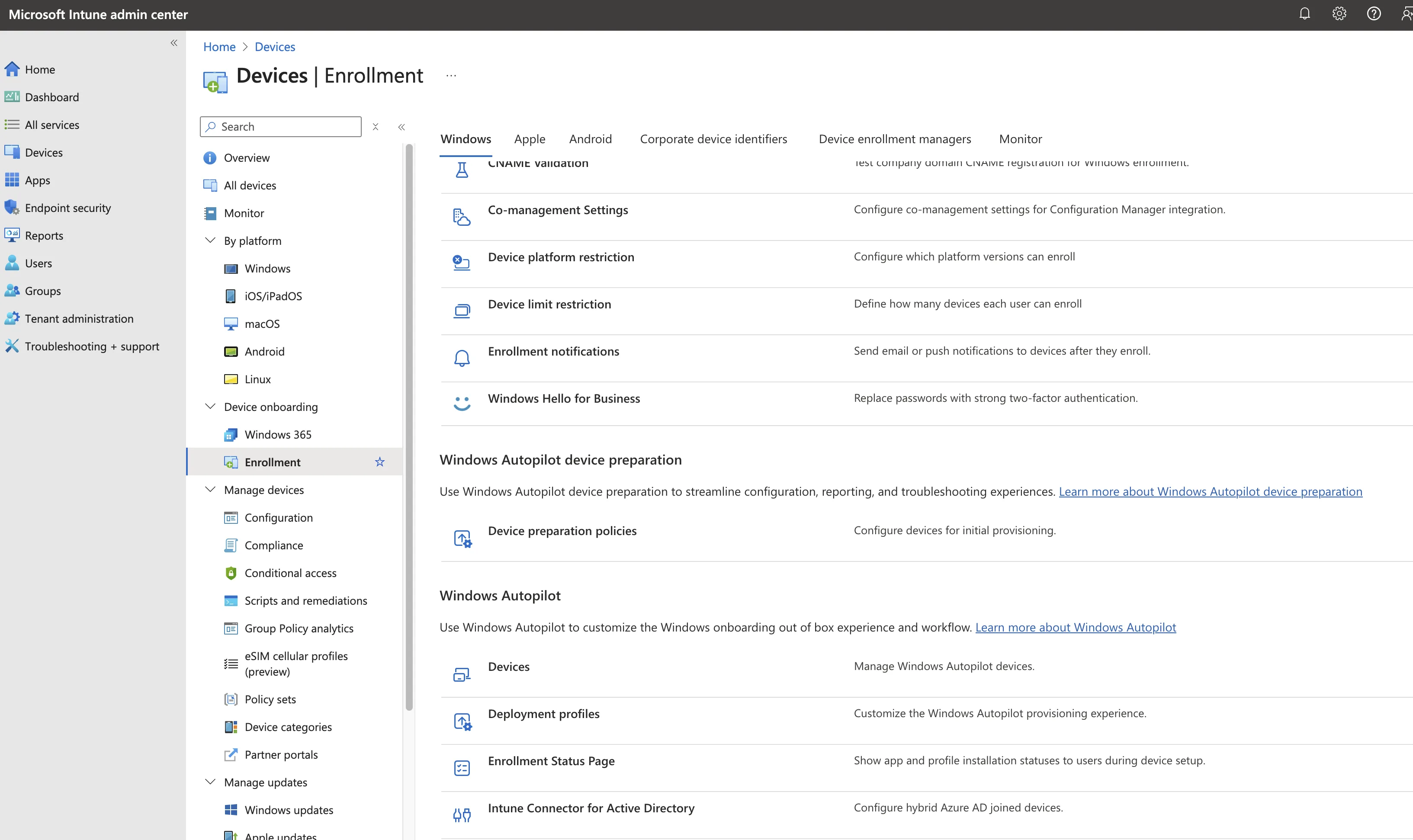
- Access the Policy Settings:
- Navigate to Intune > Devices > Enrolment > Device Preparation Policies.
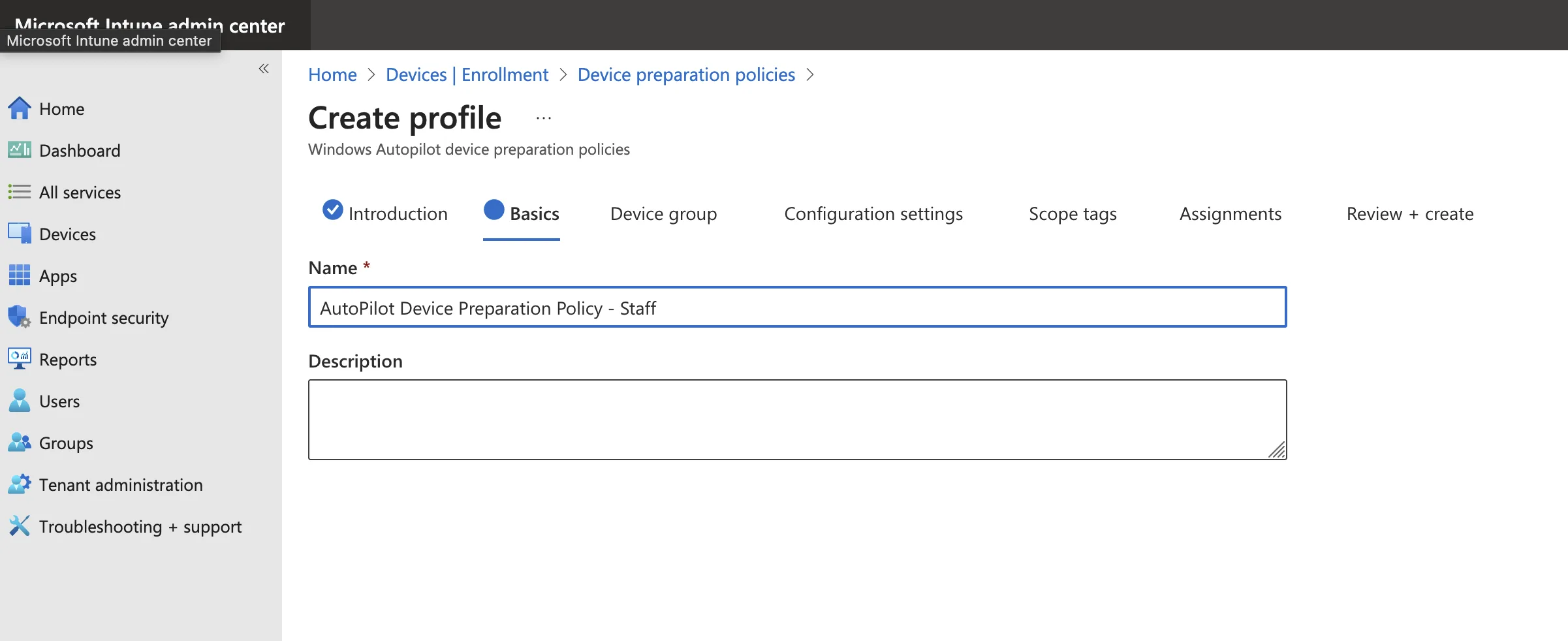
- Create a New Policy:
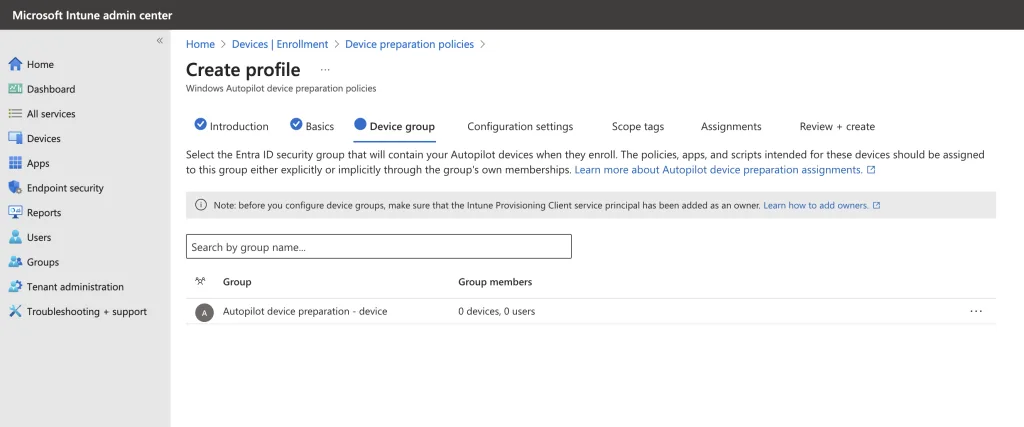
- Policy Name: AutoPilot Device Preparation Policy – Staff
- Device Group: Select the Autopilot Device Preparation – Device Group.
- Policy Configuration:
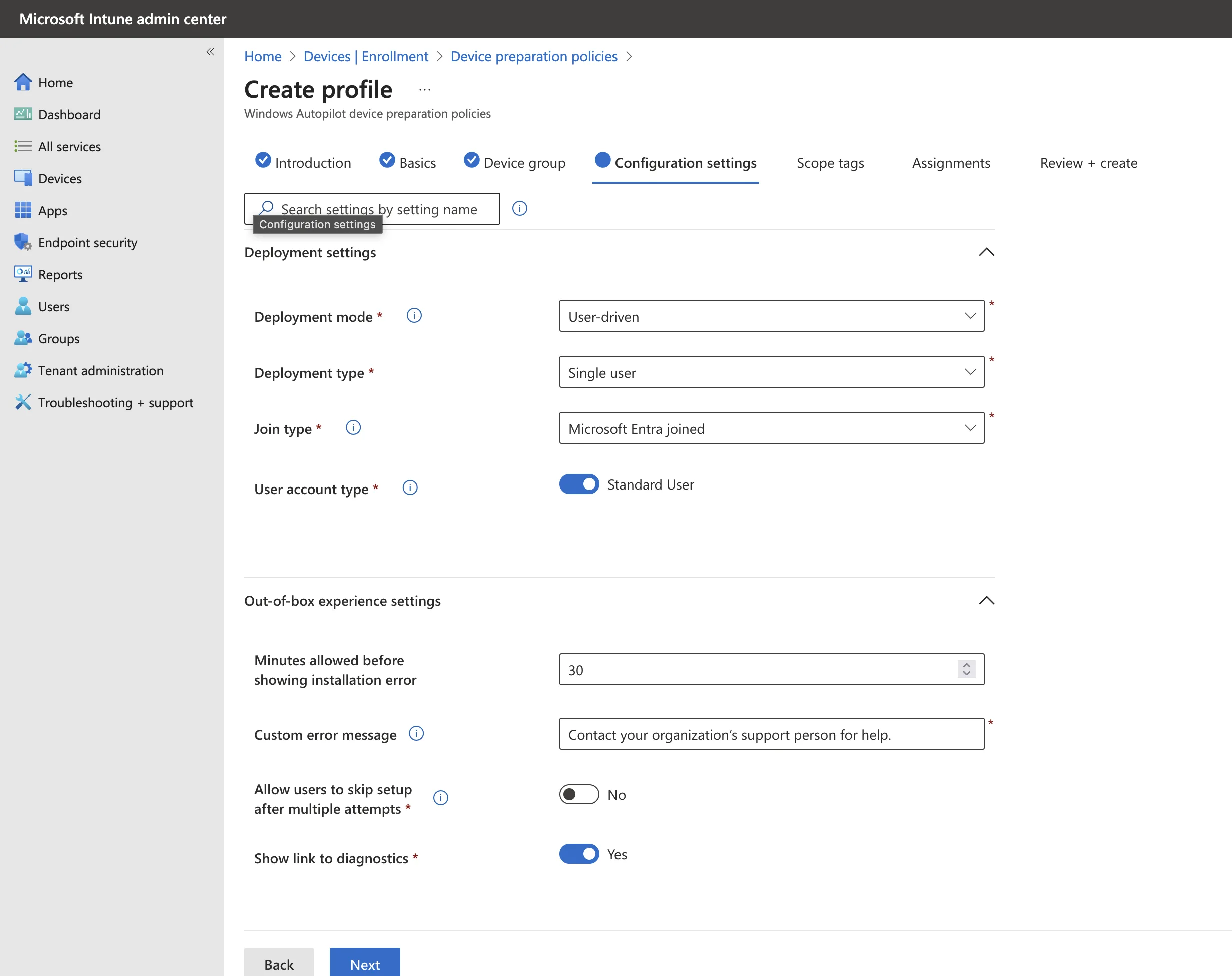
- Join Type: Choose Entra Joined Only (note: hybrid join is not available).
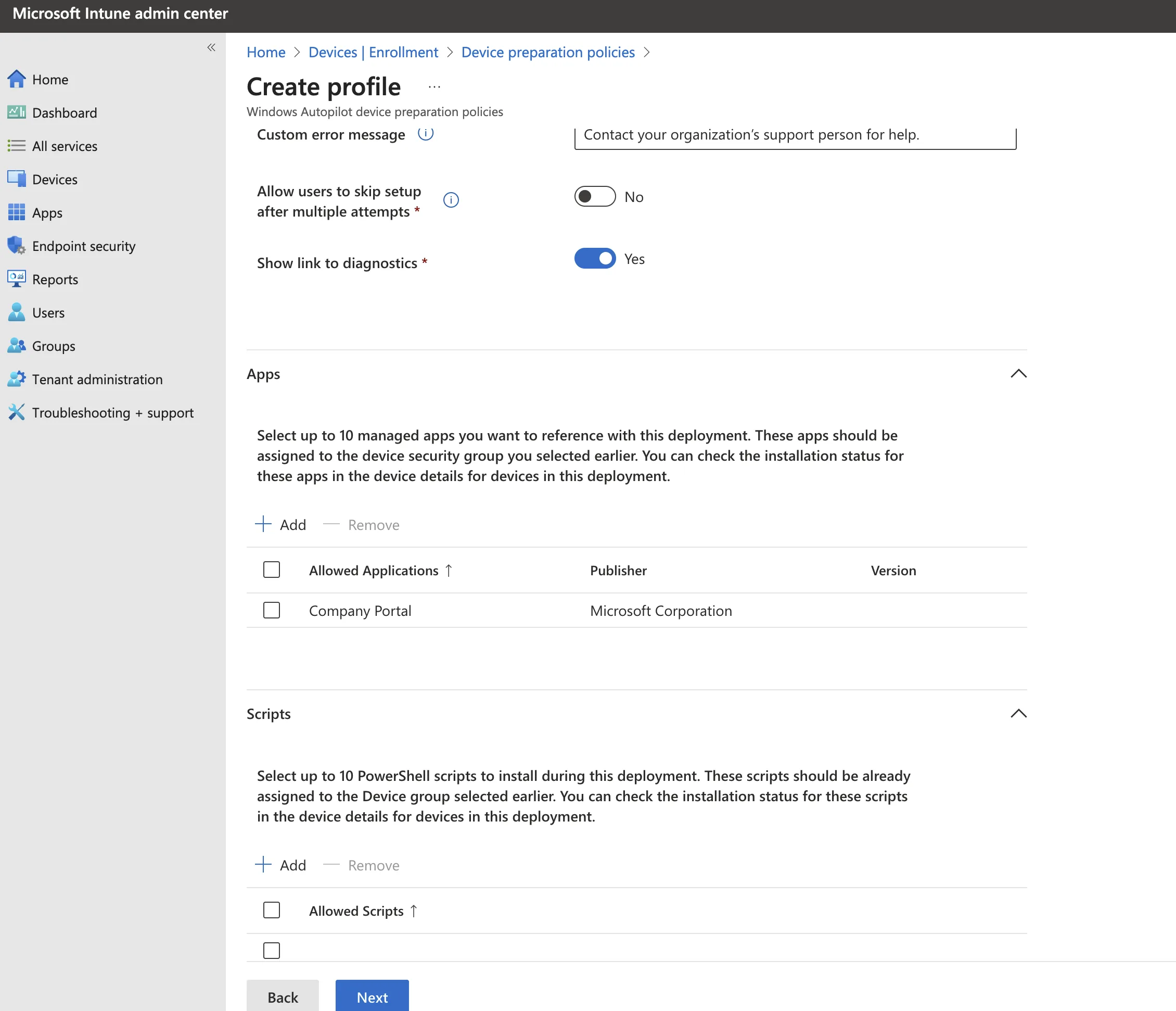
- User Setup: Disable the option to allow users to skip setup after multiple attempts.
- Apps: Add essential apps (e.g., Company Portal, Windows App, Microsoft 365 Apps). Ensure each app is assigned to the Autopilot Device Preparation – Device Group.
- Scripts: Attach any required scripts, such as a bloatware removal script (detailed later in this post).
- Tags: Leave blank if not needed.
- Assignments:
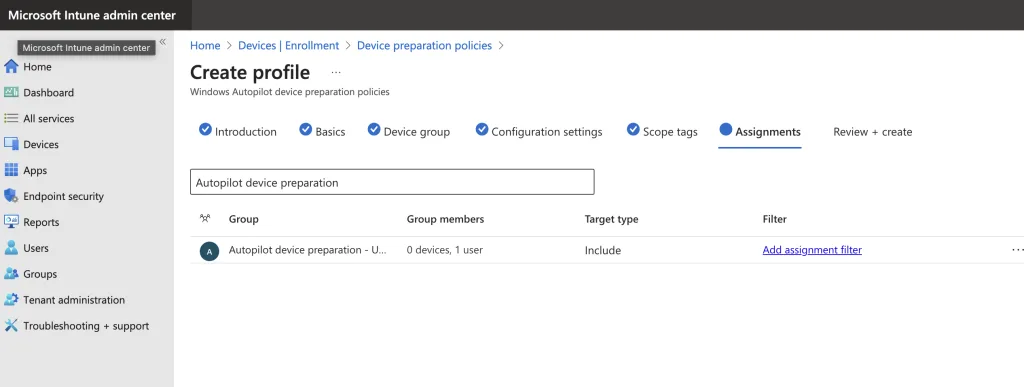
- Assign the policy to the Autopilot Device Preparation – User Group.
- Review:

Step 3: Set Device Platform Restrictions
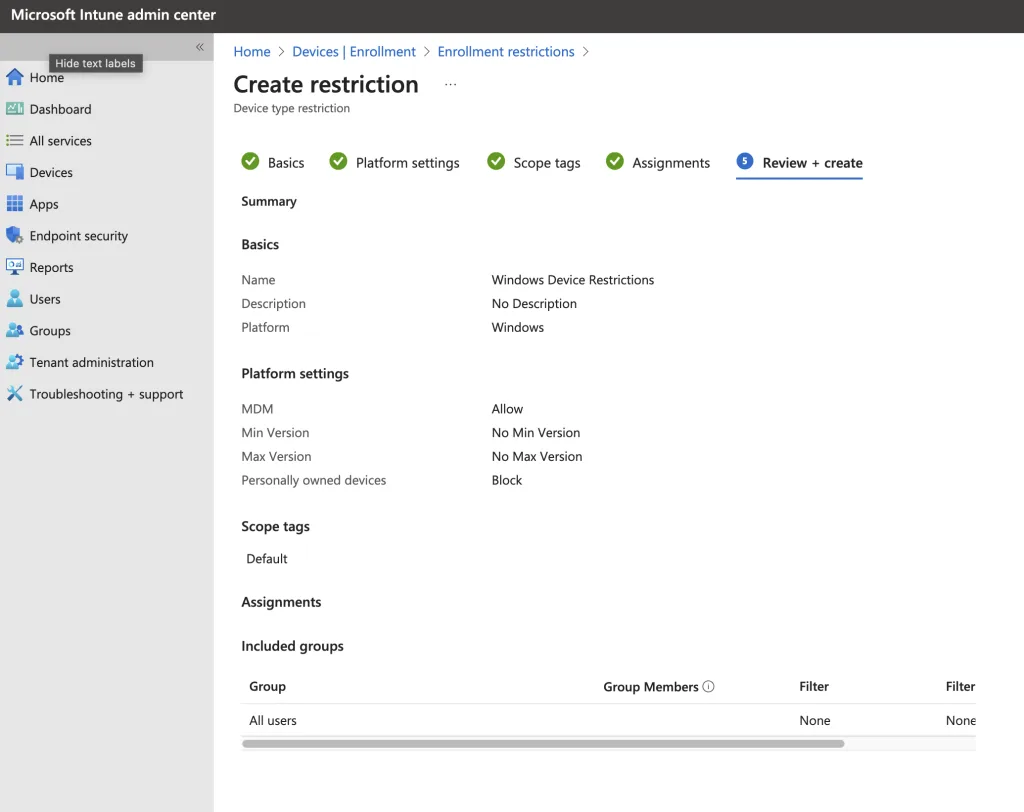
To ensure only corporate devices are enrolled, apply device platform restrictions:
- Access Platform Restrictions:
- Go to Intune > Devices > Enrolment > Device Platform Restrictions.
- Create a New Restriction:
- Restriction Name: Windows Device Restrictions.
- Assignments:
- Apply the restriction to All Users to block personal devices from enrolling.

Step 4: Define Corporate Device Identifiers
Corporate Device Identifiers help Intune differentiate between corporate and private devices during enrolment:
- Access Corporate Identifiers:
- Navigate to Intune > Devices > Enrolment > Corporate Device Identifiers.
- Add Identifiers:
- Manually: Enter identifiers such as the IMEI or Serial Number (more common with mobile devices).
- Upload CSV: For Windows devices, select “Manufacturer, model and serial number.” This CSV file confirms that the device is corporate-owned.
- Create a CSV File:
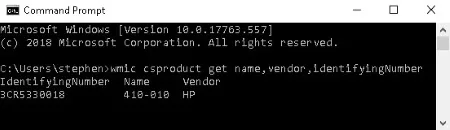
- Open Command Prompt and run:
wmic csproduct get vendor, name, identifyingnumber- Copy the output into a text editor (such as Notepad) in the following format:
- Vendor,Name,IdentifyingNumber
- Save the file as DevicePrepDemo.csv.


Step 5: Experience the Out-of-Box Experience (OOBE)
After configuring everything, test your setup using a new or reset device:
- Power Up the Device:
- Boot the PC to launch the Out-of-Box Experience (OOBE).
- Follow the On-Screen Prompts:
- Select your country/region and choose your keyboard layout.
- Accept the licence agreement.
- Sign in with your User Principal Name (UPN).
- Completion:
- The device will then apply the pre-provisioning settings and be ready for use.


Key Considerations When Transitioning from MDT
Managing OEM Bloatware
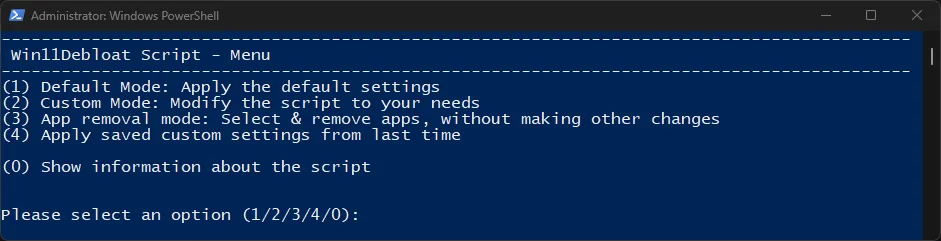
A major advantage of MDT is its ability to deploy a customised, bloatware-free image—something Autopilot Device Preparation does not natively support. IT teams can leverage Intune scripts and policies to remove unwanted apps during provisioning. For instance, the Win11Debloat PowerShell script from GitHub can automate bloatware removal, disable telemetry, and tweak the system for enhanced privacy and performance.
Custom Drivers and Applications
MDT allows for custom driver and application installations as part of the imaging process. With Autopilot, IT teams need to push these installations via Intune or other endpoint management solutions.
Network Dependencies
Autopilot Device Preparation relies on a stable internet connection. IT teams can leverage Microsoft’s Delivery Optimisation feature, as outlined in the official documentation, to manage bandwidth efficiently during Autopilot provisioning by sharing content between devices on the same network. IT teams may also need to pre-stage content or configure local caching to handle bandwidth limitations.
Exploring Alternative Tools: PowerShell Deployment Solution (PSD)
For teams that still require deep customisation and imaging capabilities, the PowerShell Deployment Solution (PSD) maintained by the Friends of MDT community offers a modern alternative. PSD allows IT professionals to continue leveraging script-based deployments with the flexibility of PowerShell, bridging the gap between traditional MDT imaging and modern provisioning approaches.
Best Practices for a Smooth Transition
- Evaluate Current Deployment Needs: Review your current MDT configurations and identify essential components that need to be replicated in Autopilot.
- Adopt Microsoft Intune: Intune is essential for managing Autopilot profiles, app deployments, and configurations.
- Pilot the Process: Start with a small batch of devices to test the Autopilot setup before scaling up.
- Document and Automate: Create detailed documentation and automate provisioning tasks wherever possible.
- Monitor and Optimise: Use Microsoft Endpoint Analytics to track provisioning success and improve the process.
Conclusion
Autopilot Device Preparation offers a modern, efficient approach to Windows device deployment, but it lacks several key features critical for certain organisational requirements. For instance, many organisations need to eliminate the bloatware that ships with OEM devices and require customisation capabilities for apps and configurations to speed up deployment or tailor the experience. Unlike traditional imaging tools like MDT, Autopilot does not natively allow for seamless Windows edition or SKU changes or handling outdated OEM recovery media.
Additionally, organisations often need a clean reimaging solution for every new device unless they procure clean OS installations directly from OEMs. Without these essential features, Autopilot may not fully address scenarios such as break/fix repairs, custom configurations, or recovery after cyberattacks and system compromises. IT professionals transitioning from MDT should carefully assess these limitations and explore complementary solutions, including PowerShell Deployment Solution (PSD), to meet their deployment needs comprehensively.