
In the world of modern collaboration, Microsoft Entra ID (formerly Azure AD) makes it easy to bring in external partners as guest users for seamless work on Teams, SharePoint, and more. But here’s the catch: Entra treats guests almost like full-fledged members by default—unless you explicitly restrict them. And those accounts? They stick around forever without any built-in cleanup. This setup sounds convenient, but it can expose your tenant to serious risks, from reconnaissance by bad actors to endless-standing access long after a project wraps.
As we audit tenants at Interian, we’re spotting these issues time and again. Entra’s secure, isolated environments are great for keeping your users separate from others—until collaboration pulls in guests from external tenants. Suddenly, their risks (compromised credentials, insider threats) become yours. Let’s dive into five of the most common guest security and management pitfalls we’re encountering in real-world setups, and how to course-correct.
The Top 5 Guest Mistakes and How to Fix Them
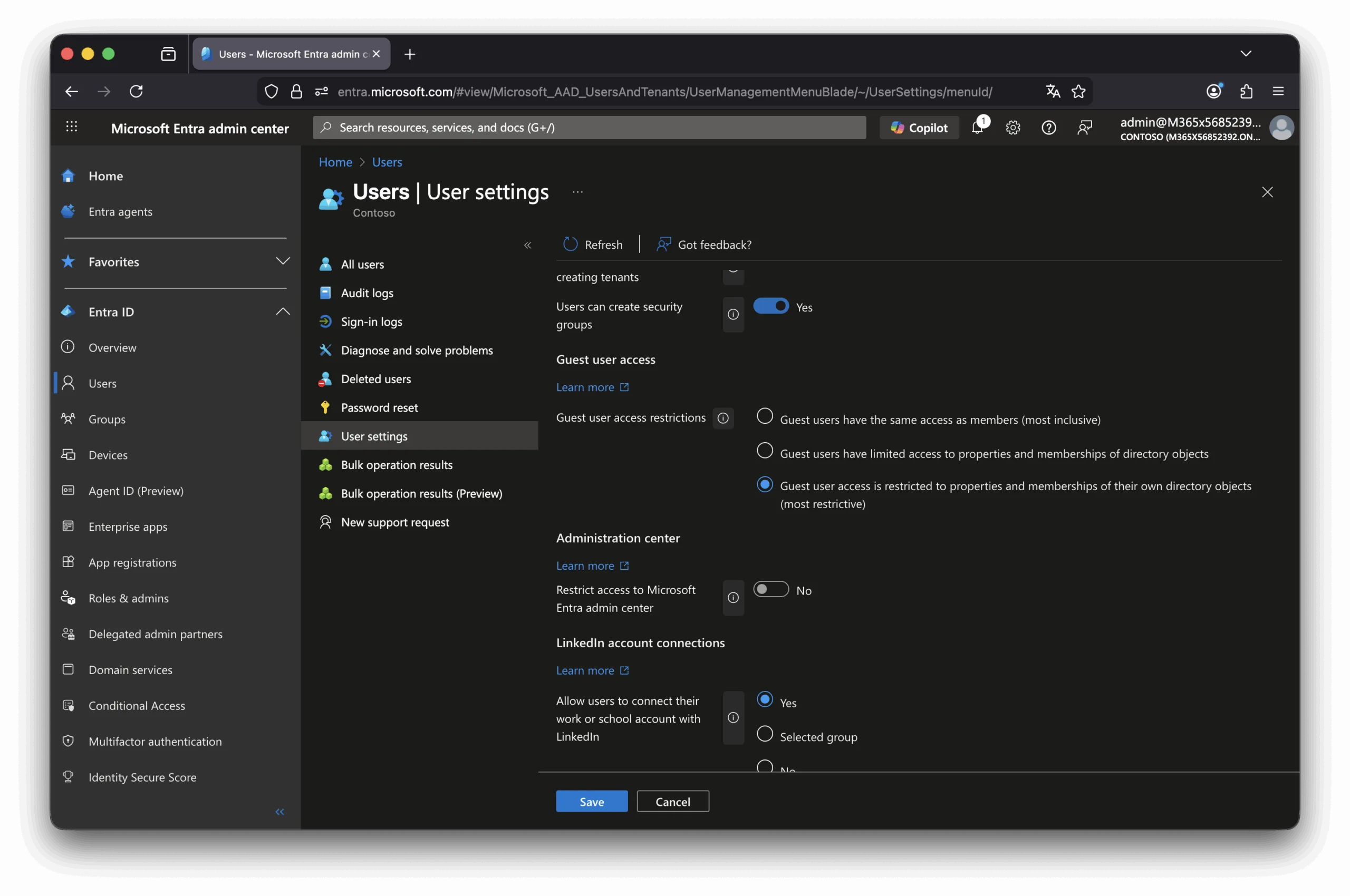
1. Overly Permissive Directory Visibility for Guests
Entra’s default “limited access” for guests still lets them peek at way more than you’d expect: managers, direct reports, and even memberships in groups they’re not part of. This turns your directory into an open book for potential attackers scouting for high-value targets.
What we’re seeing: Admins often overlook the guest user access settings entirely, leaving that default in place. It’s easy to miss, but it hands guests reconnaissance tools they shouldn’t have.
Quick Fix:
- Head to the Entra admin center > Users > User settings > Guest user access settings.
- Switch to the most restrictive option: Guests can only review their own user properties (not others’ or broad directory data).
- Steer clear of the “full access” setting, which treats guests like insiders for directory queries.
- Pro tip: Filter users by “userType eq ‘Guest'” in PowerShell or the portal to audit visibility right away.
2. Ignoring Cross-Tenant Access Customization
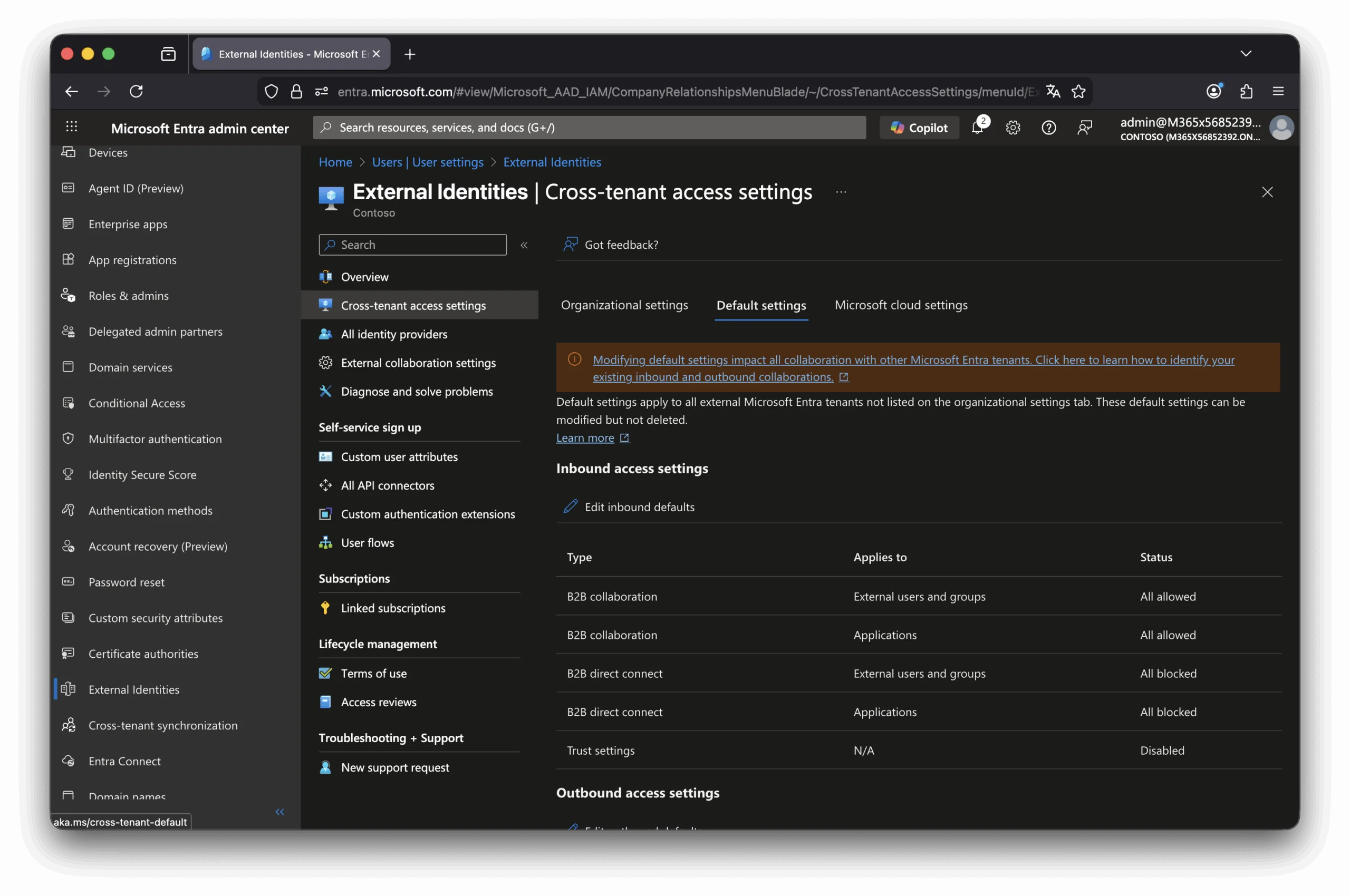
By default, Entra allows anyone from any tenant to become a guest in yours—and vice versa. This one-size-fits-all approach ignores your unique risk profile, potentially opening doors to unvetted partners or blocking trusted ones unnecessarily.
What we’re seeing: Tenants rarely tweak these defaults, leading to blanket permissions that don’t align with business needs. It’s a blind spot for inbound (who can join) and outbound (where your users can go) flows.
Quick Fix:
- Navigate to Entra admin center > External Identities > Cross-tenant access settings.
- Start with defaults: Edit inbound/outbound to block or allow as needed (e.g., block outbound guests globally for caution).
- Add specific organizations for nuance—trust a key partner tenant by allowing their users/groups while inheriting or overriding defaults.
- Tailor per tenant: Use users/groups filters to fine-tune who gets in or out.
3. Failing to Leverage Trust Settings for MFA and Devices
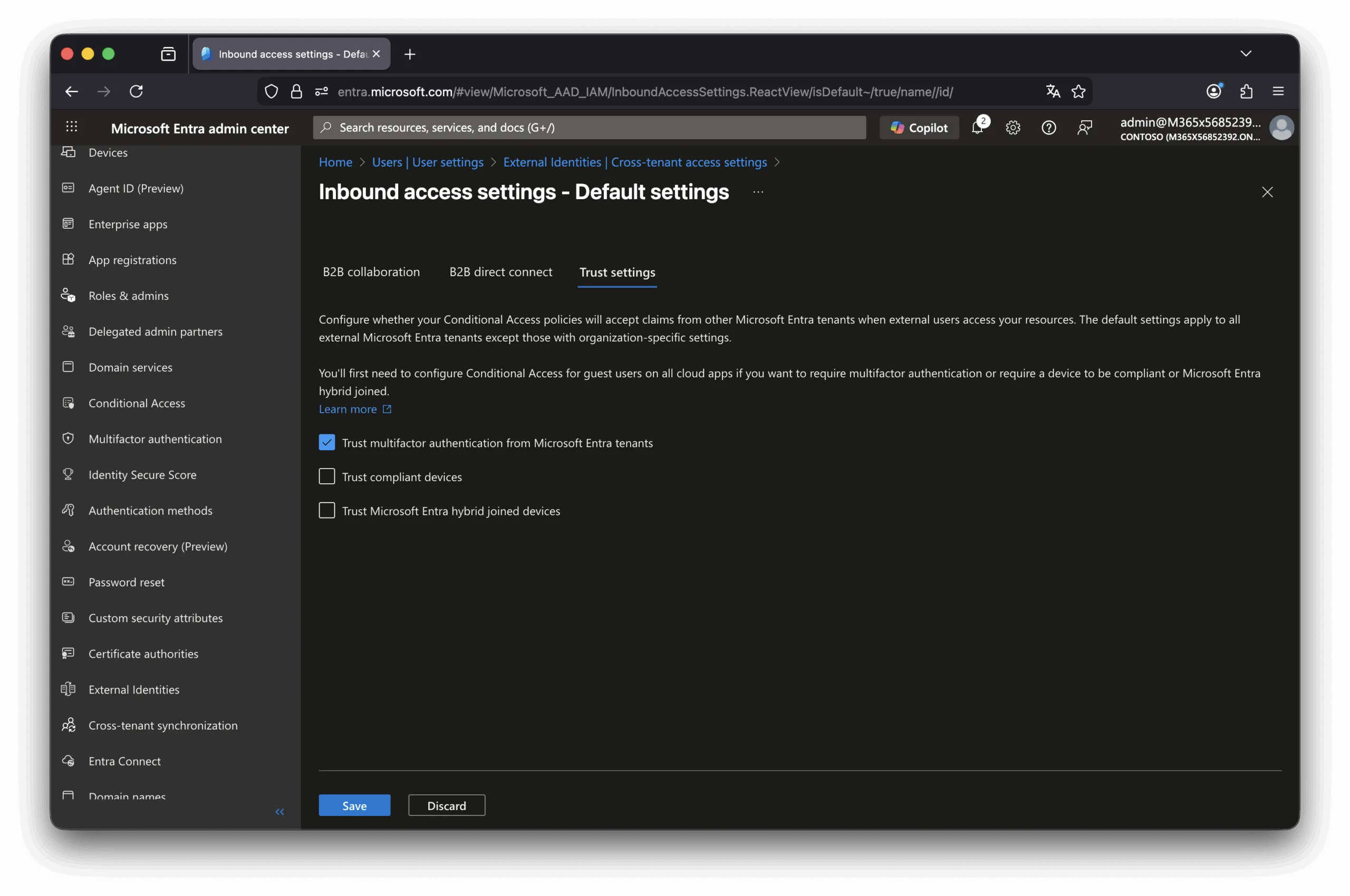
Cross-tenant trust settings for MFA, compliant devices, and Entra hybrid join are off by default. This means guests redo MFA in your tenant (good for control), but it blocks phishing-resistant auth enforcement—since that only works in their home tenant. Same issue with devices: no trust means no enforcement at all.
What we’re seeing: Orgs intuitively want re-auth, but skip trusting home tenant states, missing out on advanced controls. Without trust, you’re stuck with basic checks or nothing.
Quick Fix:
- In Cross-tenant access settings > Defaults > Inbound > Trust settings, enable trust for MFA, compliant devices, and hybrid join.
- Pair with Conditional Access policies: Require phishing-resistant MFA or device compliance for guests—now enforceable via home tenant.
- Build maturity: Collaborate with partners on their compliance standards so trust feels secure. Use session controls for extra layers.
4. SharePoint Defaults Enabling Chain Sharing by Guests
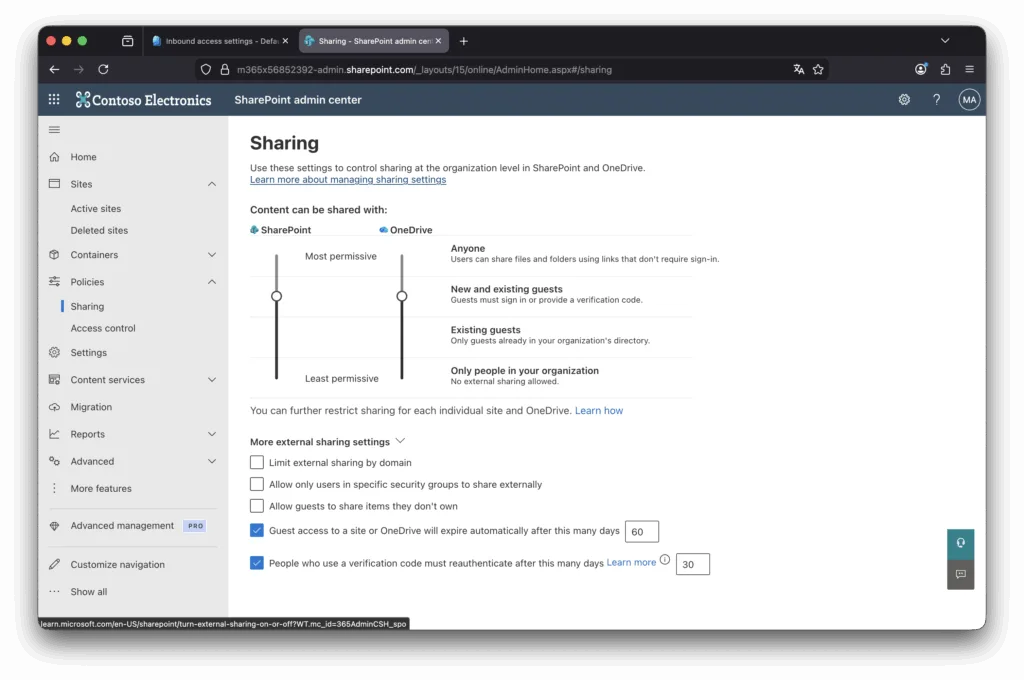
Even if external sharing is allowed for productivity, the default setting lets guests share items they don’t own. This creates a daisy chain: Your guest shares with their external contact, who shares further—potentially leaking sensitive files far beyond intent.
What we’re seeing: Admins assume sharing stops at the invited guest, but this unchecked box turns collaborators into unwitting broadcasters. It’s counterintuitive and often surprises teams mid-project.
Quick Fix:
- Go to SharePoint admin center > Policies > Sharing > More external sharing settings.
- Untick “Allow guests to share items they don’t own” to contain sharing to owners only.
- If broad access is needed (e.g., “New and existing guests”), layer on approvals or sensitivity labels via Microsoft Purview.
- Audit: Run Get-SPOSite in PowerShell to check site sharing capabilities across your environment.
5. No Lifecycle Management Access That Never Expires
Guest invites are manual and persistent by default—no auto-expiry or reviews. This leads to “zombie” accounts lingering with permissions to Teams, sites, and apps long after the collaboration ends, amplifying dormant risks.
What we’re seeing: Requests come via tickets or email with zero governance. Scripts might patch it, but that’s brittle—standing access just accumulates.
Quick Fix:
- Use Entra’s Identity Governance: External Identities > Connected organizations to link partner tenants.
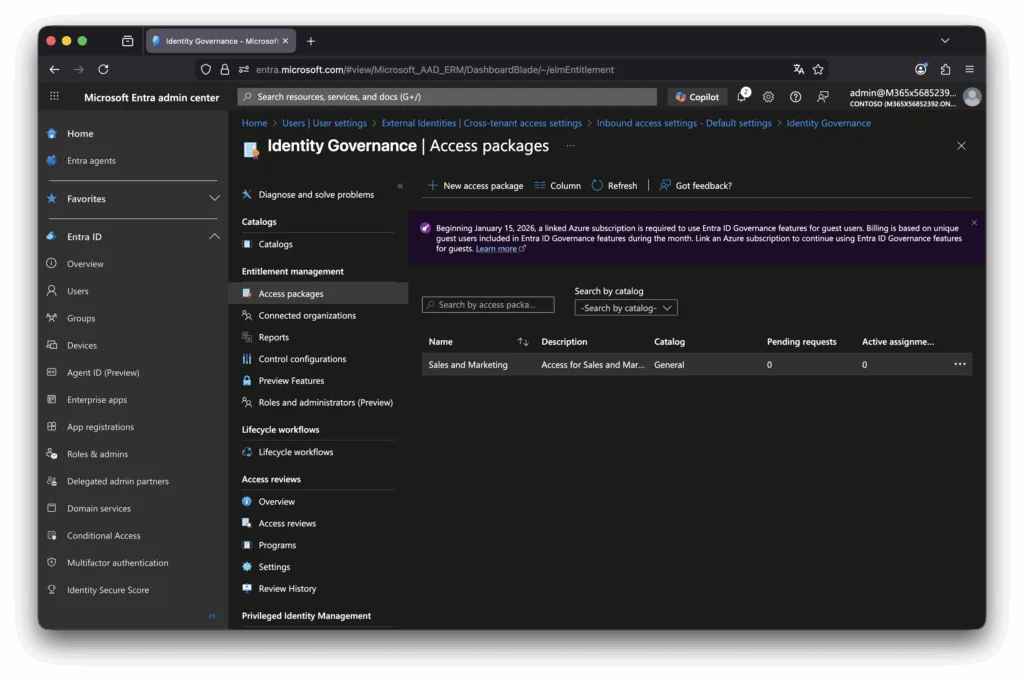
- Set up Access Packages (Entitlement management > Access packages): Bundle groups, Teams, SharePoint sites, or even Entra roles (preview for low-priv roles).
- Automate lifecycle: Require approvals (internal/external) on request, then recurring reviews—self-attest or sponsor/group owner decides if access continues.
- Result: Just-in-time granting with built-in cleanup, ditching the “forever” problem.
Turning Risks into Routine Resilience
These mistakes aren’t rare—they’re the defaults talking. Entra shines when you customize: Start with a guest inventory export from the admin center, then layer Conditional Access as your enforcement engine. It’s granular, scalable, and logs everything for audits.
We’ve guided clients through these tweaks, slashing guest exposures dramatically while keeping collaboration humming. If your Entra setup feels more permissive than protective, drop us a line for a quick tenant health check—no strings attached.
Secure the edges. Collaborate confidently.