There’s a Conditional Access grant control that most people still aren’t using properly: Require risk remediation (Microsoft-managed remediation).
It entered public preview recently, and it’s already one of the most useful quality-of-life improvements you can make to your Entra ID Conditional Access design.
The headline benefit is simple: you can now handle risk remediation for both password and passwordless users in a single policy.
No more duplicate policies. No more “one for password change, one for authentication strength + sign-in frequency every time”.
Just one clean policy
What Does Require Risk Remediation Do?
According to the official Microsoft Learn documentation, Require risk remediation (currently in preview) lets Microsoft Entra ID Protection automatically manage the remediation process for risky users, tailoring it to their authentication method. This feature focuses on remediating user risk (not sign-in risk) by prompting users to self-remediate and unblock themselves securely.
Here’s a breakdown:
- For password-based authentication: If risks like leaked credentials, password spray, or compromised passwords are detected, users are prompted to perform a secure password change. Once completed, their previous sessions are revoked to cut off potential attackers.
- For passwordless authentication (e.g., FIDO2 keys, passkeys, or certificate-based auth): For non-password-related risks like anomalous tokens, impossible travel, or unfamiliar sign-in properties, sessions are revoked, and users must sign in again.
This approach supports all authentication methods in one policy, automatically applying controls like “Require authentication strength” and “Sign-in frequency – Every time” behind the scenes. It reduces admin workload by enabling self-service remediation while protecting your organisation through session revocation.
Key requirements: You’ll need Microsoft Entra ID P2 licensing. It doesn’t support risky workload identities, and for external/guest users, only secure password reset is available (no session revocation). Be cautious of policy conflicts—if users are targeted by older policies using “Require password change” or “Block,” it could lead to blocks or multiple prompts.
This makes it a smarter, more unified way to handle risks compared to manual or fragmented setups, but as we’ll cover later, it’s not without limitations.
Why This Actually Matters
Most mature tenants end up with at least two (sometimes four) separate policies just to force risk remediation properly.
With this single control you:
- Delete duplicate policies
- Make your policy set easier to understand and audit
- Reduce the chance of misconfiguration
- Indirectly improve security (simpler = more secure in practice)
How to Enable It – Step by Step
First – important housekeeping.
You cannot just turn this on if you already have user-risk policies that use “Require password change” or “Sign-in frequency = Every time”.
Those old policies will conflict. So:
- Filter your policies to find any that target User risk and use either Require password change or Sign-in frequency = Every time
- Set those policies to Report-only or Off for now.
Now create the new policy:
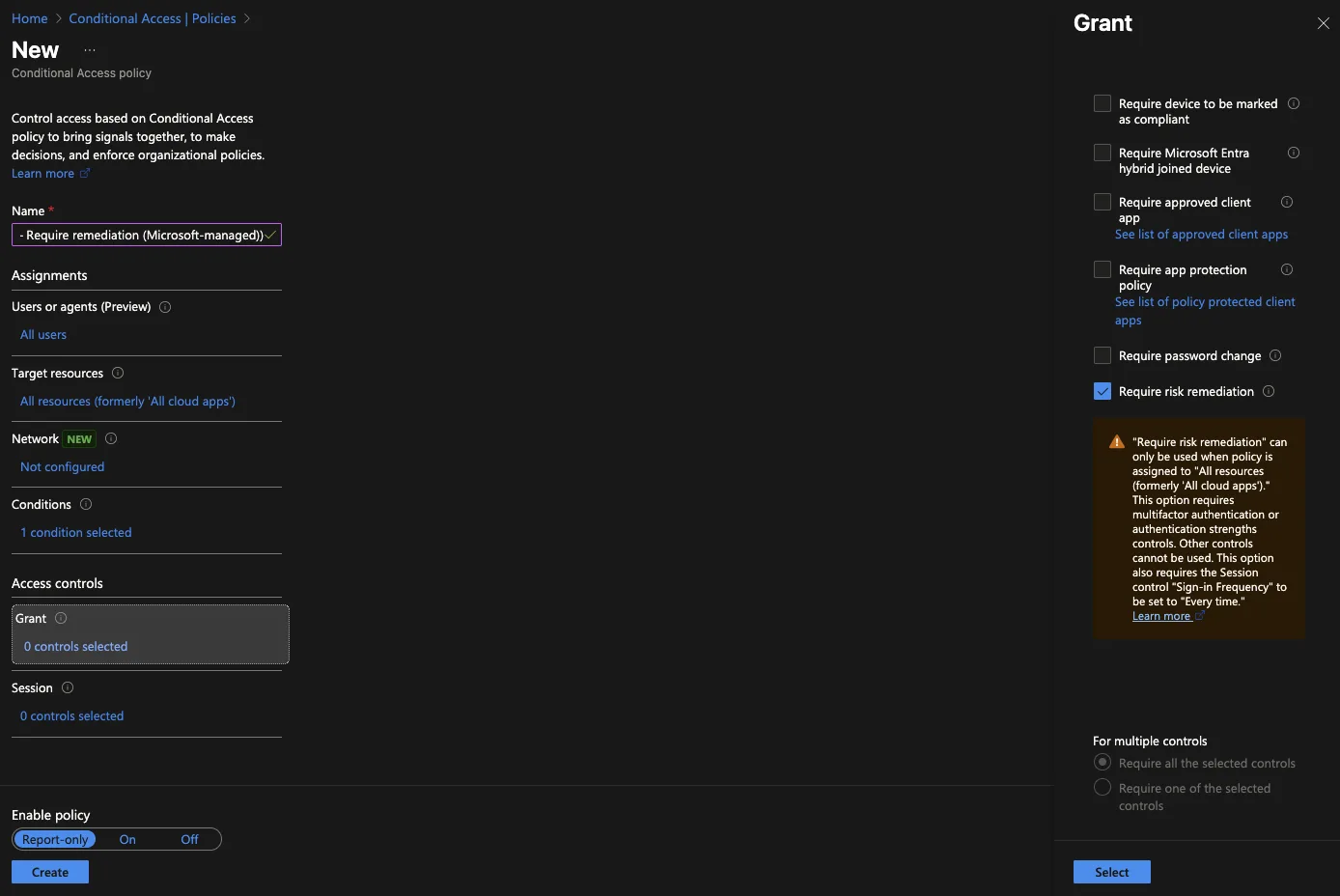
- Click Create new policy Give it a clear name like “Block high user risk – Require remediation (Microsoft-managed)”
- Assignments → Users → Select the users/groups you want (usually All users, maybe exclude break-glass);
Target All resources (the old all cloud apps) or specific ones if you prefer;
Conditions → User risk → Yes → High (you can also include Medium if you want) - Access controls → Grant → Select Require risk remediation That’s it. Nothing else needed. #screenshot + Grant controls list with “Require risk remediation” highlighted#
- Set to Report-only first, test, then On
Done. One policy now covers both password and passwordless remediation flows.
The Slightly Brutal Truth
This control only revokes session tokens (refresh tokens). It does not revoke access tokens.
That means an attacker who already stole a valid access token still has up to 1 hour of access after the user remediates.
If you want near-real-time revocation, you still need Continuous Access Evaluation (CAE) and ideally the strict enforcement policies.
But for most organisations, this new control is still a massive admin win and removes a long-standing annoyance.
Final Verdict
Go and enable Require risk remediation today.
Your Conditional Access blade will look cleaner, your auditors will be happier, and you’ll remove a whole class of potential misconfigurations.
Zero downside, immediate benefit.