SharePoint’s version history is a lifesaver for teams juggling documents and lists — it tracks every tweak, lets you roll back to older versions, and keeps your work secure. But here’s the catch: every version is a full copy of the file, so a 200MB PowerPoint with 10 versions eats up 2GB of storage. Multiply that by 500 files, and you’re looking at 1TB gone! Left unchecked, this can clog your SharePoint site with outdated versions. Thankfully, Microsoft’s new Version History Limits feature lets you take control, balancing storage savings with security needs. In this guide, we’ll explore what these limits are, how to set them up step-by-step, and why they’re crucial for both efficiency and compliance (hello, NIS2!). Ready to get started? Let’s jump in!
What Are SharePoint Version History Limits?
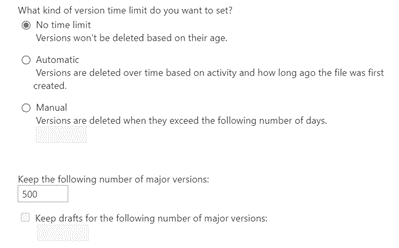
Out of the box, SharePoint Online keeps up to 500 major versions of any document or list item. If you enable minor versioning (handy for drafts), each major version can have up to 511 minor versions. That’s potentially thousands of copies per file! Administrators can now adjust these limits at the organisation, site, or library level, deciding how many versions to keep and whether they expire over time. It’s a game-changer for managing storage and keeping your site secure.
Step-by-Step Guide: Setting Up Version History Limits
Configuring version history limits is straightforward—no tech wizardry required. Here’s how to do it for a document library, with options to fit your needs:
- From the SharePoint Admin center, navigate to Settings > Version history limits
Open SharePoint and navigate to the document library or list you want to tweak. - Set Your Limits
Choose what works best:- Automatic Versioning: Microsoft’s smart pick. It keeps more versions for active files and fewer for inactive ones, optimising storage effortlessly.
- Manual (No Expiration): Set a fixed number of major versions (e.g., 100 or 500). Older versions drop off as new ones are added.
- Manual (With Expiration): Cap versions (e.g., 500) and add an expiry date (3 months, 6 months, 1 year, never or custom).
- Save It
Hit “OK” to apply your changes. That’s it!

Quick Tip: This changes the organisation-wide default. For existing libraries, you’ll need to update them manually or use PowerShell — more on that soon.
Why Version Limits Matter: Storage and Security
Storage Savings
Every version consumes space, and too many can bloat your site or push you over your storage quota. For instance, 500 files with 10 versions each at 200MB apiece totals 1TB. Version limits let you cut the clutter—whether through automatic adjustments or a strict cap—freeing up space for what matters. Want to reclaim 106GB in one go? PowerShell trimming can make it happen (keep reading!).
Security Considerations
Version history isn’t just about storage—it’s a security asset. It lets you recover from mistakes, track edits, or restore files after a cyberattack like ransomware. But there’s a twist: each version could expose sensitive data if not managed properly. Enter the NIS2 Directive, an EU cybersecurity law that demands robust data protection and resilience. Here’s the connection:
- Data Exposure: Old versions might contain unredacted personal info. Expiration dates (e.g., 365 days) reduce this risk, but too few versions might hinder recovery.
- Compliance: NIS2 and GDPR require careful retention. Keep versions too long, and you risk breaches; delete them too soon, and you might fail audits.
- Resilience: Automatic versioning prioritises active files—perfect for incident recovery—while trimming inactive ones, aligning with NIS2’s focus on availability.
Advanced Move: Trimming Old Versions with PowerShell
The organization version history settings do not impact existing sites, document libraries and OneDrive accounts. It retains the original version settings, 500 versions with no time limit. So you’ll need PowerShell to clean house. Here’s how:
1. Generate a Storage Report:
Kick things off by creating a detailed report of your version history. Using PowerShell, you can generate a CSV file that lists critical details like version sizes, expiration dates, and file locations.
How to do it: Run the PowerShell scripts provided in Microsoft’s tutorial to target a specific site or library. The process is asynchronous, meaning it runs in the background and might take hours or even days for large sites.
You can generate a report on the current version storage use on a site by running the New-SPOSiteFileVersionExpirationReportJob command or on a library by running the New-SPOListFileVersionBatchDeleteJob command.
In the following example, a job is queued to generate a site-scoped report at the report location, https://contoso.sharepoint.com/sites/sites1/reports/MyReports/VersionReport.csv.
New-SPOSiteFileVersionExpirationReportJob -Identity https://contoso.sharepoint.com/sites/site1 -ReportUrl "https://contoso.sharepoint.com/sites/sites1/reports/MyReports/VersionReport.csv"Check progress on the report generation
Use the Get-SPOListFileVersionExpirationReportJobProgress command to track the progress of report generation request.
The example below shows how you can check if your site scoped report is fully populated and ready to be analyzed.
Get-SPOSiteFileVersionExpirationReportJobProgress -Identity https://contoso.sharepoint.com/sites/site1 -ReportUrl "https://contoso.sharepoint.com/sites/sites1/reports/MyReports/VersionReport.csv"What you get: A clear picture of which files and versions are consuming the most space. For example, you might find a single document with 200 versions taking up gigabytes.
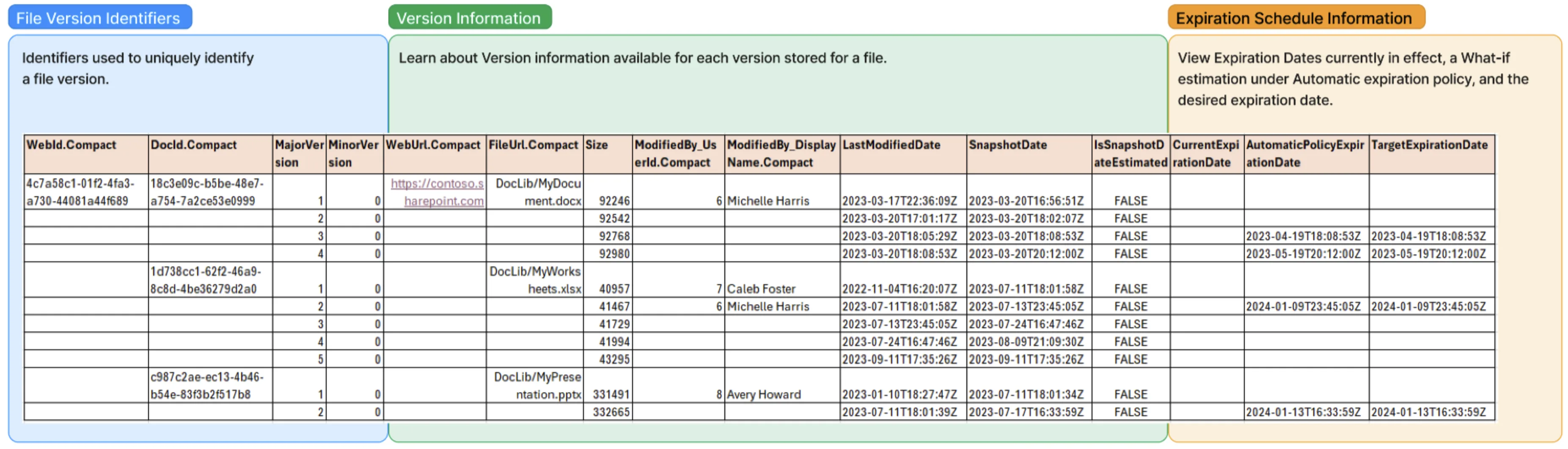
The first row is the header with the column identifiers containing File Version Identifiers, Version Metadata information, and expiration timestamp .Compact columns are denoted with .Compact post-fix that won’t repeat values if two consecutive rows have the same value. The other rows represent file versions, where each row represents a single version.
Let’s go through the first file version displayed in this report.
- File version identifiers: WebId, DocId, MajorVersion, and MinorVersion uniquely identify each version in your SharePoint site.
- Version metadata identifiers:WebUrl indicates the version in https://contoso.sharepoint.com, and FileUrl indicates that the file for this version is located at DocLib/MyDocument.docx. In other words, it is in a Document Library called DocLib, while the file is in the root folder of DocLib and is named MyDocument.docx.
- Size indicates that the version takes 92,246 bytes of storage.
- The next two columns, ModifiedBy_UserId and ModifiedBy_DisplayName indicate that the user Michelle Harris (with user ID 6) has created this version.
- LastModifiedDate indicates that the version’s content was last modified on March 13, 2023, at 22:36:09 UTC. SnapshotDate displays that the version became a historical version on March 20, 2023, at 16:56:51 UTC. IsSnapshotDateEstimated shows that SnapshotDate is the actual snapshot date.
- Expiration schedule identifiers:CurrentExpirationDate indicates that this version is currently set to never expire. AutomaticPolicyExpirationDate shows that under the automatically expire policy, this version is also set to never expire. TargetExpirationDate indicates that if we follow this schedule for trimming, we would set this version to never expire
Why it matters: This report is your foundation—it helps you identify the biggest storage hogs and decide what’s safe to trim..
2. Run a “What-If” Test:
Simulate trimming—e.g., keeping the last 5 versions or cutting anything over 365 days—to see the outcome.
Here’s an example of PowerShell script you could apply to generate a What-If Report file that applies the Automatic Expiration policy on the report file C:\Report.csv.
# save this file as ScheduleUpdate_Auto.ps1
param (
  [Parameter(Mandatory=$true)][string]$ImportPath,
  [Parameter(Mandatory=$true)][string]$ExportPath
)

$Schedule = Import-Csv -Path $ImportPath
$Schedule |
  ForEach-Object {
    $_.TargetExpirationDate = $_.AutomaticPolicyExpirationDate
  }
$Schedule |
  Export-Csv -Path $ExportPath -UseQuotes AsNeeded -NoTypeInformation
Here’s an example of PowerShell script to generate a What-If Report file. It applies Manual Expiration with expire-after days set to 30 on the report file C:\Report.csv.
# save this file as ScheduleUpdate_ExpireAfter.ps1
param (
  [Parameter(Mandatory=$false)][string]$ImportPath,
  [Parameter(Mandatory=$false)][string]$ExportPath,
  [Parameter(Mandatory=$false)][double]$ExpireAfter
)

function StringToDateTime($Value) { return [string]::IsNullOrEmpty($Value) ? $null : [DateTime]::ParseExact($Value, "yyyy-MM-ddTHH:mm:ssK", $null) }
function DateTimeToString($Value) { return $null -eq $Value ? "" : $Value.ToString("yyyy-MM-ddTHH:mm:ssK") }

$Schedule = Import-Csv -Path $ImportPath
$Schedule |
  ForEach-Object {
    $SnapshotDate = StringToDateTime -Value $_.SnapshotDate
    $TargetExpirationDate = $SnapshotDate.AddDays($ExpireAfter)
    $_.TargetExpirationDate = DateTimeToString -Value $TargetExpirationDate
  }
$Schedule |
  Export-Csv -Path $ExportPath -UseQuotes AsNeeded -NoTypeInformation
Here’s an example of PowerShell script to generate a What-If report file. It applies a Manual with Count Limits policy with major version limit set to 50 on the report file C:\Report.csv.
# save this file as ScheduleUpdate_Count.ps1
param (
  [Parameter(Mandatory=$true)][string]$ImportPath,
  [Parameter(Mandatory=$true)][string]$ExportPath,
  [Parameter(Mandatory=$true)][int]$MajorVersionLimit
)

$Report = Import-Csv -Path $ImportPath

$PreviousWebId = [Guid]::Empty
$PreviousDocId = [Guid]::Empty
$PreviousWebUrl = [string]::Empty
$PreviousFileUrl = [string]::Empty
$PreviousModifiedByUserId = [string]::Empty
$PreviousModifiedByDisplayName = [string]::Empty

$FileToVersions = @{}

foreach ($Version in $Report)
{
  $WebId = [string]::IsNullOrEmpty($Version."WebId.Compact") ? $PreviousWebId : [Guid]::Parse($Version."WebId.Compact")
  $DocId = [string]::IsNullOrEmpty($Version."DocId.Compact") ? $PreviousDocId : [Guid]::Parse($Version."DocId.Compact")
  $WebUrl = [string]::IsNullOrEmpty($Version."WebUrl.Compact") ? $PreviousWebUrl : $Version."WebUrl.Compact"
  $FileUrl = [string]::IsNullOrEmpty($Version."FileUrl.Compact") ? $PreviousFileUrl : $Version."FileUrl.Compact"
  $ModifiedByUserId = [string]::IsNullOrEmpty($Version."ModifiedBy_UserId.Compact") ? $PreviousModifiedByUserId : $Version."ModifiedBy_UserId.Compact"
  $ModifiedByDisplayName = [string]::IsNullOrEmpty($Version."ModifiedBy_DisplayName.Compact") ? $PreviousModifiedByDisplayName : $Version."ModifiedBy_DisplayName.Compact"

  $PreviousWebId = $WebId
  $PreviousDocId = $DocId
  $PreviousWebUrl = $WebUrl
  $PreviousFileUrl = $FileUrl
  $PreviousModifiedByUserId = $ModifiedByUserId
  $PreviousModifiedByDisplayName = $ModifiedByDisplayName

  if (($PreviousWebId -eq [Guid]::Empty) -or ($WebId -eq [Guid]::Empty) -or
    ($PreviousDocId -eq [Guid]::Empty) -or ($DocId -eq [Guid]::Empty))
  {
    throw "Compact column error."
  }

  $Version."WebId.Compact" = $WebId
  $Version."DocId.Compact" = $DocId
  $Version."WebUrl.Compact" = $WebUrl
  $Version."FileUrl.Compact" = $FileUrl
  $Version."ModifiedBy_UserId.Compact" = $ModifiedByUserId
  $Version."ModifiedBy_DisplayName.Compact" = $ModifiedByDisplayName

  if ($null -eq $FileToVersions[$DocId])
  {
    $FileToVersions[$DocId] = [System.Collections.Generic.PriorityQueue[Object, Int32]]::new()
  }

  $VersionsQueue = $FileToVersions[$DocId]

  $VersionNumber = [Int32]::Parse($Version.MajorVersion) * 512 + [Int32]::Parse($Version.MinorVersion)
  $VersionsQueue.Enqueue($Version, -$VersionNumber)
}

$Schedule = [System.Collections.Generic.List[Object]]::new()

foreach ($FilesAndVersions in $FileToVersions.GetEnumerator())
{
  $VersionsQueue = $FilesAndVersions.Value
  $NumMajorVersionsSeen = 0
  while ($VersionsQueue.Count -gt 0)
  {
    $Version = $VersionsQueue.Dequeue()
    if ($NumMajorVersionsSeen -ge $MajorVersionLimit) {
      $Version.TargetExpirationDate = [DateTime]::new(2000, 1, 1).ToString("yyyy-MM-ddTHH:mm:ssK")
    }

    if ([int]::Parse($Version.MinorVersion) -eq 0) { $NumMajorVersionsSeen++ }

    $Schedule.Add($Version)
  }
}

$Schedule |
  Export-Csv -Path $ExportPath -UseQuotes AsNeeded -NoTypeInformation
3. Trim Versions:
Execute the trim command to permanently delete old versions. One example saw 106GB freed up—a 44% storage drop!
You can queue a job to trim versions for all document libraries in the site collection using the New-SPOSiteFileVersionBatchDeleteJob PowerShell command.
- Use the <DeleteBeforeDays> parameter to specify the age criteria you wish to apply for deleting versions. Versions older than the specified days are deleted asynchronously in batches in the upcoming days.
- Use the <MajorVersionLimit> to specify the count limit of major versions to store. Oldest versions exceeding the specified count are deleted asynchronously in batches in the upcoming days.
- Use the <MajorVersionLimit> parameter to apply Automatic setting trimming logic on existing file versions.
In the following example, the job is queued to trim versions that are older than 180 days for all document libraries in the site collection https://contoso.sharepoint.com/sites/site1.
New-SPOSiteFileVersionBatchDeleteJob -Identity https://contoso.sharepoint.com/sites/site1 -DeleteBeforeDays 180In the example below, the job is queued to trim oldest versions that exceed 100 major version count limit for all document libraries in the site collection https://contoso.sharepoint.com/sites/site1.
New-SPOSiteFileVersionBatchDeleteJob -Identity https://contoso.sharepoint.com/sites/site1 -MajorVersionLimit 100 -MajorWithMinorVersionsLimit 0In the example below, the job is queued to trim versions based on the Automatic algorithm for all document libraries in the site collection https://contoso.sharepoint.com/sites/site1.
New-SPOSiteFileVersionBatchDeleteJob -Identity https://contoso.sharepoint.com/sites/site1 -AutomaticYou can track progress of the trim job using the Get-SPOSiteFileVersionBatchDeleteJobProgress cmdlet.
In the following example, the cmdlet reports the progress of the trim job for https://contoso.sharepoint.com/sites/site1
Get-SPOSiteFileVersionBatchDeleteJobProgress -Identity https://contoso.sharepoint.com/sites/site1If needed, you can cancel an in-progress trim job. Once the cmdlet executes successfully, the in-progress job is stopped and no further deletions happen.
Caution : Stopping a trim job doesn’t revert versions that have already been deleted
To stop an in-progress trim job from additional version trimming on the site collection https://contoso.sharepoint.com/sites/site1:
Remove-SPOSiteFileVersionBatchDeleteJob -Identity https://contoso.sharepoint.com/sites/site1To stop an in-progress trim job from additional version trimming in document library ‘Documents’ in site collection https://contoso.sharepoint.com/sites/site1:
Remove-SPOListFileVersionBatchDeleteJob -Site https://contoso.sharepoint.com/sites/site1 -List "Documents"Top Tips for Mastering Version History
- Tailor Limits to Your Data
- Critical Files (e.g., contracts): Set higher limits (e.g., 500 versions) for recovery and audits.
- Routine Files (e.g., notes): Use fewer versions or expiration (e.g., 100 versions, 365 days).
- Static Files (e.g., old reports): Disable versioning entirely.
- Lock Down Settings
Restrict who can adjust version limits to trusted admins. Log changes to catch unauthorised tweaks—NIS2-approved accountability!
- Educate Your Team
Teach users how to restore versions and admins how to balance storage and security. A little training goes a long way.
- Keep an Eye on Usage
Monitor storage and adjust limits to stay within quotas and meet retention rules.
- Leverage Automatic Settings
Microsoft’s automatic option optimises storage while preserving key versions for security—best of both worlds.
Wrapping Up
SharePoint’s Version History Limits give you the power to streamline storage and boost security in one go. Whether you’re slashing 1TB of bloat or aligning with NIS2 compliance, this feature puts you in the driver’s seat. Follow our step-by-step guide to set limits in minutes, or use PowerShell to reclaim space fast—just double-check before you trim. Master version history, and you’ll keep your SharePoint site lean, efficient, and secure. Ready to tweak those settings? Your workflow will thank you!