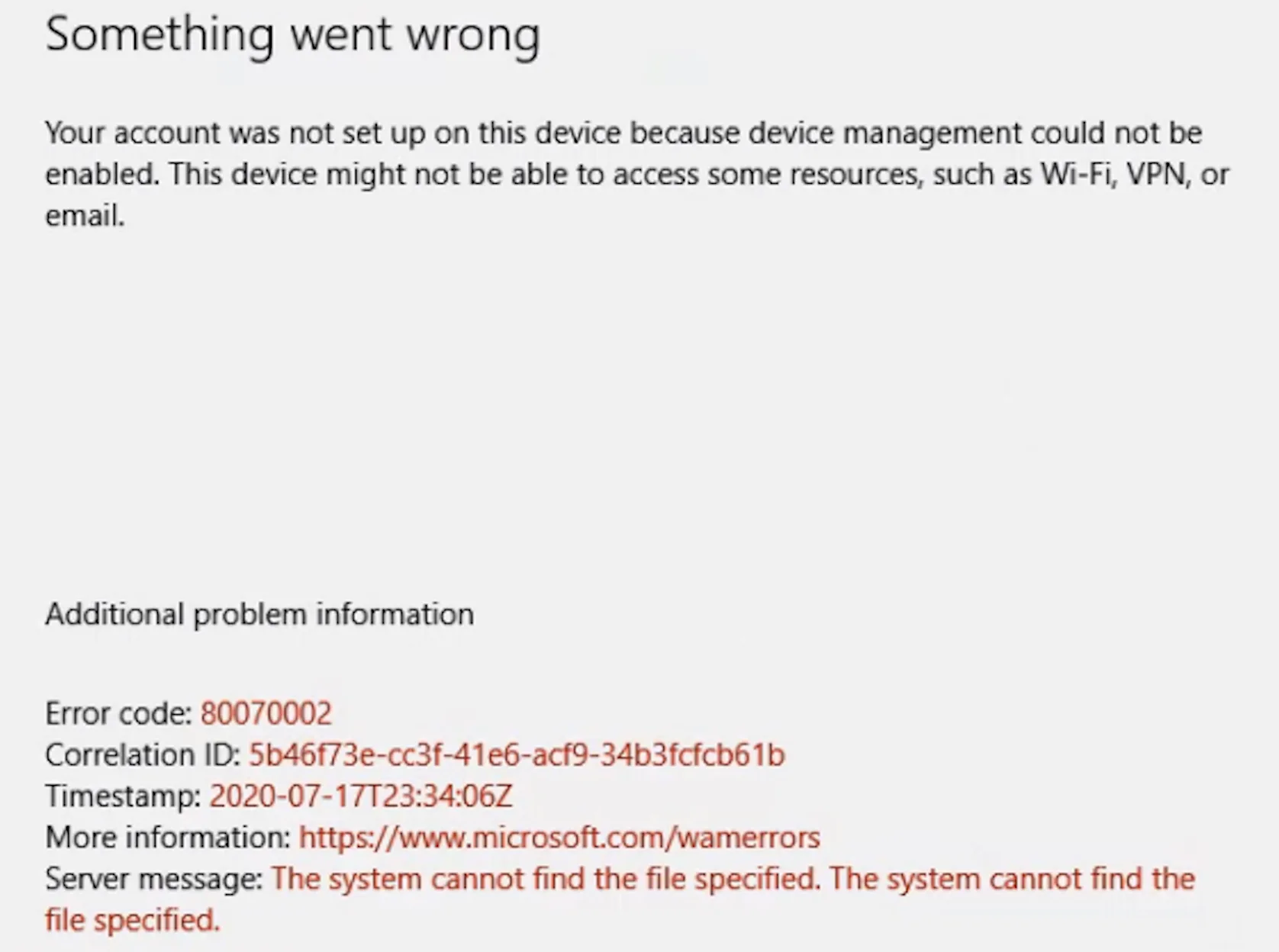
Every IT professional has been there: an Intune notification pops up about a device compliance issue, a failed update, or a security alert, and you’re left thinking, “What’s that now?” Those cryptic error codes and vague alerts can be maddening, especially when critical issues, like a non-compliant device or a malware threat, get lost in the flood. Wouldn’t it be nice if those errors came with clear, human-readable context?
This post offers a clear, step-by-step process to set up a Copilot agent for Intune notifications, packed with security measures to protect your data and ensure compliance. Whether you’re an IT admin or a security professional, this guide is actionable and easy to follow.
Why Smarter Notifications Matter
Microsoft Intune is essential for managing devices and ensuring compliance, but its error codes can be confusing and hard to decipher. When you receive an alert with a code like “0x87D155FB”, it often requires digging through documentation to understand the issue. This wastes time and risks overlooking critical problems, such as security threats or device non-compliance.
A Copilot agent simplifies this process: you input the Intune error code, and the agent searches trusted sources to provide a clear, human-readable explanation of the issue. It also includes a link to a reliable resource, like Microsoft Learn, for further details. This approach saves time, reduces confusion, and helps your IT team resolve issues faster, keeping your organisation secure and compliant.
Step-by-Step Guide to Set Up the Copilot Agent
Follow these steps to create your own “Intune Error Humanizer” agent in just 15 minutes. No coding experience required!
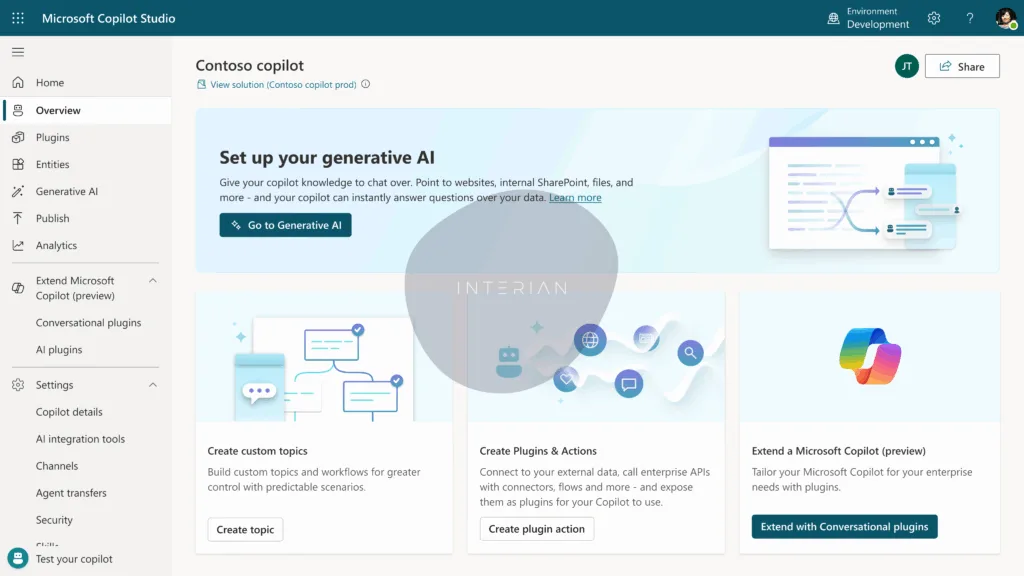
Step 1: Enable Copilot Studio
Our agent will be built using Microsoft Copilot Studio, a user-friendly platform for creating intelligent agents. If you haven’t used it before, here’s how to get started:
- Sign in to the Azure Portal: Navigate to the Copilot Studio portal using your admin account.
- Activate Copilot Studio: If it’s your first time, follow the prompts to enable the service in your Microsoft 365 tenant. Ensure you have the necessary permissions (Global Admin or Power Platform Admin).
- Set up a new environment: Choose a region that complies with your organisation’s data residency requirements. Name your environment something clear, like “Intune-Agent-Prod”.
Once set up, you’re ready to start building your agent.
Step 2: Plan Your Agent’s Purpose
Before creating the agent, let’s define its role. Our “Intune Error Humanizer” agent will:
- Interpret Intune error codes and provide human-readable explanations.
- Suggest solutions by pulling from trusted sources like Microsoft Learn.
- Integrate with Microsoft Teams for seamless access by your IT team.
This clarity ensures your agent is focused and effective.
Step 3: Create the Agent
Now, let’s build the agent in Copilot Studio:
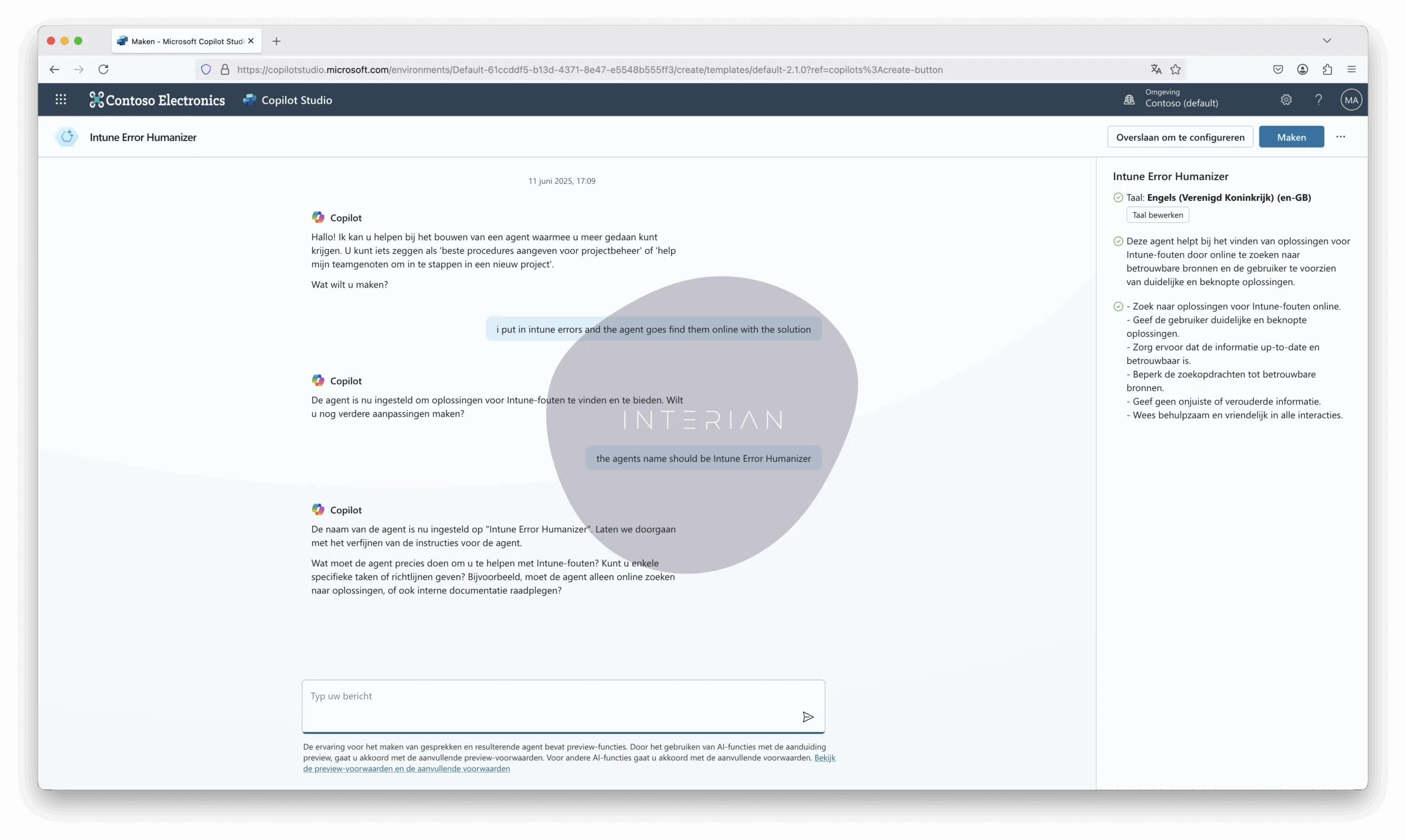
- Access the agent menu: In Copilot Studio, select Agents from the menu bar.
- Start a new agent: Click New Agent to begin.
- Define the agent’s behaviour: Enter a prompt to describe what the agent should do.
For example: “When I input Intune error codes, the agent searches online for explanations and solutions from trusted sources.“ - Name the agent: Call it “Intune Error Humanizer” for clarity.
- Create the agent: Click Create to initialise it.
Step 4: configure the agent’s knowledge sources:
- Add knowledge sources: These are the references your agent will use to provide accurate responses.
- Go to the Knowledge tab.
- Click Add Knowledge.
- Select Public Website as the source type.
- Add the following URLs:
- https://learn.microsoft.com/en-us/troubleshoot/mem/intune/
- https://learn.microsoft.com/
- https://blog.interian.be/ (a little nod to our blog, why not?).
- Click Add to save each URL.
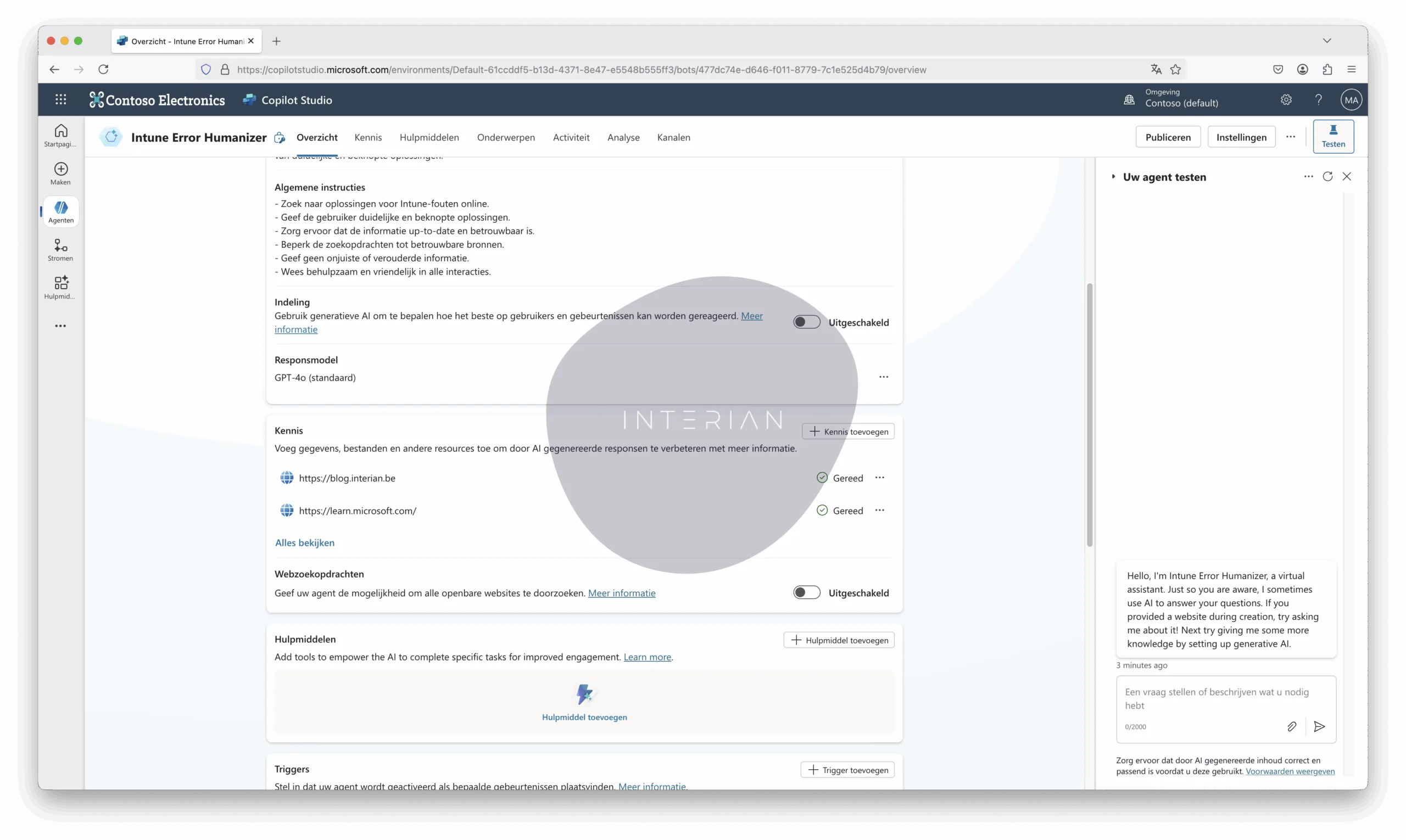
- Test the agent:
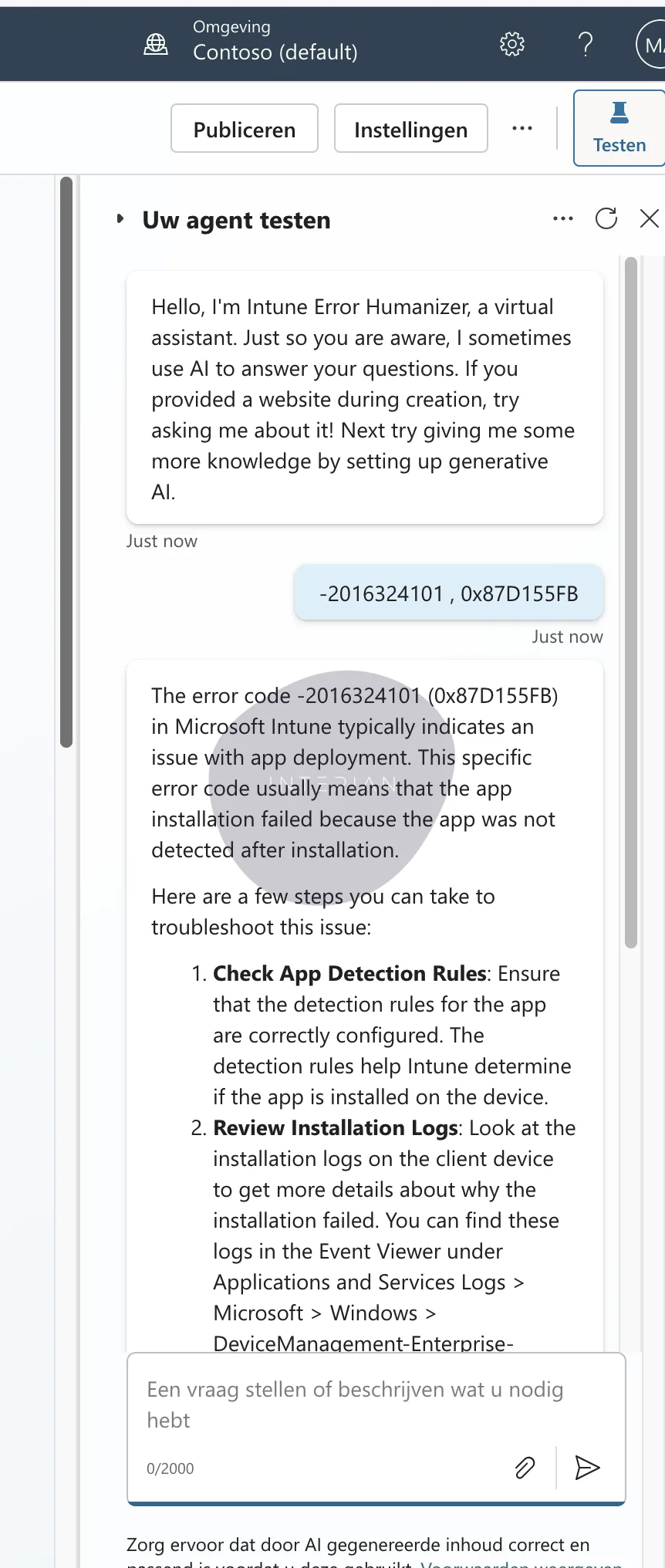
On the right-hand panel, use the test blade to try it out. Input sample Intune error codes, such as: “-2016324101 , 0x87D155FB , Invalid MDM configuration“
The agent should return clear explanations and solutions, pulling from the knowledge sources you added. For example, it might explain that “0x87D155FB” relates to a device enrollment issue and suggest checking the MDM configuration. Tweak the prompt if the responses need refining.
Step 5: Publish the “Intune Error Humanizer” Agent
Once your agent is working, it’s time to make it available to your team:
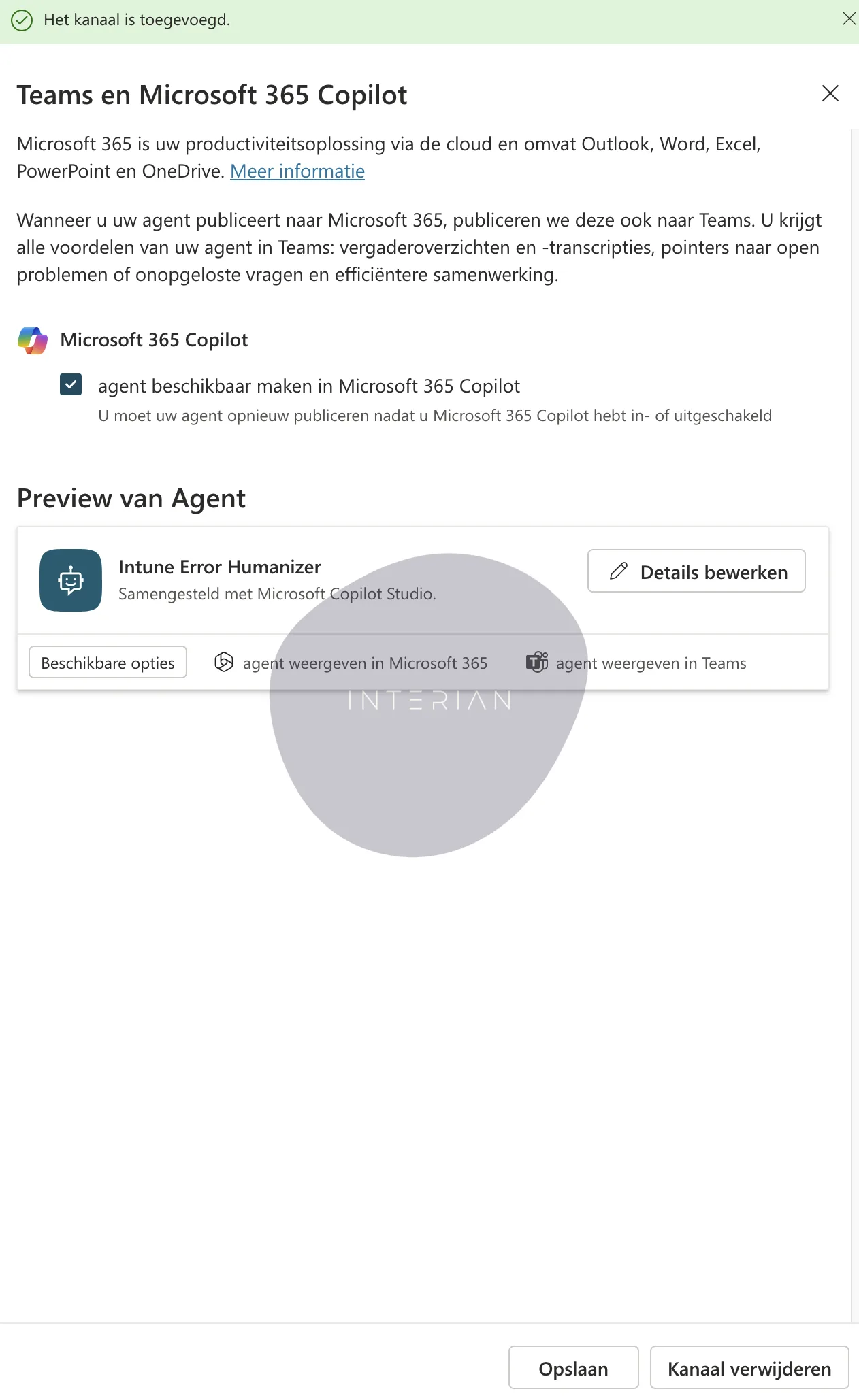
- Publish the agent: In Copilot Studio, click Publish.
- Select a channel: Choose Microsoft Teams as the deployment channel, then click Add Channel.
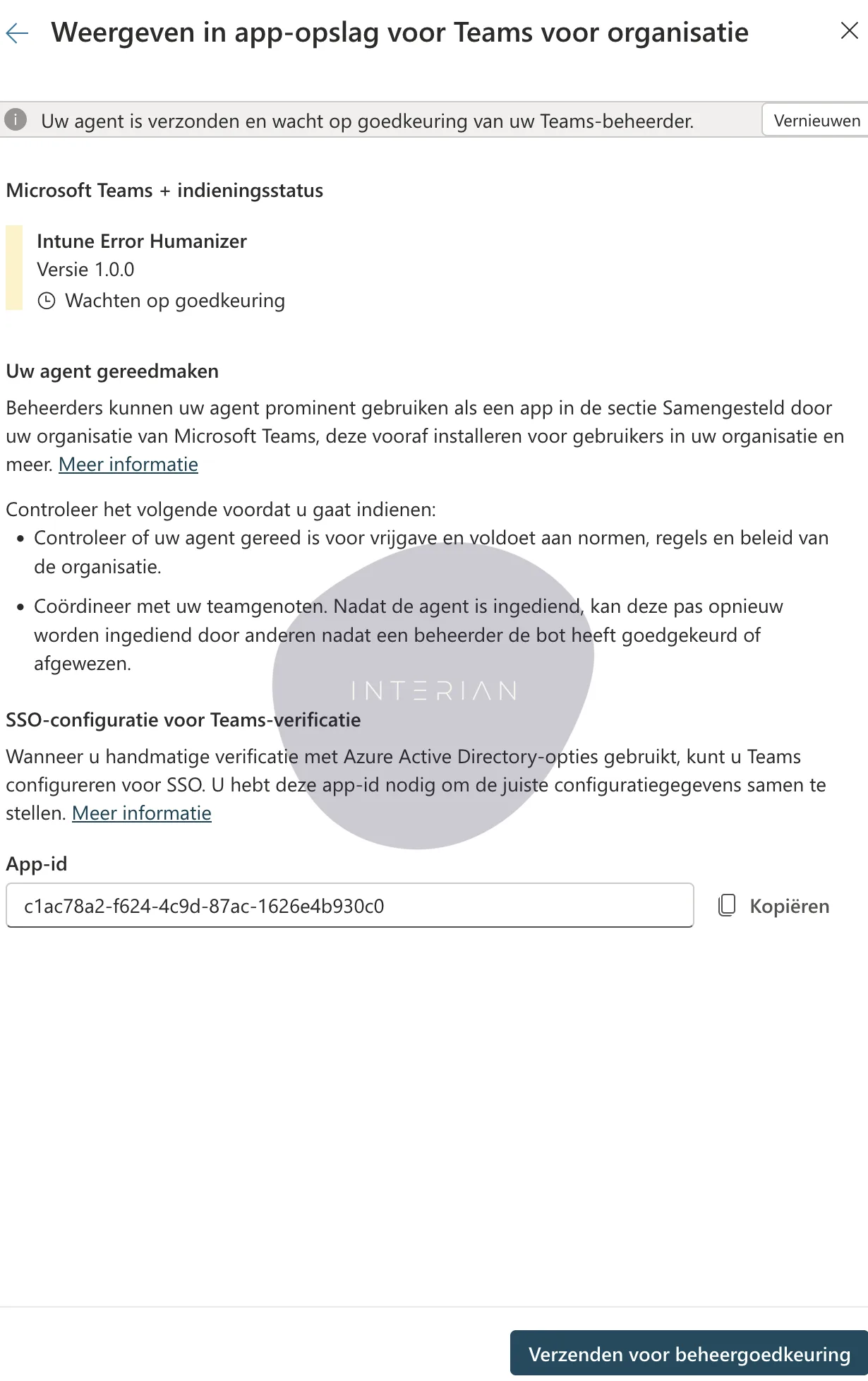
- Submit for approval: Click Send Request to Administrator to notify your Teams admin.
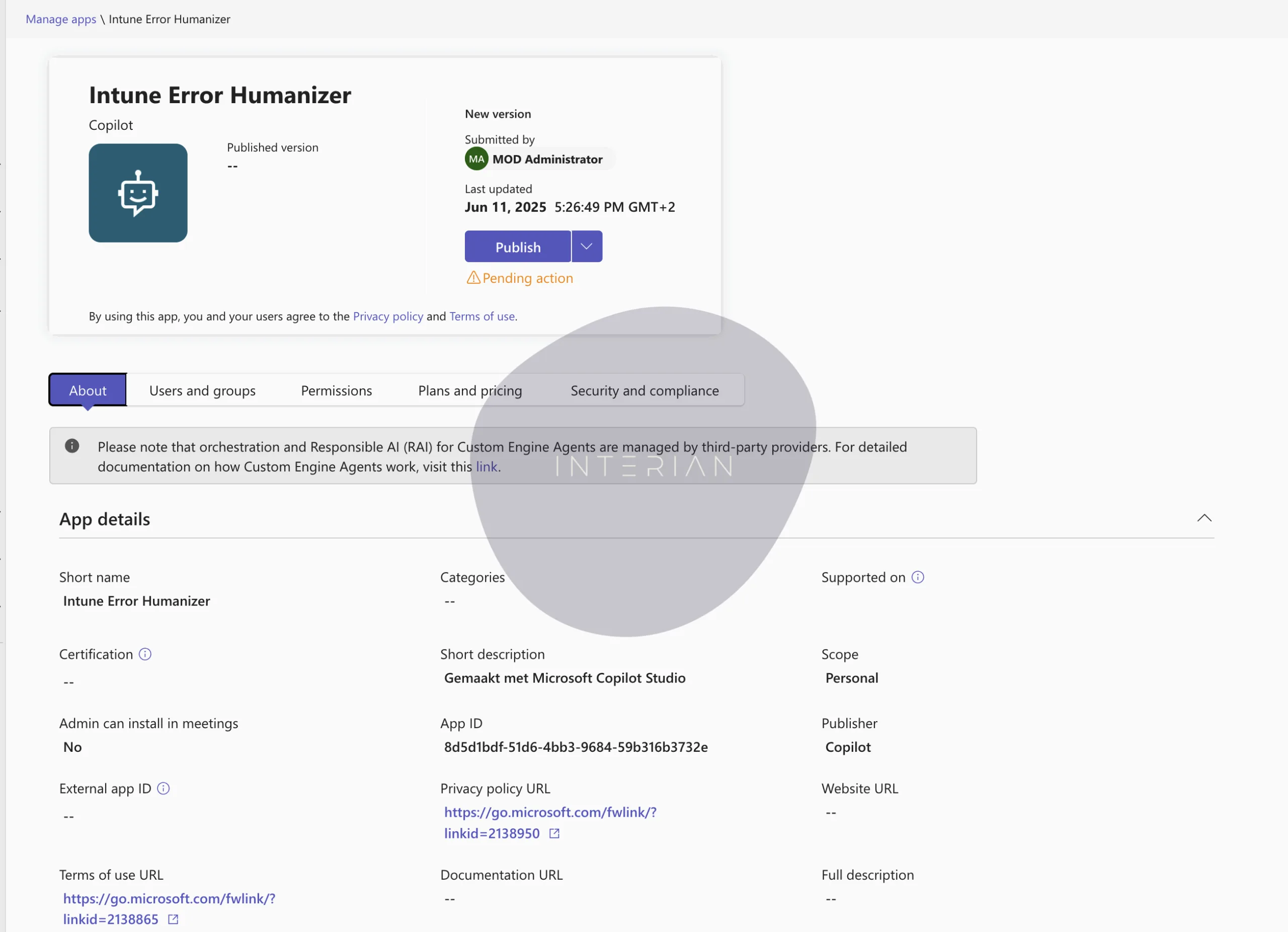
Now, the Teams administrator needs to approve the app:
- Access the Teams Admin Center: Go to admin.teams.microsoft.com.
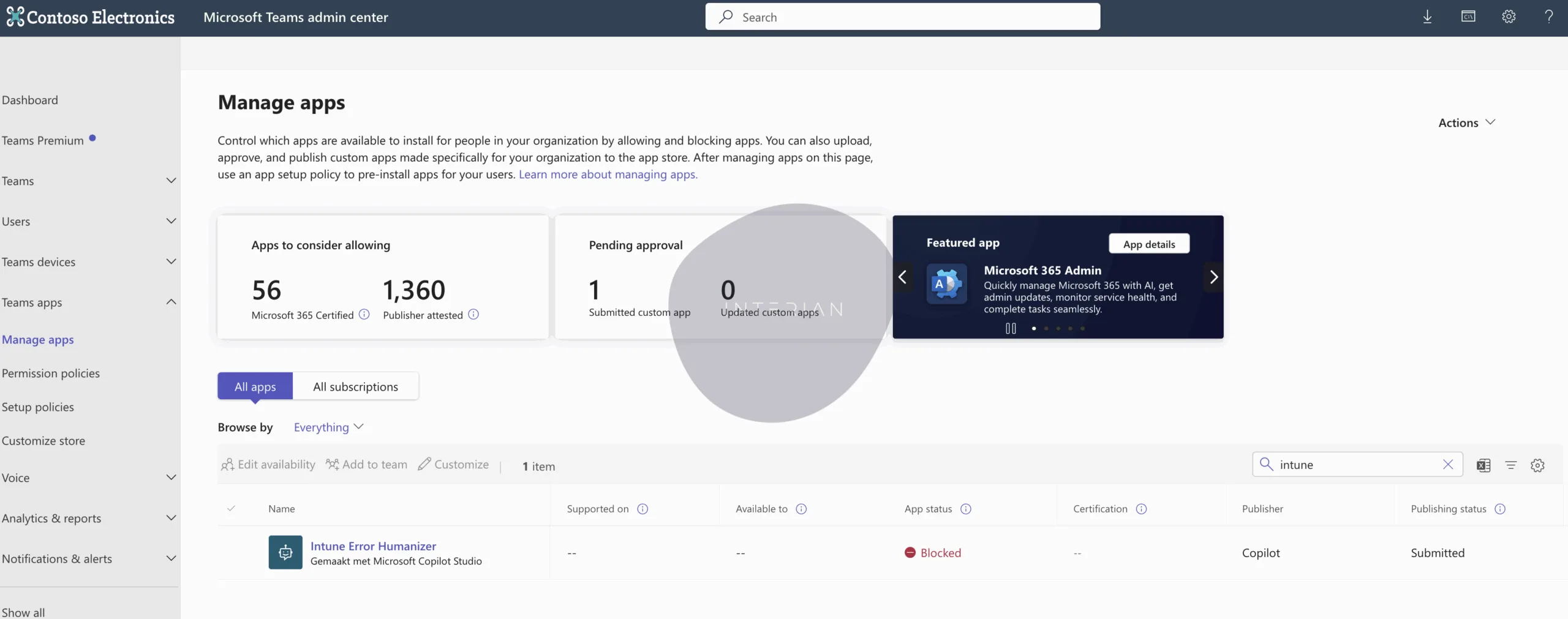
- Navigate to Teams apps: Select Teams Apps, then Manage Apps.
- Find pending approvals: Change the filter to App Requests.
- Locate the agent: You’ll see “Intune Error Humanizer” listed under pending approvals.
- Publish the app: Approve and publish the agent.
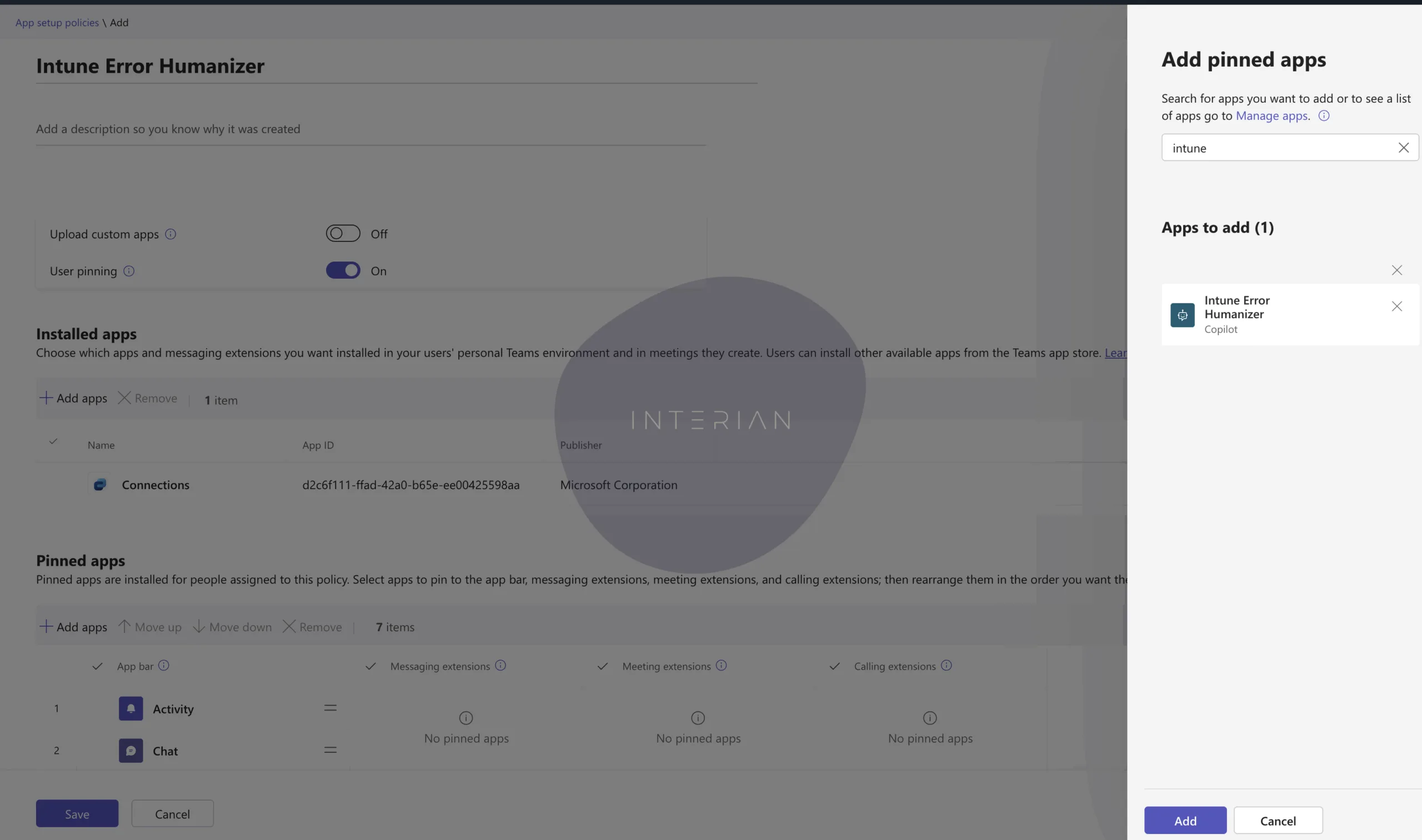
To make it easy for your IT team to access:
- Create a policy: In the Teams Admin Center, set up an app pinning policy to add the “Intune Error Humanizer” app to your IT team’s Teams sidebar.
- Assign the policy: Apply it to the relevant user group (e.g., IT Admins).
Step 5: Use the Agent in Teams
With the agent published, it’s ready to use:
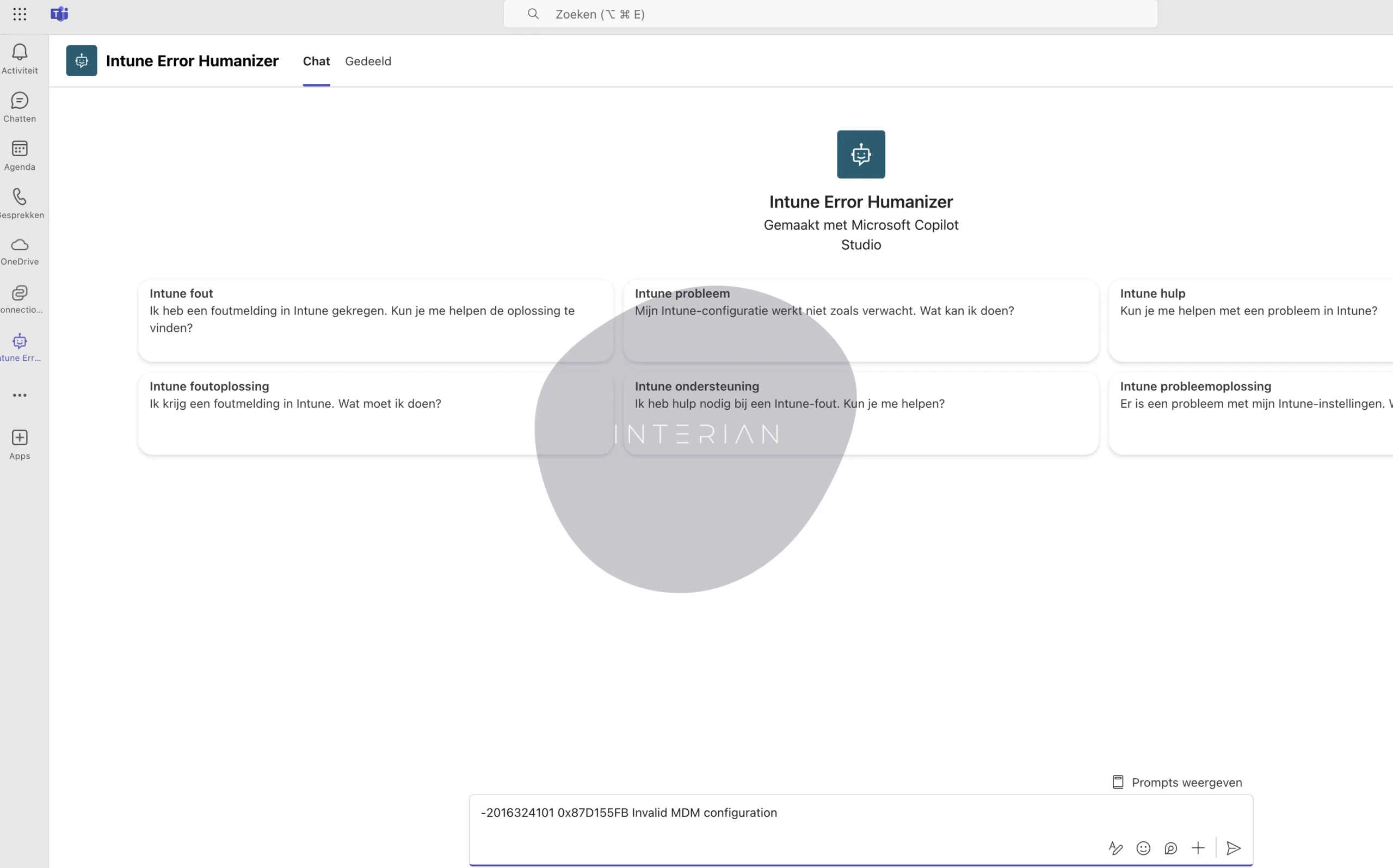
- Open Microsoft Teams: Navigate to the Apps section.
- Find the agent: Search for “Intune Error Humanizer” or locate it in the pinned apps.
- Interact with the agent: Input an Intune error code or ask a question, like “What does error -2016324101 mean?” The agent will respond with a clear explanation and suggested fix.
Encourage your team to test the agent with real-world scenarios, such as compliance alerts or update failures, to ensure it meets their needs.
Conclusion
Well done, you’ve built a Copilot agent that makes Intune notifications easier to handle! This Minimum Viable Product (MVP) shows how fast you can create useful automation tools in your Microsoft 365 tenant. Now, start experimenting: tweak the agent’s prompts, add new knowledge sources, or explore integrations with tools like Microsoft Security Copilot for deeper insights. Have fun discovering what your agent can do!
Given the rapid pace of AI innovation, this guide might feel outdated in six months as new features and capabilities emerge. Stay curious and keep building to stay ahead. Ready to transform your IT workflows? Dive in, play around, and create a more efficient, secure environment.
Need help or want to take your agent further? Contact me, I’m here to support your journey.
Share this guide! Tweet it out:
“Build a Copilot agent for smarter Intune alerts in 7 steps! 🚀 #Intune #Cybersecurity #ITManagement”