Server security is a top priority for organisations in today’s threat landscape. With cyber attacks growing ever more sophisticated, safeguarding server workloads – whether on-premises, in Azure, AWS, or GCP – is essential. Microsoft Defender for Cloud is a robust platform that protects a wide range of resources, including servers, storage, and containers. Within this platform, Microsoft Defender for Servers is the dedicated plan designed for protecting Windows and Linux servers, offering advanced threat detection, vulnerability management, and compliance monitoring.
On 6 March, Microsoft launched an option to enhance your security by adding the Microsoft 365 E5 security add-on to Microsoft 365 Business Premium. This upgrade includes powerful tools such as Entra P2, Defender for Identity, Defender for Endpoints P2, Defender for Office P2, and Defender for Cloud. This is excellent news for small and medium-sized businesses (SMBs) in the EU, as it brings enterprise-grade server security within reach without the need for a full E5 licence. For more details, please refer to the official announcement.
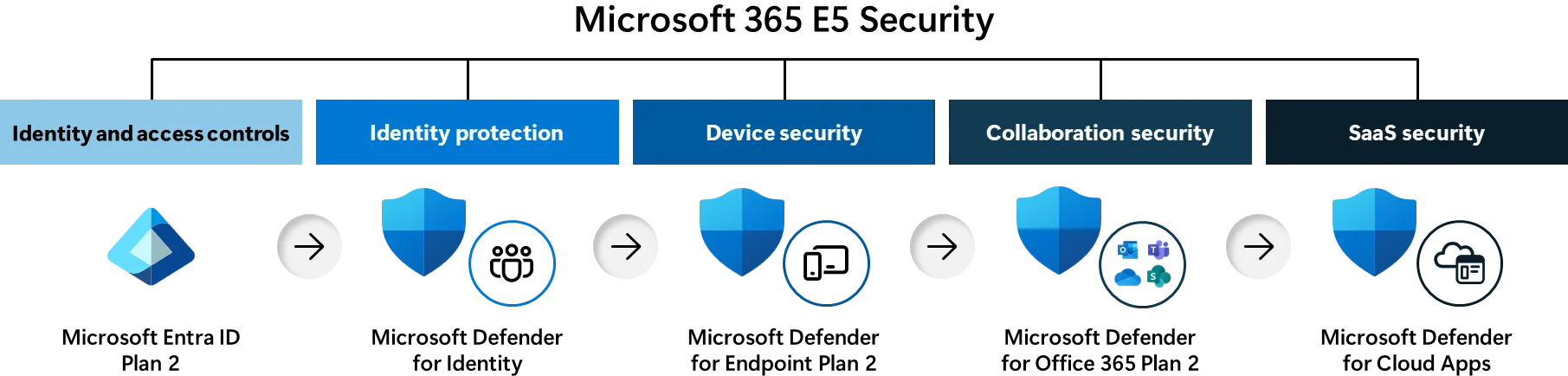
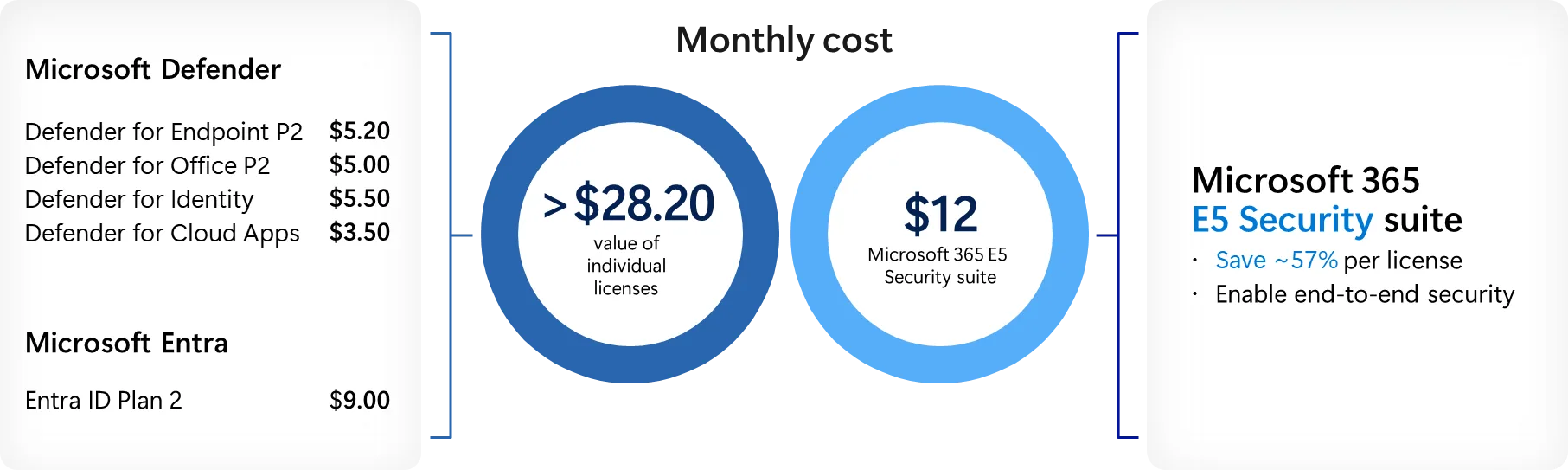
In this blog post, we guide you through implementing Microsoft Defender for Servers via Defender for Cloud. We compare it to Microsoft Defender for Endpoint, explain why it is the superior choice for server protection, provide a detailed step-by-step implementation guide, and break down the licensing options. Whether you are securing a hybrid setup or a multi-cloud environment, this post will help you strengthen your server security effortlessly.
Why Not Use Microsoft Defender for Endpoint for Servers?
Microsoft Defender for Endpoint is a powerful tool for securing individual devices such as desktops, laptops, and mobiles. However, it is not the ideal solution for server protection. Here’s why:
- Specialised Server Needs: Servers require unique features – such as agentless scanning and secrets scanning – which Defender for Endpoint does not fully support.
- Performance Optimisation: Servers demand high performance, and Defender for Servers is designed to deliver robust security without slowing down operations.
- Management Complexity: Managing multiple servers with Defender for Endpoint can be time-consuming and fragmented, whereas Defender for Cloud provides a unified platform.
- Cloud Focus: For servers in the cloud, Defender for Cloud integrates seamlessly, offering enhanced visibility and control that Defender for Endpoint lacks.
While Defender for Endpoint excels at endpoint detection and response (EDR) for user devices, it does not fully meet the comprehensive needs of server environments, especially in hybrid or multi-cloud scenarios.
Why Choose Defender for Cloud for Server Protection?
Microsoft Defender for Cloud takes a holistic approach to security, protecting not only servers but also storage, SQL databases, containers, and more. Here’s why it is the preferred choice for server security:
- Unified Visibility: Gain a single-pane view of your security posture across all resources, making it easier to spot and resolve vulnerabilities.
- Advanced Threat Protection: Benefit from AI-driven detection to tackle sophisticated threats, including Kubernetes-aware analytics for cloud workloads.
- Compliance Made Simple: Built-in compliance assessments help you meet regulatory standards effortlessly.
- DevSecOps Integration: Embed security into your development pipeline – an ideal solution for cloud-native applications.
By enabling Defender for Servers through Defender for Cloud, you ensure consistent protection across Azure, AWS, GCP, and on-premises environments – a must-have for hybrid or multi-cloud setups.
Step-by-Step Implementation Guide
Ready to secure your servers? Follow this detailed guide to implement Microsoft Defender for Servers within Defender for Cloud.
Step 1: Subscribe to Microsoft Defender for Cloud
Access Defender for Cloud via the Azure portal or contact your Microsoft account representative to get started.
Step 2: Enable the Defender for Servers Plan
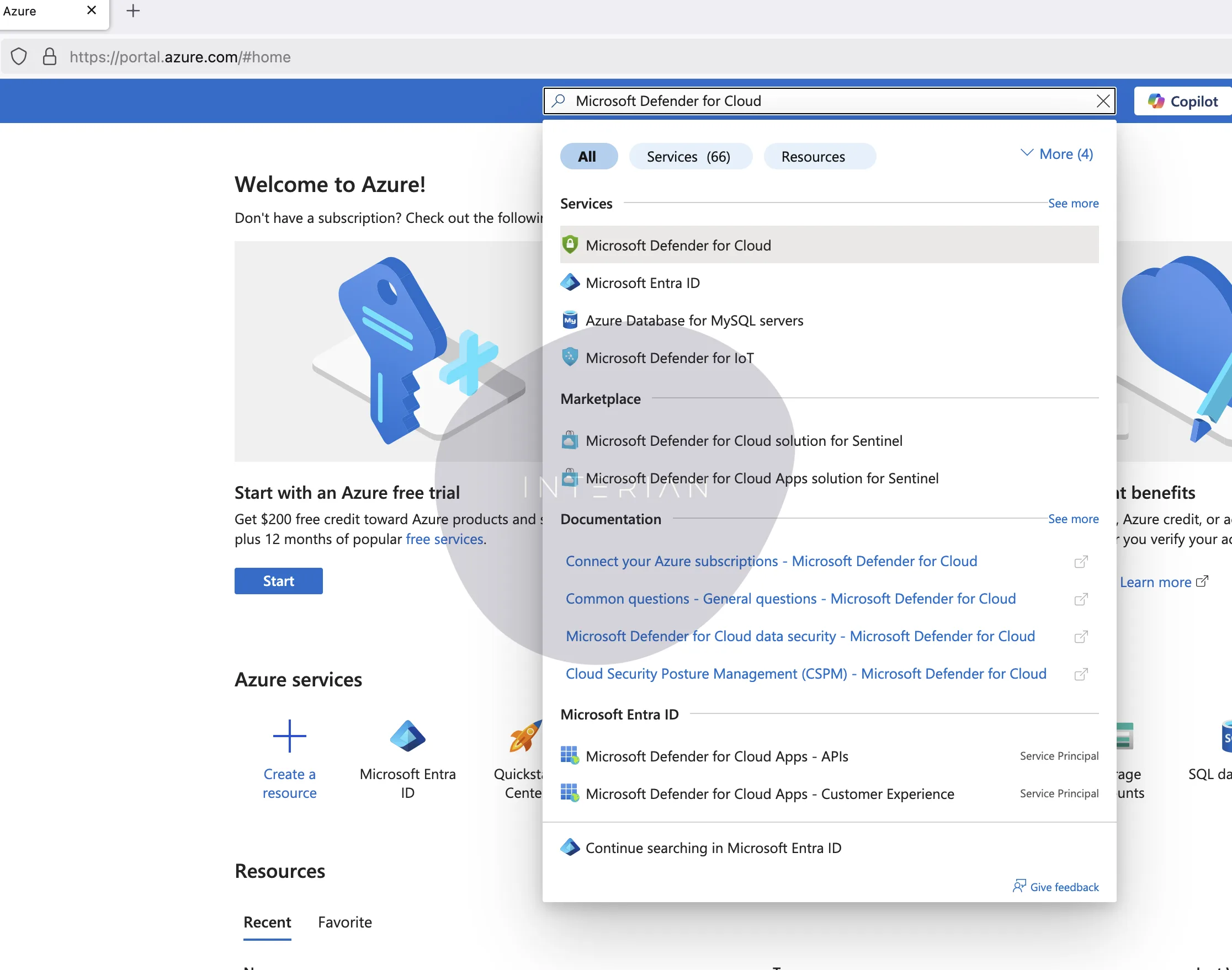
- Log in to the Azure portal.
- Search for Microsoft Defender for Cloud.
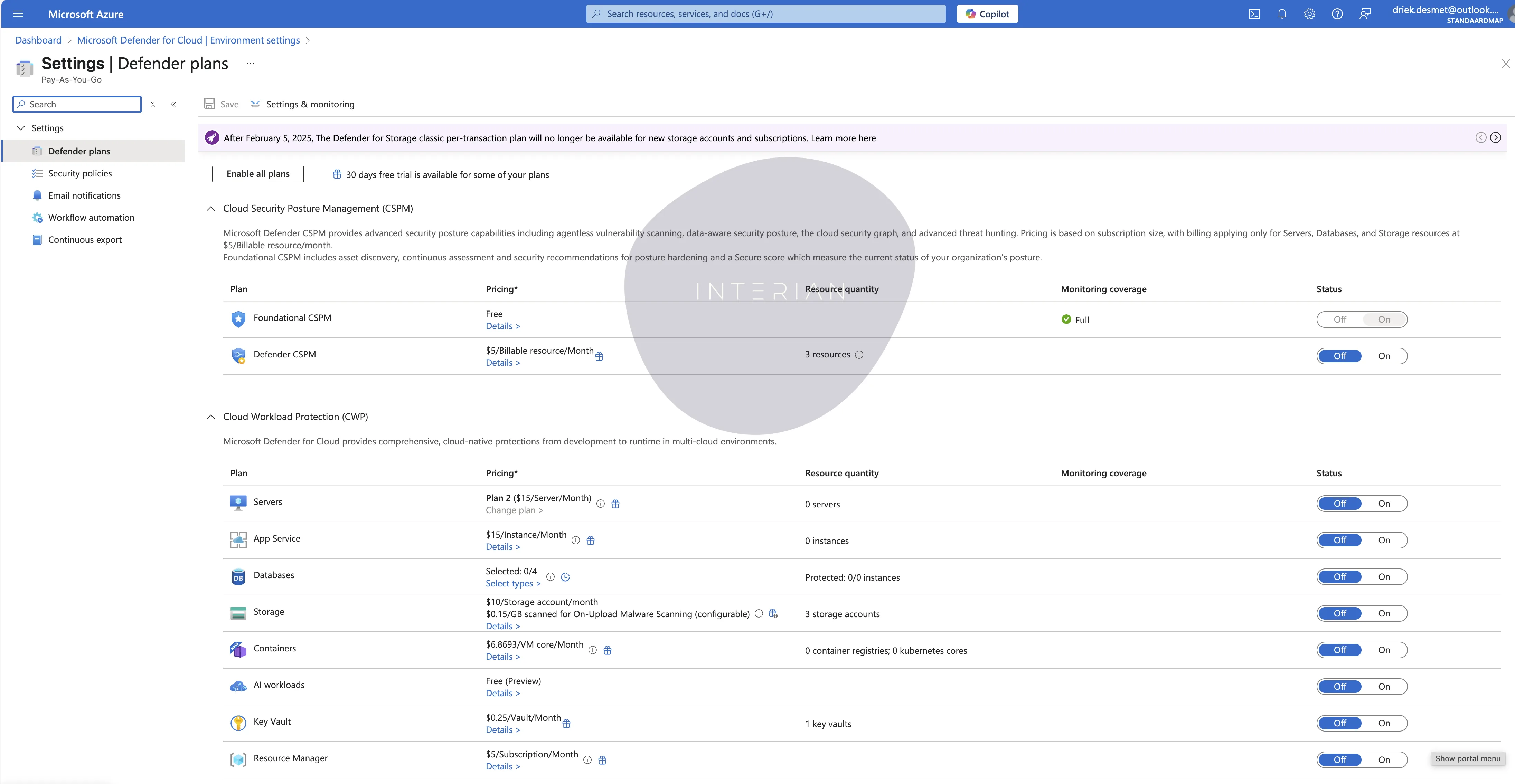
- Navigate to Environment settings and select your subscription, AWS account, or GCP project.
- On the Defender plans page, switch Servers to “On” (it defaults to Plan 2).
- To adjust, click Change plans, select either Plan 1 or Plan 2, and then click Save.
Tip: A 30-day free trial is activated when you enable Defender for Servers – make the most of it!
Step 3: Onboard Servers
- Azure VMs: These are automatically protected once the plan is enabled.
- Non-Azure Servers:
- Install the Azure Arc agent on each server (Windows or Linux).
- Ensure outbound access to Azure endpoints via port 443.
- Once installed, your servers will appear in Defender for Cloud’s Inventory section. Select them and enable Defender for Servers to activate protection.
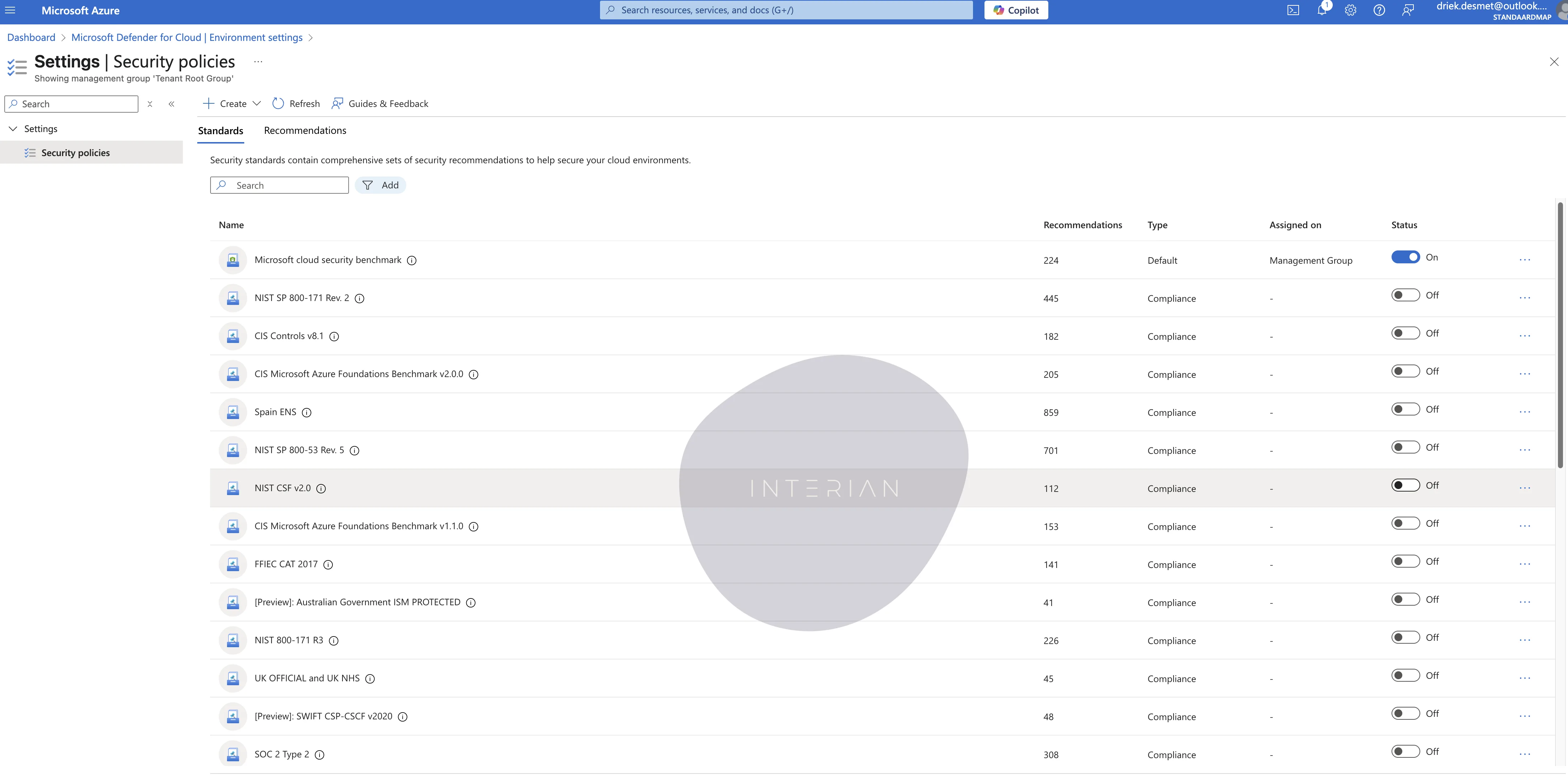
Step 4: Configure Security Policies
In Defender for Cloud, navigate to Environment settings > Security policy. Click Edit settings to customise policies, for example:
- Enabling multi-factor authentication (MFA) for all users.
- Ensuring servers receive the latest security updates.
- Microsoft cloud security benchmark
- NIST CSF v2.0
Tailor these policies to align with your organisation’s security and compliance objectives.
Step 5: Set Up Vulnerability Assessments
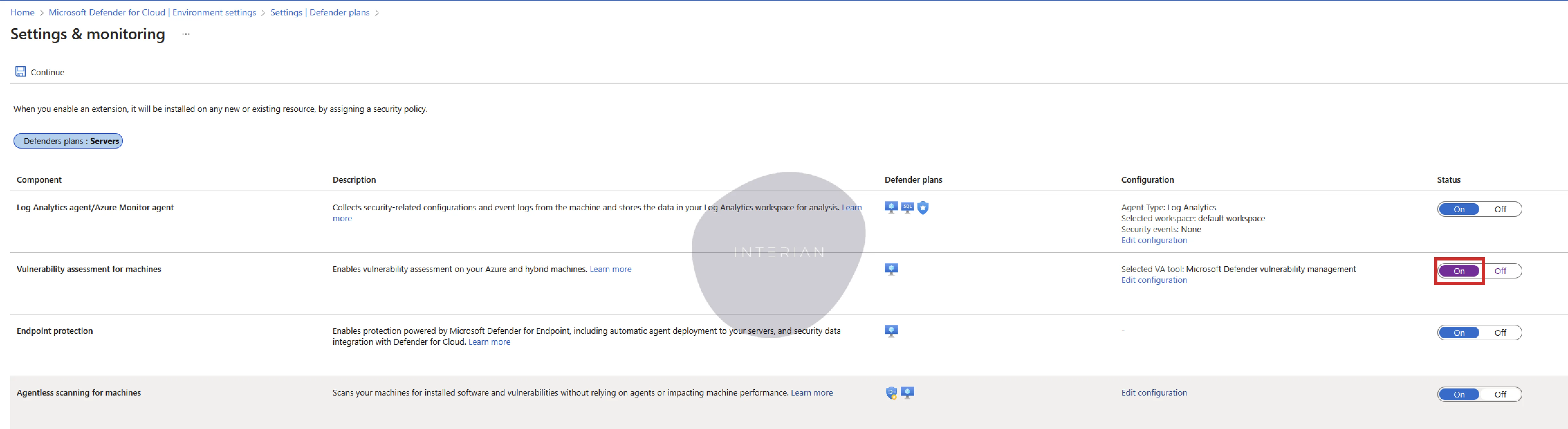
- Go to Workload protections > Vulnerability assessment.
- Select your servers (either Azure VMs or Arc-enabled servers).
- Choose a tool such as Microsoft Defender Vulnerability Management or Qualys.
- Set a scan schedule (e.g., weekly) and enable email alerts for new findings.
- Review the reports in the portal and address high-priority vulnerabilities first.
Step 6: Monitor and Respond
Regularly check Security alerts and Recommendations in Defender for Cloud. Act on critical alerts and follow remediation steps to bolster your security posture.
Best Practices and Troubleshooting Tips
Best Practices
- Onboard Fully: Ensure all servers are connected before enabling features to avoid security gaps.
- Review Policies: Update your security policies every quarter to keep pace with emerging threats.
- Automate Scans: Schedule vulnerability scans during off-peak hours and prioritise fixes based on severity.
- Enable Alerts: Set up notifications for urgent issues and integrate these with your SIEM system.
- Track Costs: Use the Defender for Cloud dashboard to monitor resource usage and optimise spending.
Troubleshooting Tips
- Azure Arc Connectivity Issues:
- Issue: Servers cannot connect to Azure.
- Fix: Confirm outbound access via port 443 and verify that the Arc agent is active.
- Agent Installation Fails:
- Issue: The Azure Arc agent will not install.
- Fix: Check the system requirements and download the latest version of the agent.
- Performance Slowdowns:
- Issue: Servers experience performance issues after enabling Defender for Servers.
- Fix: Adjust scan timing and ensure that your servers meet the recommended resource specifications.
Conclusion
Microsoft Defender for Cloud, with its Defender for Servers plan, is a game changer for securing server workloads across hybrid and multi-cloud environments. This guide has shown you how to implement it—from onboarding servers to monitoring threats—while ensuring compliance and scalability. Take the first step today: enable Defender for Cloud, secure your servers, and protect your organisation from evolving threats.
For further assistance or to discuss any tweaks, please feel free to get in touch.